
How do roles and permissions work on Voxnup?
Roles let you group channel members and give them permissions. In the channel menu choose Edit Channel → Roles, click the + (Create role) button at the top of the role list, set the role's name (up to 32 characters) and colour on the Appearance sub-tab and its permissions on the Permissions sub-tab, then click Save. A member has a permission if it is on in any of their roles. You order roles by dragging: a higher role sits above, and someone managing roles can only edit roles below their own highest role. The channel owner has every permission.
Creating a role and giving permissions
Open the Roles tab in the channel settings
Choose Edit Channel from the channel menu (⋯) and switch to Roles on the left. The list shows the channel's roles from highest to lowest; @everyone is always at the bottom and every member has it.
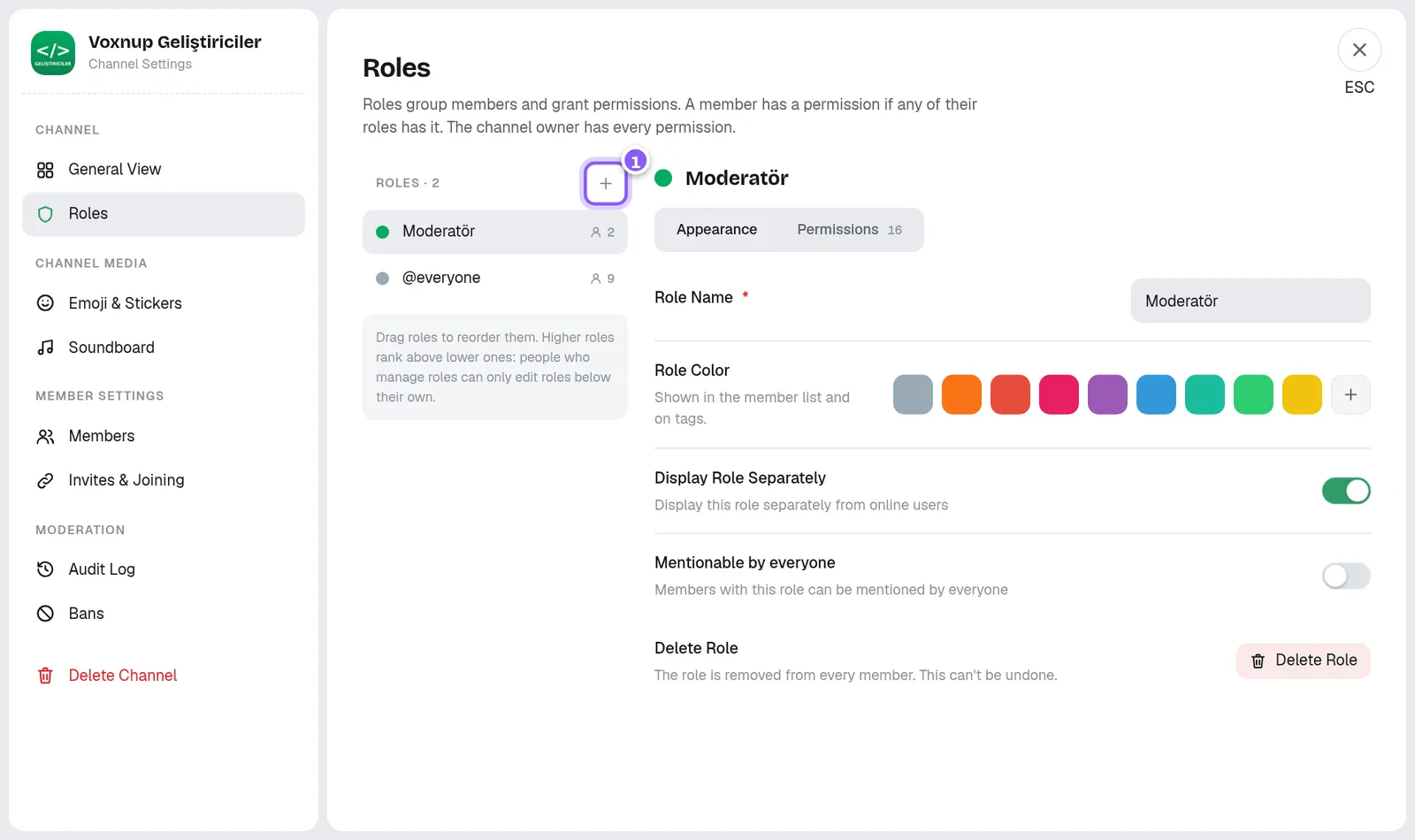
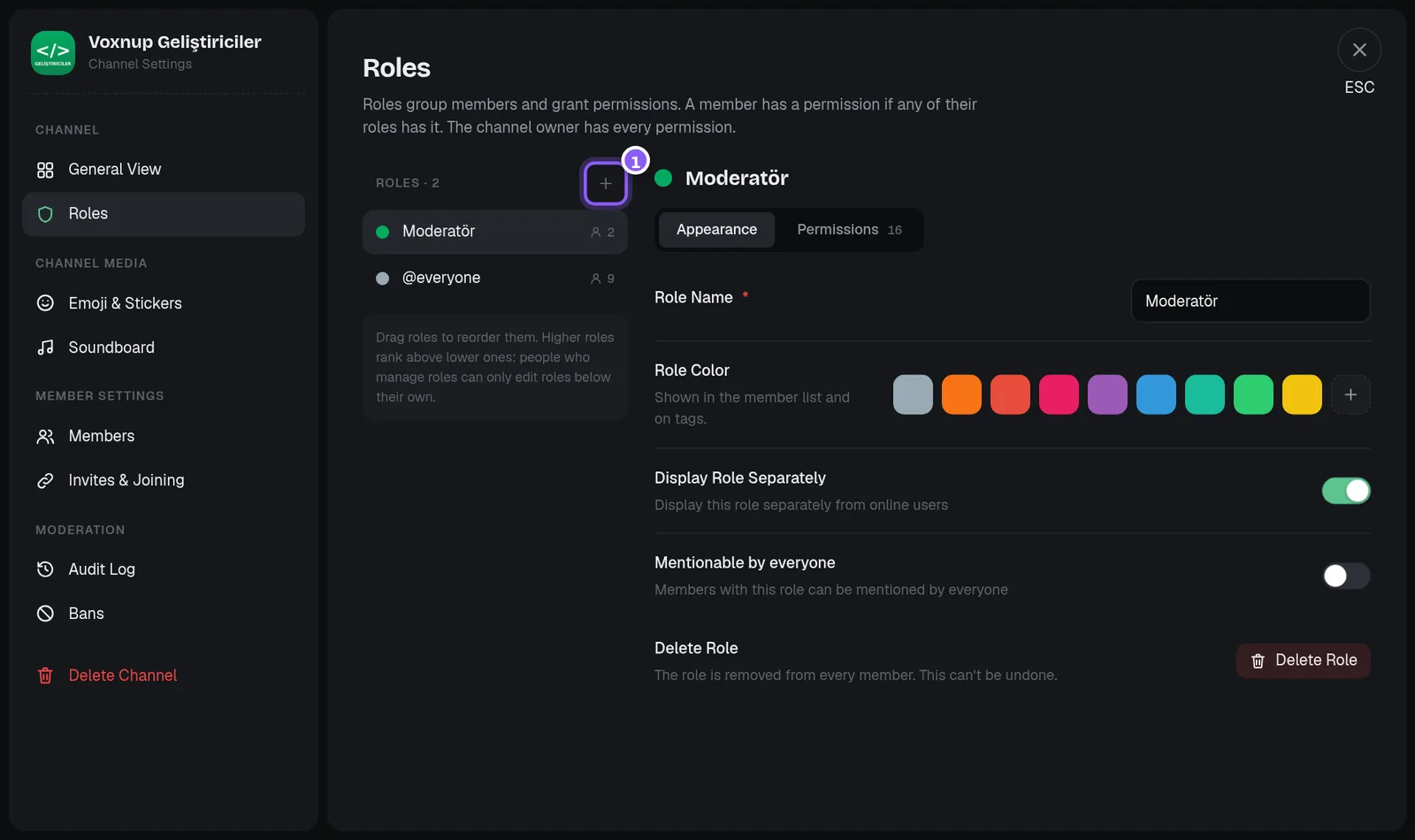
Click + (Create role) and name the role
The new role is added just above @everyone, with no permissions. On the Appearance sub-tab:
- Role Name: up to 32 characters.
- Role Color: 9 preset colours or a Custom color. Shown in the member list and in mentions.
- Display Role Separately: online members with this role appear under their own heading in the member list.
- Mentionable by everyone: when on, anyone can type
@RoleNameto mention everyone with the role.
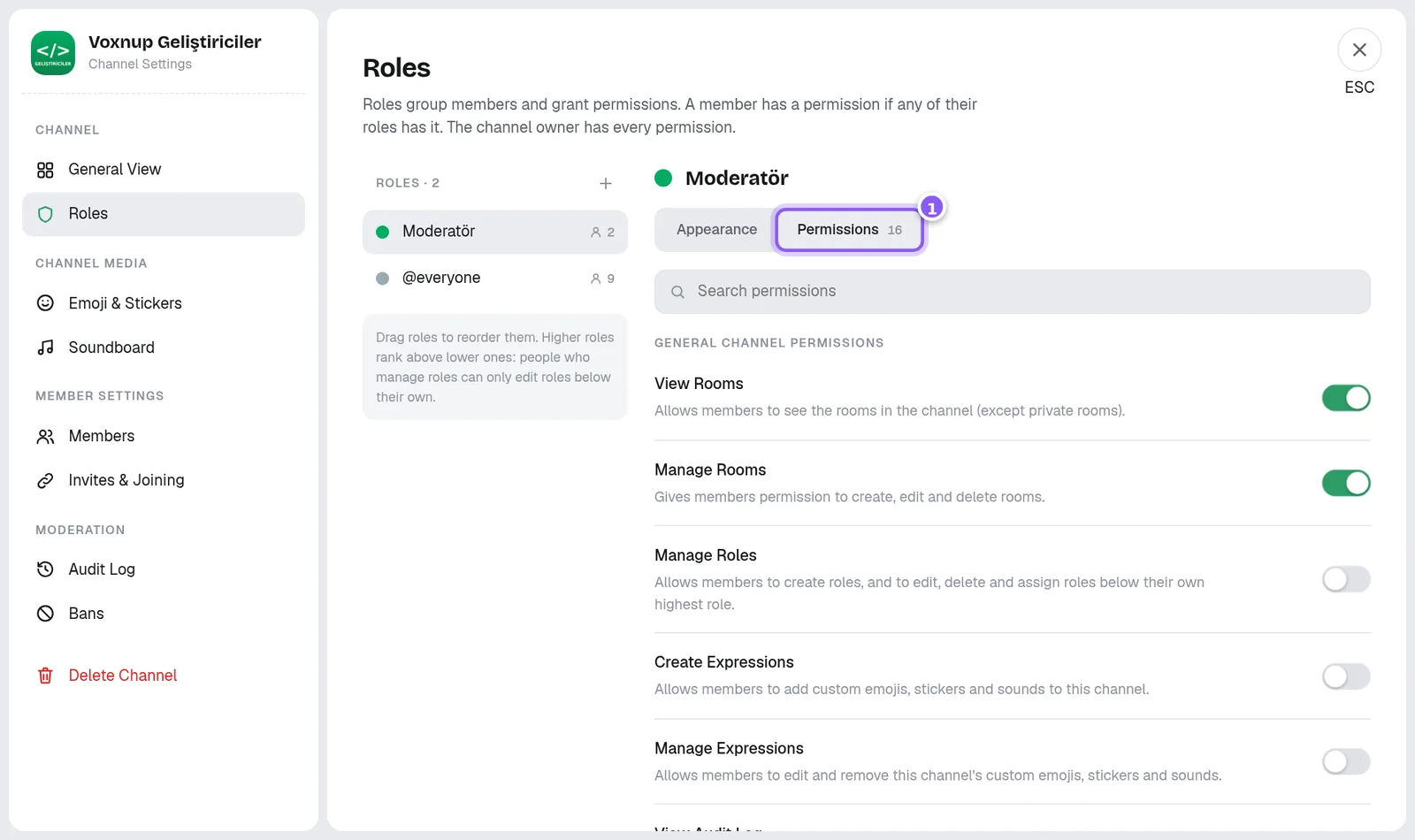
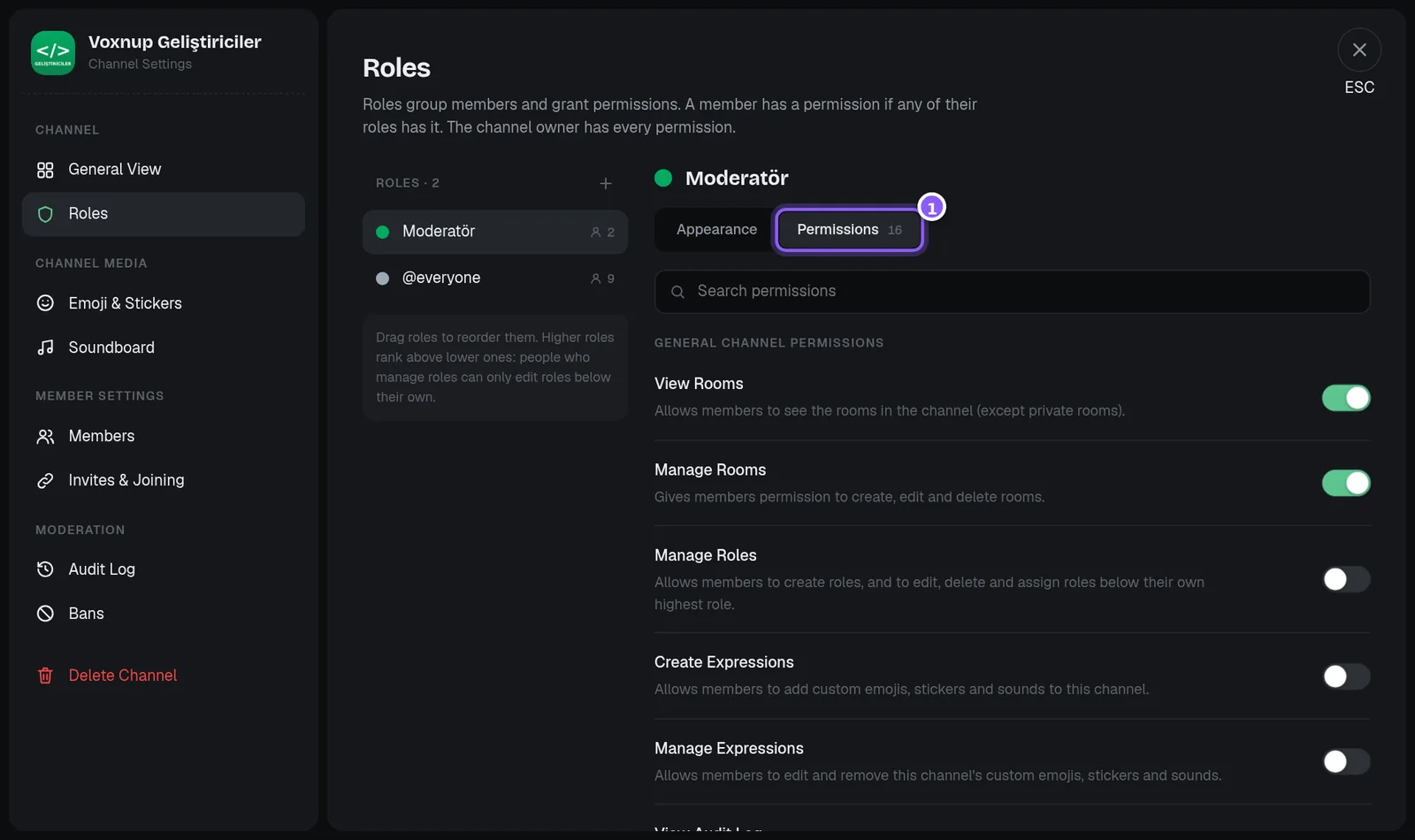
Turn on permissions on the Permissions sub-tab
Permissions are listed in groups; use the Search permissions box to search. Turn on the switches of the permissions you want. You can't give a role a permission you don't have yourself.
Click Save and give the role to members
Role changes are applied with Save at the bottom. To give the role to a member, click + in the member's row on the Members tab, or right-click the member and tick the role in the Roles submenu. To take a role away, click the ✕ on its badge.
Why does role order matter?
Drag roles in the list to order them. A role higher up ranks higher. Someone who manages roles:
- can only edit, delete and give roles below their own highest role;
- can't moderate members who rank the same or higher (kick, ban, timeout, change nickname).
When you open a role you can't edit, it says "This role is equal to or higher than your highest role; you can't edit it."
All channel permissions
| Group | Permission | What it does |
|---|---|---|
| General Channel | View Rooms | See the rooms in the channel (except private rooms). |
| General Channel | Manage Rooms | Create, edit, delete and reorder rooms and categories. |
| General Channel | Manage Roles | Create, edit, delete and give roles below your own highest role; set up reaction roles. |
| General Channel | Create Expressions | Add channel emoji, stickers and soundboard sounds. |
| General Channel | Manage Expressions | Edit and delete the channel's emoji, stickers and sounds. |
| General Channel | View Audit Log | See the Audit Log in the channel settings. |
| General Channel | View Channel Information | View the channel information. |
| General Channel | Manage Channel | Change the channel name, description, banner, picture and joining settings. |
| Membership | Create Invite | Create invite links for the channel. |
| Membership | Kick, Approve and Reject Members | Kick members from the channel. A kicked member can come back with an invite. |
| Membership | Ban Members | Ban members from the channel. A banned member can't come back even with an invite. |
| Membership | Timeout Members | Stop a member from sending messages and joining voice rooms for a set time. |
| Membership | Change Nickname | Set your own nickname for this channel. |
| Membership | Manage Nicknames | Change other members' channel nicknames. |
| Text | Send Messages | Send messages in text rooms. |
| Text | Use @everyone | Mention everyone in the channel with @everyone. |
| Text | Mention Users | Mention people with @username. |
| Text | Embed Links | Shared links show a preview card. |
| Text | Attach Files | Upload files and images to text rooms. |
| Text | Add Reactions | React to messages with a new emoji. When off, you can only join existing reactions. |
| Text | Manage Messages | Delete other people's messages and pin any message. |
| Text | Read Message History | Read messages sent to the room earlier. When off, only new messages that arrive while you are in the room are visible. |
| Text | Send Voice Messages | Send recorded voice messages. |
| Text | Send Text-to-Speech Messages | Start a message with /tts to have it read aloud to the room. |
| Voice Rooms | Connect | Join and listen in voice rooms. |
| Voice Rooms | Speak | Talk in voice rooms. When off, the member can listen but their audio is not sent. |
| Voice Rooms | Video | Turn on the camera and share the screen in voice rooms. |
| Voice Rooms | Use Sound Panel | Play sounds from the soundboard in voice rooms. |
| Voice Rooms | Mute Members | Mute other members in voice rooms. |
| Voice Rooms | Deafen Members | Deafen other members in voice rooms. |
| Voice Rooms | Move Members | Move members to another voice room; pick speakers in stage rooms; go over the user limit. |
| Voice Rooms | Priority Speaker | Other voices in the room are lowered while you speak. |
| Voice Rooms | Set Voice Room Status | Write a short status for the voice room you are in, shown in the room list. |
| Apps | Use Application Commands | See and use bot commands by typing / in the message box. See Slash commands. |
| Advanced | Administrator | Every permission. Deleting the channel is reserved for the channel owner. |
If you want different permissions in one room (for example, only moderators can post in the announcements room), change that room's permissions instead of the role's channel-wide permission: Room settings and room-specific permissions.
Frequently asked questions
How do I make someone a moderator?
Channels created with the Gaming and Community templates come with a ready-made moderator role (named Moderatör) that can manage rooms, manage messages, kick members and manage nicknames. With the blank template, create a role and turn on its permissions first. Then right-click the member and tick the role in the Roles submenu.
Can I delete the @everyone role?
No. @everyone is the fixed role every member has; it can't be renamed or removed from a member, but you can change its permissions.
If a member has two roles, which one wins?
Permissions add up: a permission that is on in any of their roles applies. In room-specific settings, one role's Allow wins over another role's Deny, and a member-specific setting wins over both.
Can I transfer channel ownership to someone else?
Channel ownership can't be transferred to another member. To give someone broad control, give them a role with the Administrator permission.