
How do I kick, ban, time out or mute someone in a channel?
Right-click a member in the channel member list or in a voice room. If you have the permissions, the menu shows a Moderation section: Roles, Change Nickname, Mute in Channel, Deafen in Channel, Move to Another Room, Kick from Room, Time Out (5 minutes, 10 minutes, 1 hour, 24 hours, 1 week), Kick from Channel and Ban from Channel. You can't use these on yourself, the channel owner or someone whose role is equal to or higher than yours.
Moderating a member
Right-click the member
Right-click the person's name in the channel member list on the right, in a voice room or in the chat. The Moderation section of the menu only shows the actions you have permission for.
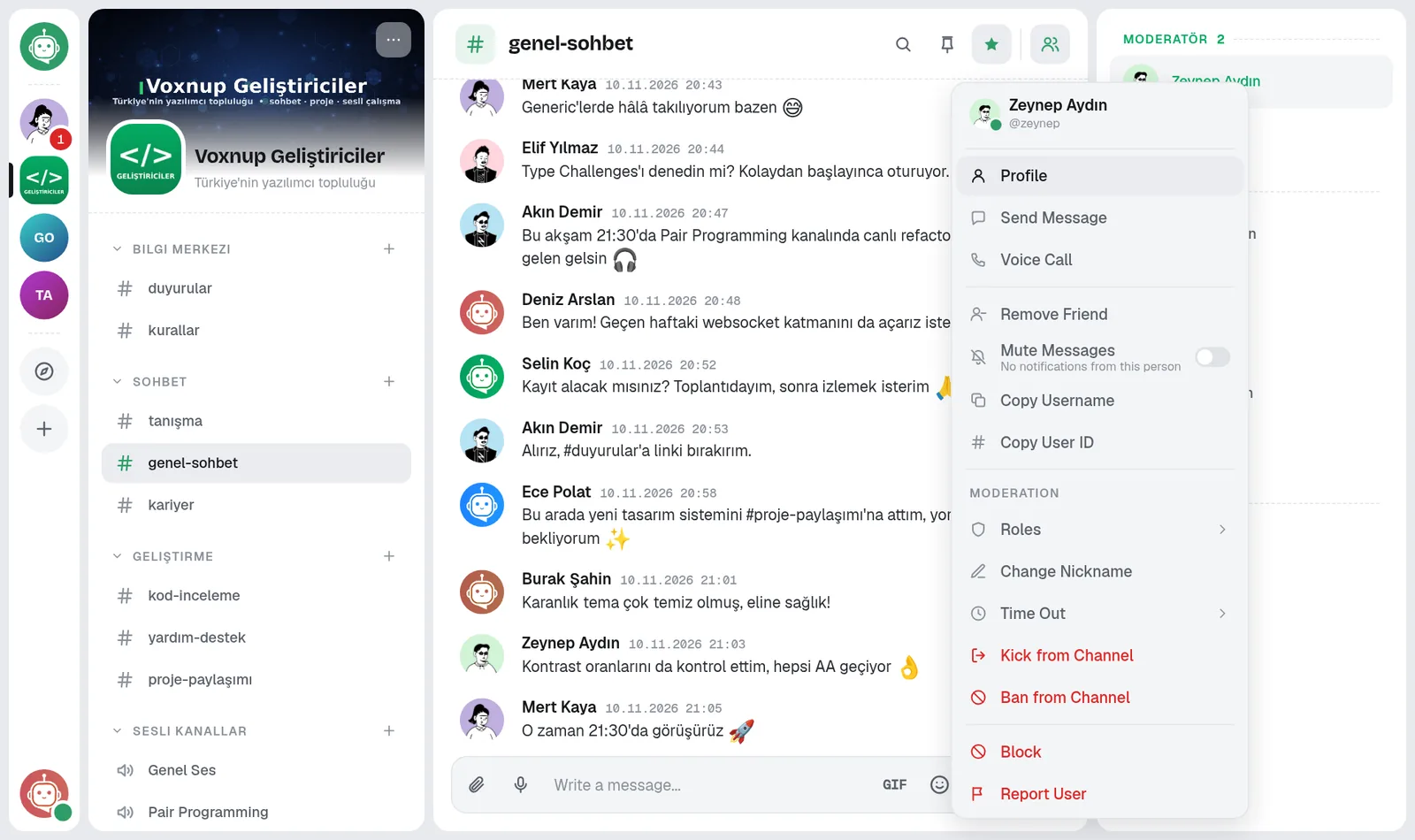
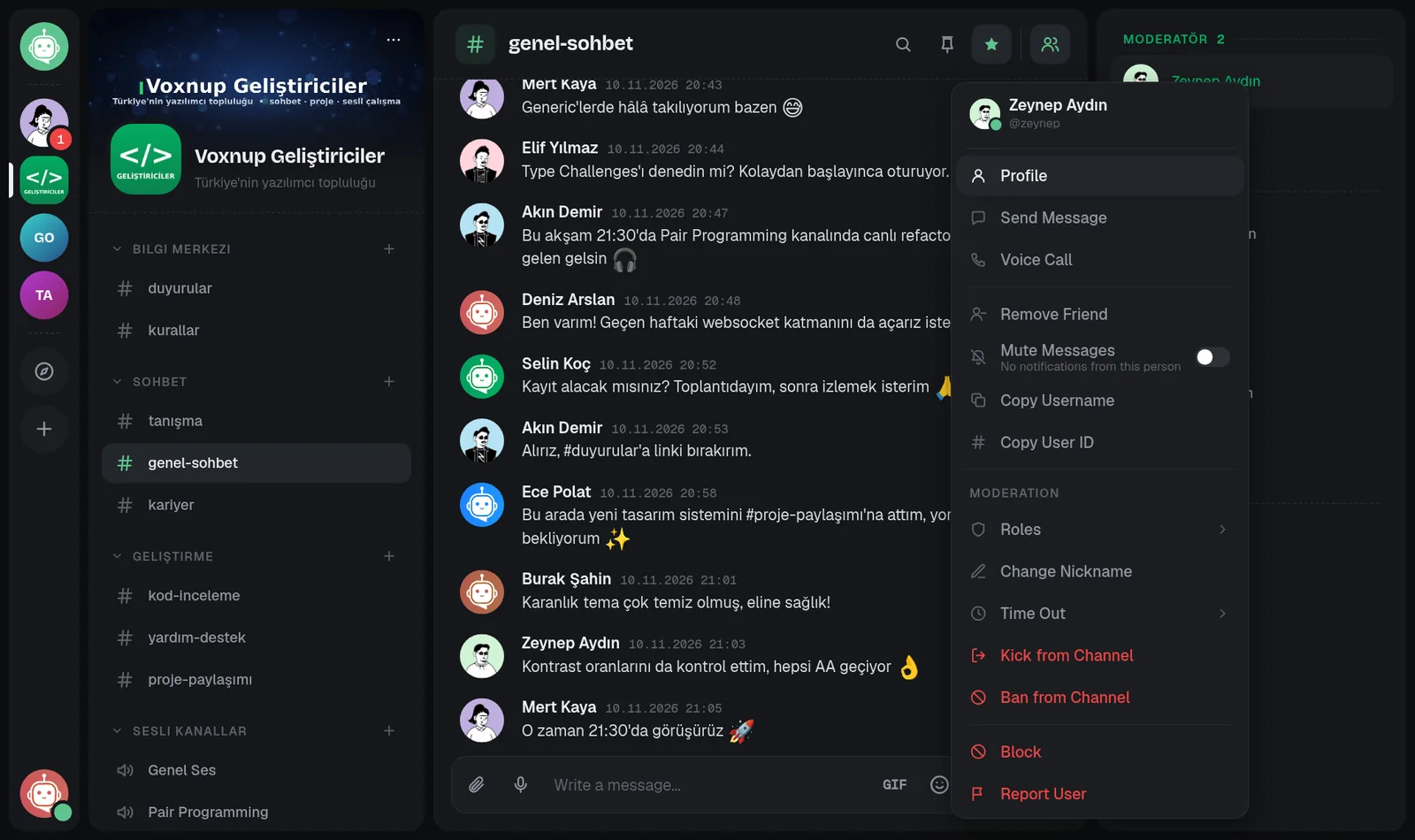
Choose the action and confirm
Kicking and banning open a confirmation window. When banning, you can optionally enter a Reason for the ban (up to 255 characters); it is shown to the banned person when they try to join.
Moderation actions
| Action | What it does | Required permission |
|---|---|---|
| Kick from Channel | Removes the member from the channel. They can rejoin if invited again. | Kick, Approve and Reject Members |
| Ban from Channel | Removes the member and stops them from coming back; they can't join even with an invite link. | Ban Members |
| Time Out | For the chosen time (5 minutes, 10 minutes, 1 hour, 24 hours, 1 week) the member can't send messages or join voice rooms. They see "You are temporarily muted in this channel. Time left: …". | Timeout Members |
| Remove Timeout | Ends the timeout before it runs out. | Timeout Members |
| Mute in Channel | Mutes the member for everyone in this room. They can't unmute themselves and see a red, locked microphone icon. | Mute Members |
| Deafen in Channel | The member can't hear the room and can't speak. | Deafen Members |
| Move to Another Room | Moves the member from their voice room to another voice room. You can also drag the member onto another room. | Move Members |
| Kick from Room | Removes the member from the voice room they are in; they stay in the channel. | Move Members |
| Change Nickname | Changes the member's display name in this channel. | Manage Nicknames |
| Roles | Gives or removes roles. | Manage Roles |
Mute in Channel, Deafen in Channel and Kick from Room only appear in the menu when you and the member are in the same voice room. For Move to Another Room, right-click the member shown under the voice room in the room list.
Managing members from the channel settings
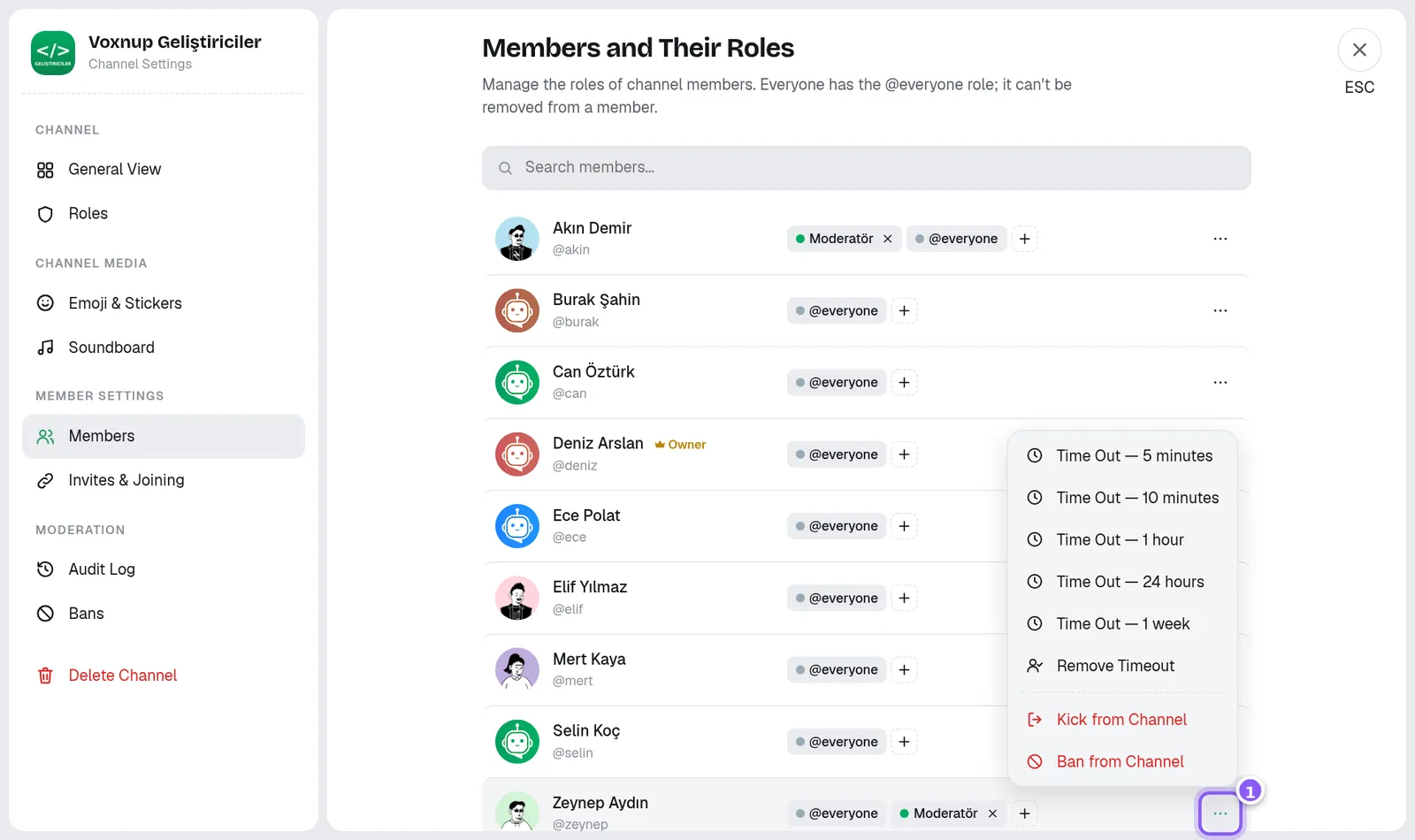
On the Edit Channel → Members tab you can search all members and edit their roles. The ⋯ button on a row opens the same timeout options, plus Kick from Channel and Ban from Channel.
Lifting a ban
The Edit Channel → Bans tab lists banned users with the ban reason and date. Click Revoke Ban and the person can join again with an invite.
Frequently asked questions
Why can't I see the moderation options?
Each action needs its own permission (see the table above). An action also can't be used if the target is the channel owner or their role is equal to or higher than yours: "You can't do this to yourself, the channel owner, or someone with a role equal to or higher than yours."
What is the difference between kicking and banning?
A kicked member can come back with a new invite. A banned member can't join with any invite until the ban is lifted.
What can a timed-out member do?
They can read the channel's messages but can't send messages or join voice rooms until the time runs out.
Where can I see the moderation actions that were taken?
If you have the View Audit Log permission, the Audit Log tab in the channel settings lists who did what, newest first.