
How do I add custom emoji, stickers and soundboard sounds to a channel?
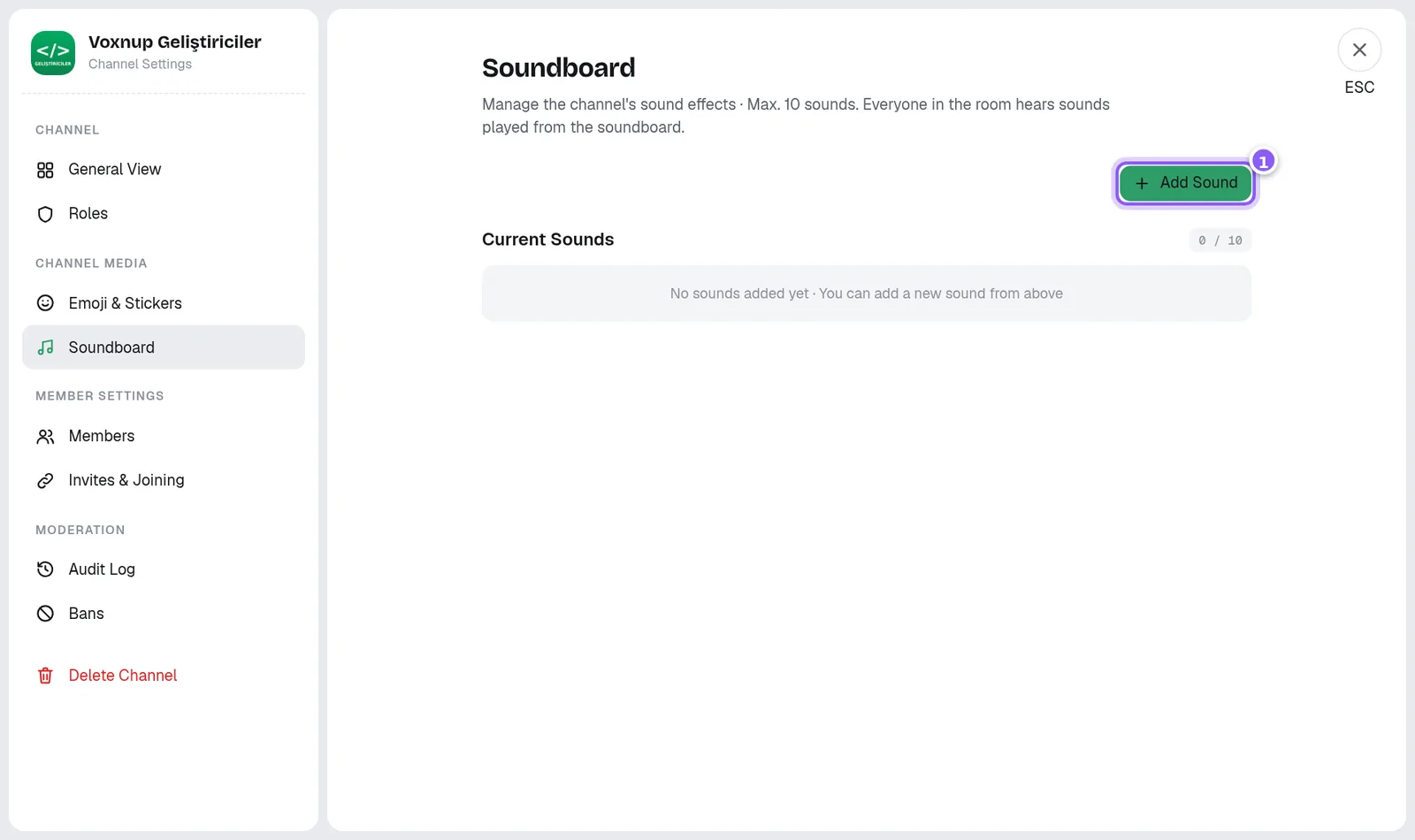
On Edit Channel → Emoji & Stickers you can add emoji and stickers for your channel, and on the Soundboard tab you can add sounds to play in voice rooms. An emoji can be up to 256 KB and a sticker up to 512 KB (PNG, JPG, WEBP, GIF, APNG); you can add up to 50 of each. A sound must be MP3, WAV or OGG, up to 3 MB and 5 seconds; a channel holds up to 10 sounds. You need the Create Expressions permission to add and Manage Expressions to delete.
Adding an emoji or sticker
Open the Emoji & Stickers tab
Choose Edit Channel from the channel menu and switch to Emoji & Stickers on the left. Pick Emoji or Stickers from the tabs at the top.
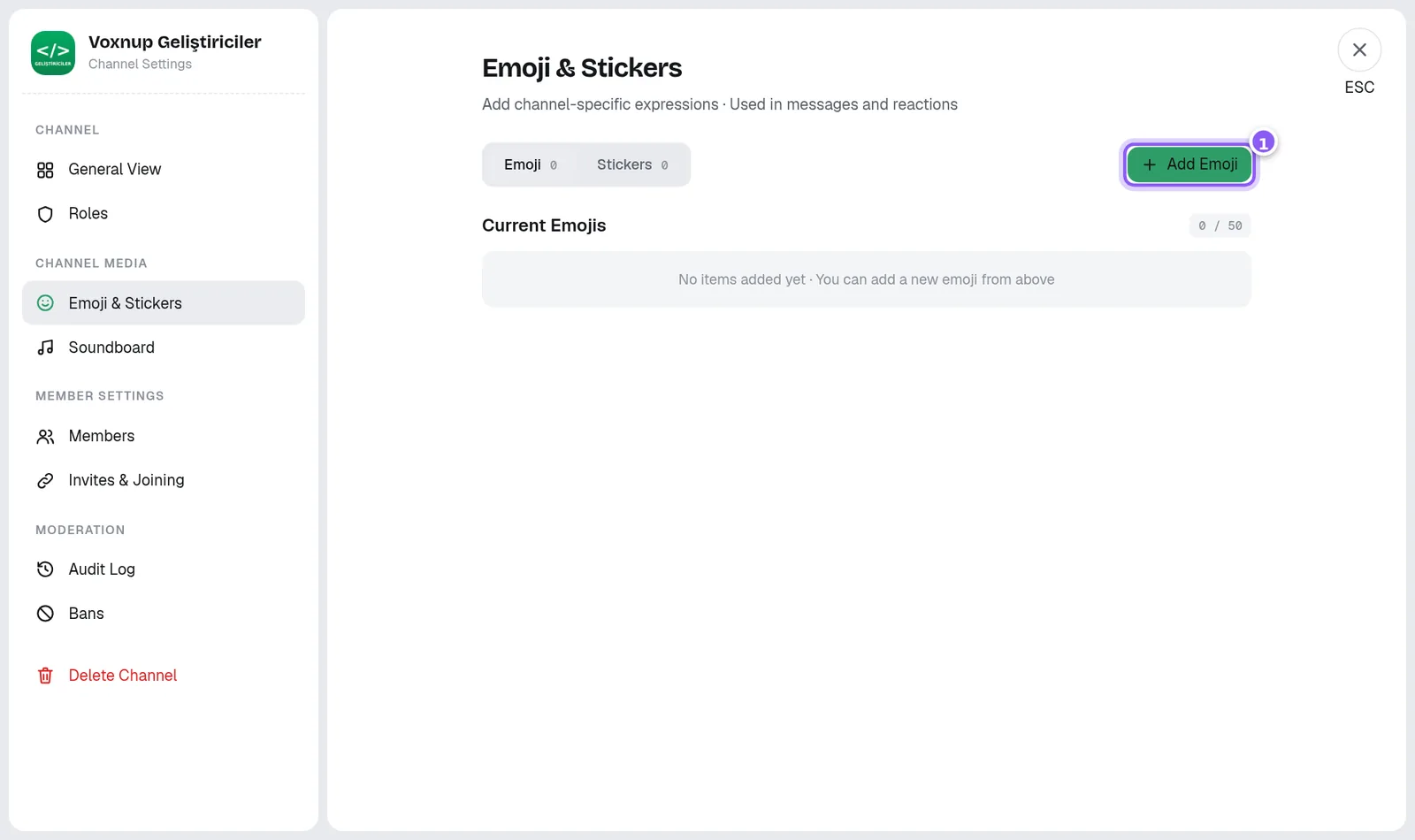
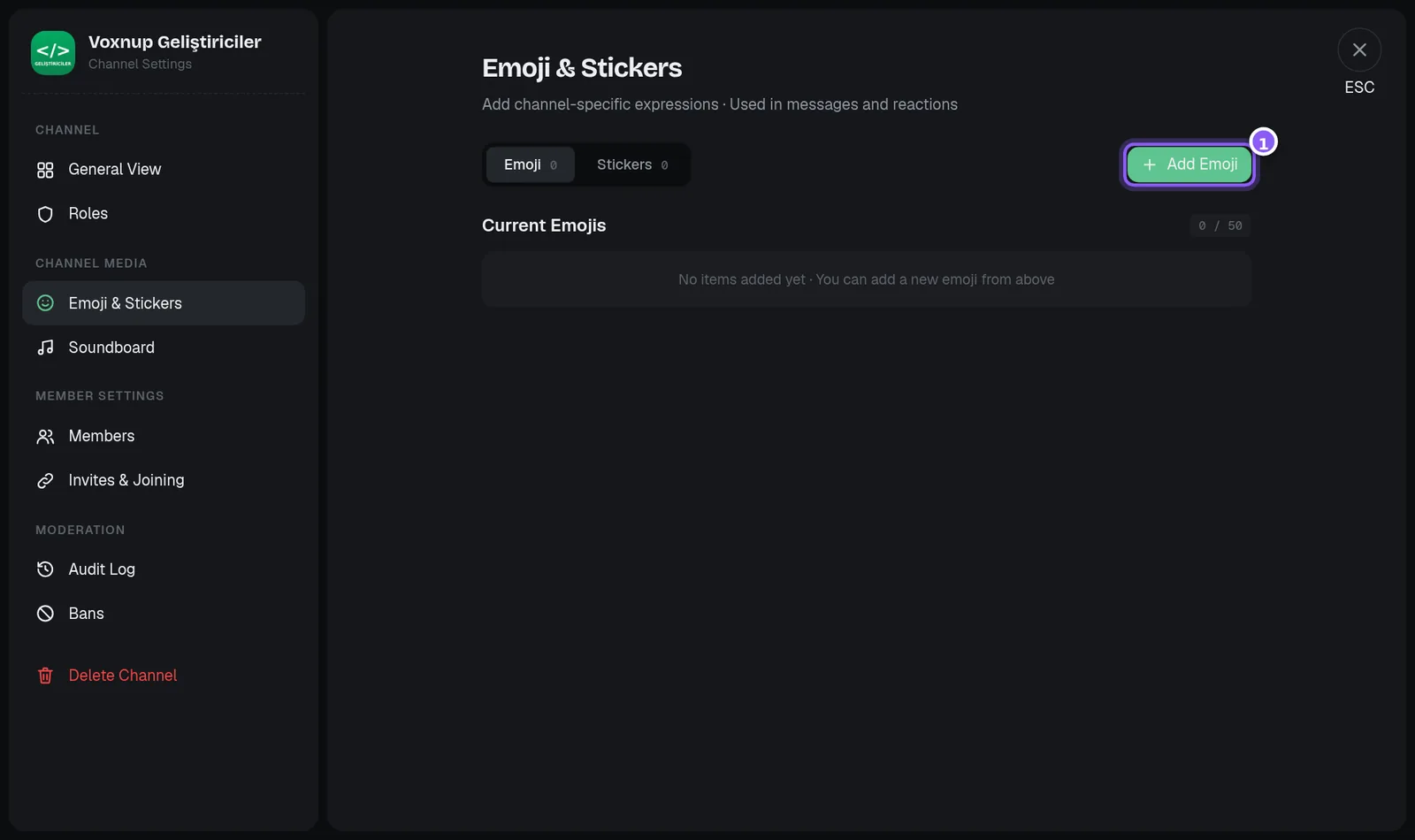
Pick the image and give it a name
- Emoji names use lowercase letters, digits and underscores and are 2–32 characters long (e.g.
happy_cat). Type:happy_cat:in a message to use it. - Sticker names are 1–50 characters.
- File types: PNG, JPG, WEBP, GIF or APNG. Animated GIF and APNG are supported.
- Emoji names use lowercase letters, digits and underscores and are 2–32 characters long (e.g.
Click Upload
The emoji or sticker appears in the expression picker of everyone in the channel. Using it in other channels depends on the Use External Emojis or Use External Stickers permission in that room.
Adding a soundboard sound
- Open Edit Channel → the Soundboard tab and click Add Sound.
- Pick an MP3, WAV or OGG file (up to 3 MB). If the sound is longer than 5 seconds, the Trim Sound tool opens; drag the handles to select a part of up to 5 seconds.
- Type a Sound Name (1–50 characters), optionally pick an emoji, and upload.
Sounds are played from the Soundboard button in a voice room and everyone in the room hears them. Using the soundboard requires the Use Sound Panel permission in the room.
Limits
| Type | File | Max size | Per channel |
|---|---|---|---|
| Emoji | PNG, JPG, WEBP, GIF, APNG | 256 KB | 50 |
| Sticker | PNG, JPG, WEBP, GIF, APNG | 512 KB | 50 |
| Soundboard sound | MP3, WAV, OGG (up to 5 seconds) | 3 MB | 10 |
Frequently asked questions
Can I upload my own sound for personal use?
Soundboard sounds belong to a channel; there are no personal sound uploads. You can play a channel's sounds and Voxnup's built-in sounds in that channel's voice rooms.
Why isn't my emoji name accepted?
Emoji names can only contain lowercase letters (a–z), digits and underscores, and must be 2–32 characters long. Spaces, capital letters and accented characters are not allowed.
I can't see the add button.
Adding requires the Create Expressions permission in the channel. Deleting existing ones requires Manage Expressions.