
How do I change channel settings?
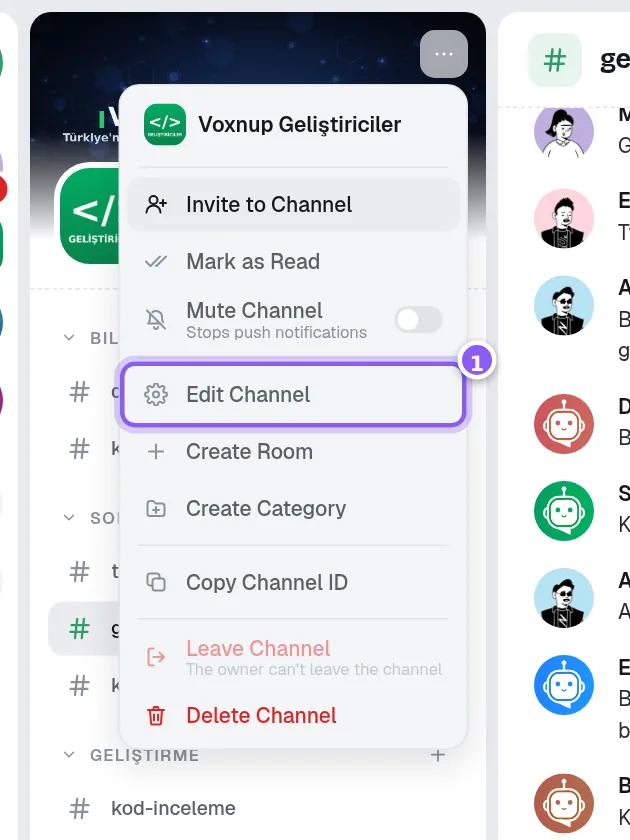
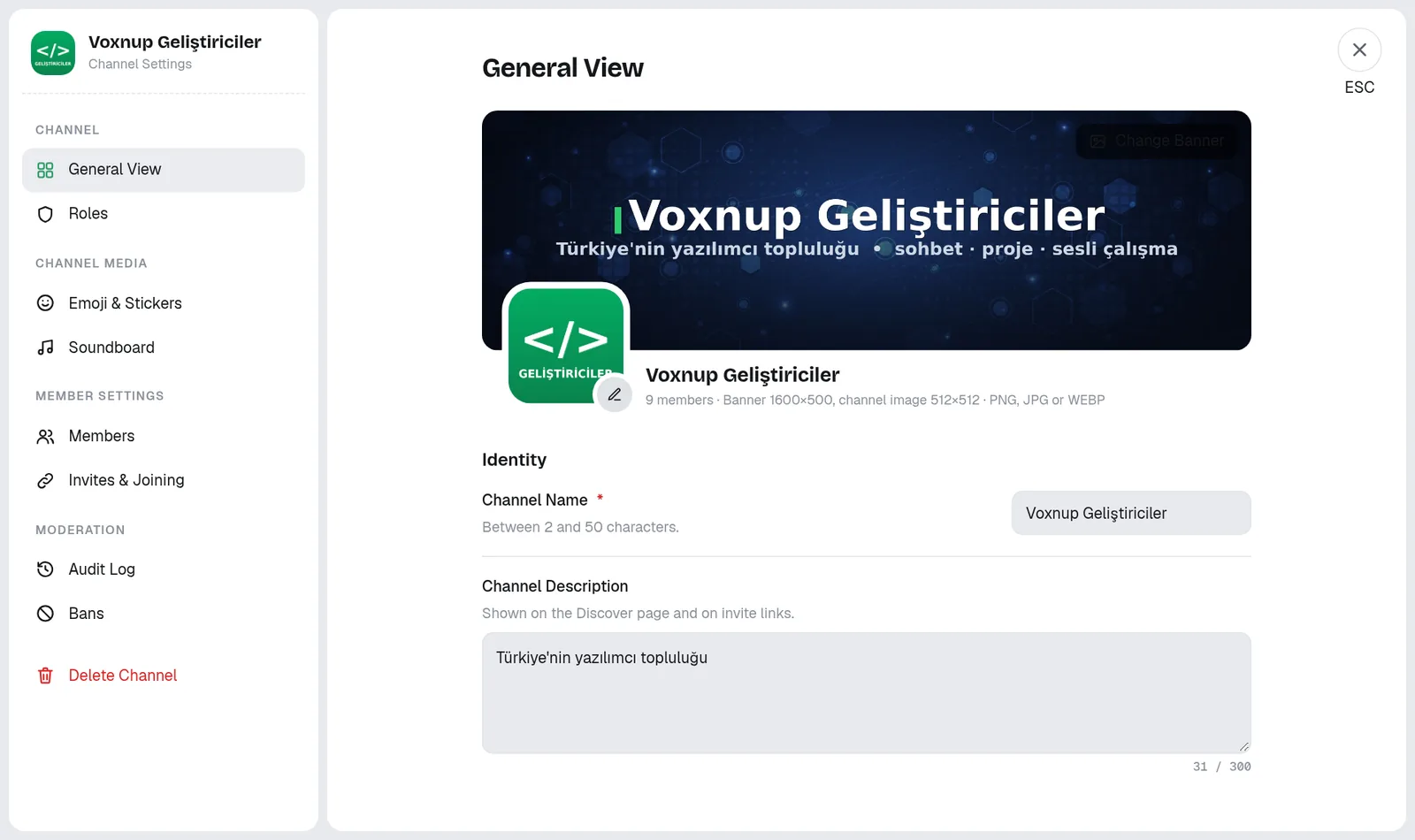
Choose Edit Channel from the ⋯ menu next to the channel name. On General View you change the channel name (2–50 characters), description (up to 300 characters), banner (1600×500) and channel picture (512×512), then click Save. The other tabs are Roles, Emoji & Stickers, Soundboard, Members, Invites & Joining, Audit Log and Bans. You need the Manage Channel permission to change the channel details.
Changing the channel details
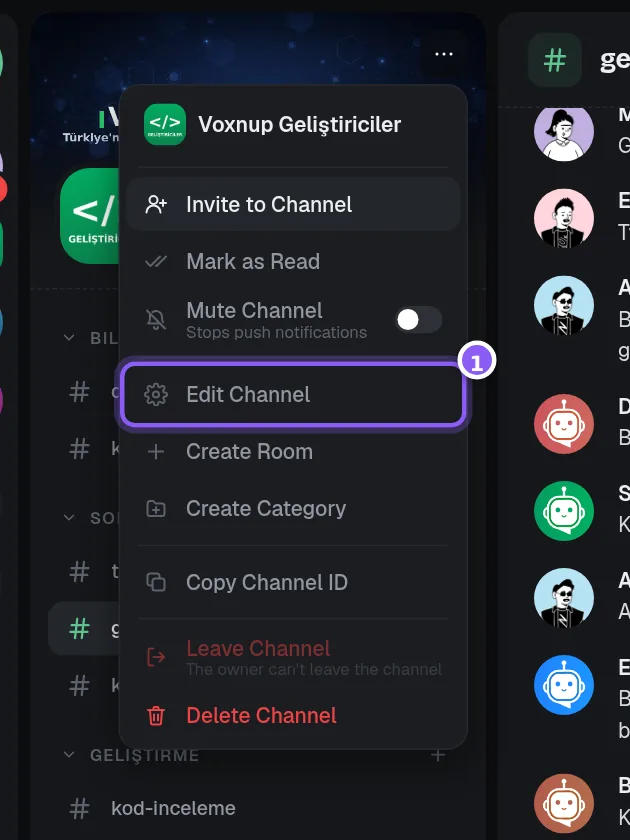
Choose Edit Channel from the channel menu
This option appears if you have the Manage Channel or Manage Roles permission.
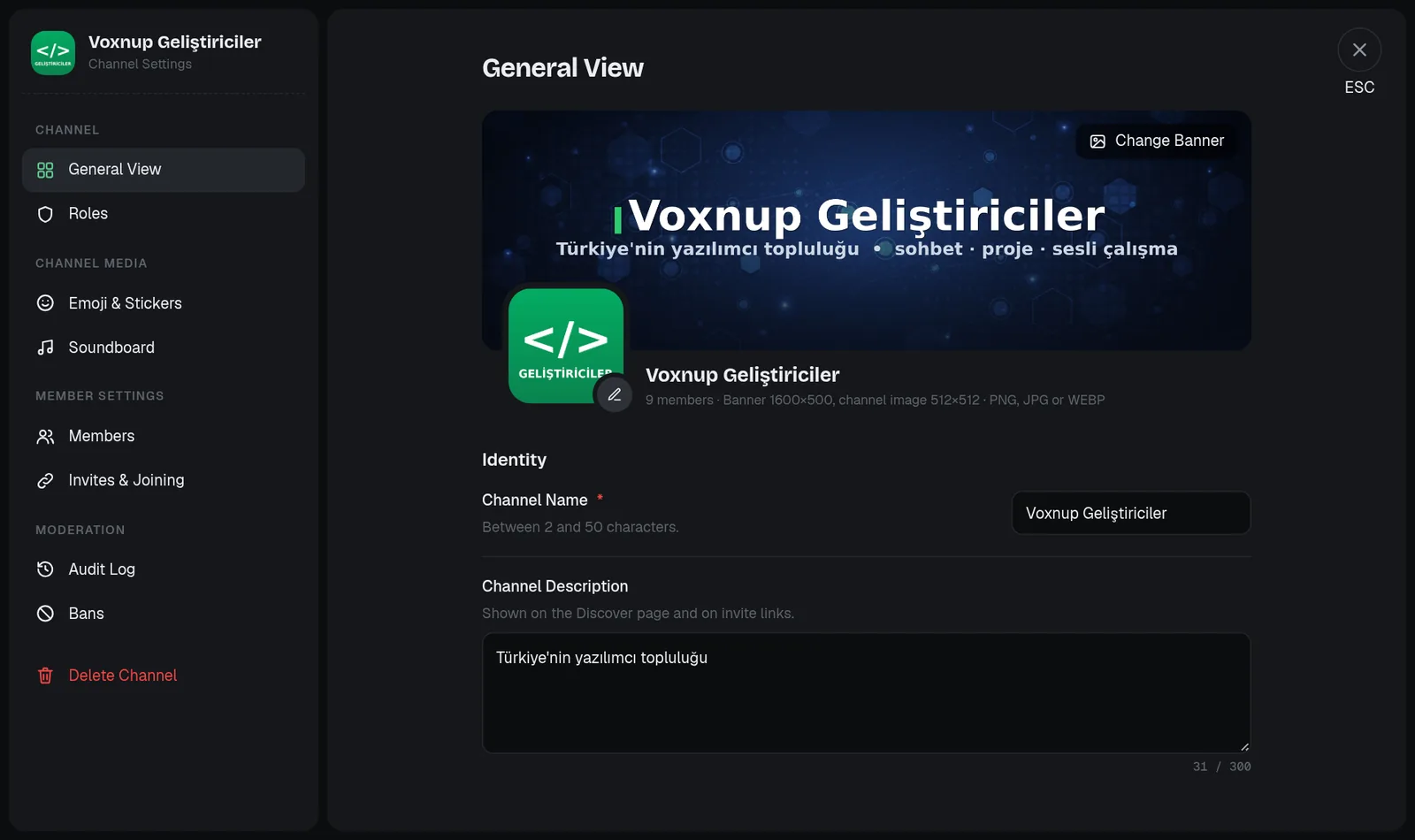
Edit the details on General View
- Change Banner and the channel picture: banner 1600×500, channel picture 512×512; PNG, JPG or WEBP. You adjust the image with the crop tool.
- Channel Name: 2 to 50 characters.
- Channel Description: up to 300 characters. Shown on the Discover page and on invite links.
Click Save
When you change something, a bar saying "You have unsaved changes." appears at the bottom. Save applies the changes, Reset undoes them. If you try to close without saving you get a warning; closing a second time discards the changes.
Channel settings tabs
| Tab | What you do there |
|---|---|
| General View | Channel name, description, banner and picture. |
| Roles | Create and order roles, set colours and permissions. See Roles and permissions. |
| Emoji & Stickers | Upload channel emoji and stickers. See Channel emoji and soundboard. |
| Soundboard | Add sounds to the channel's soundboard (up to 10 sounds). |
| Members | Search members, give and remove roles, time out, kick, ban. |
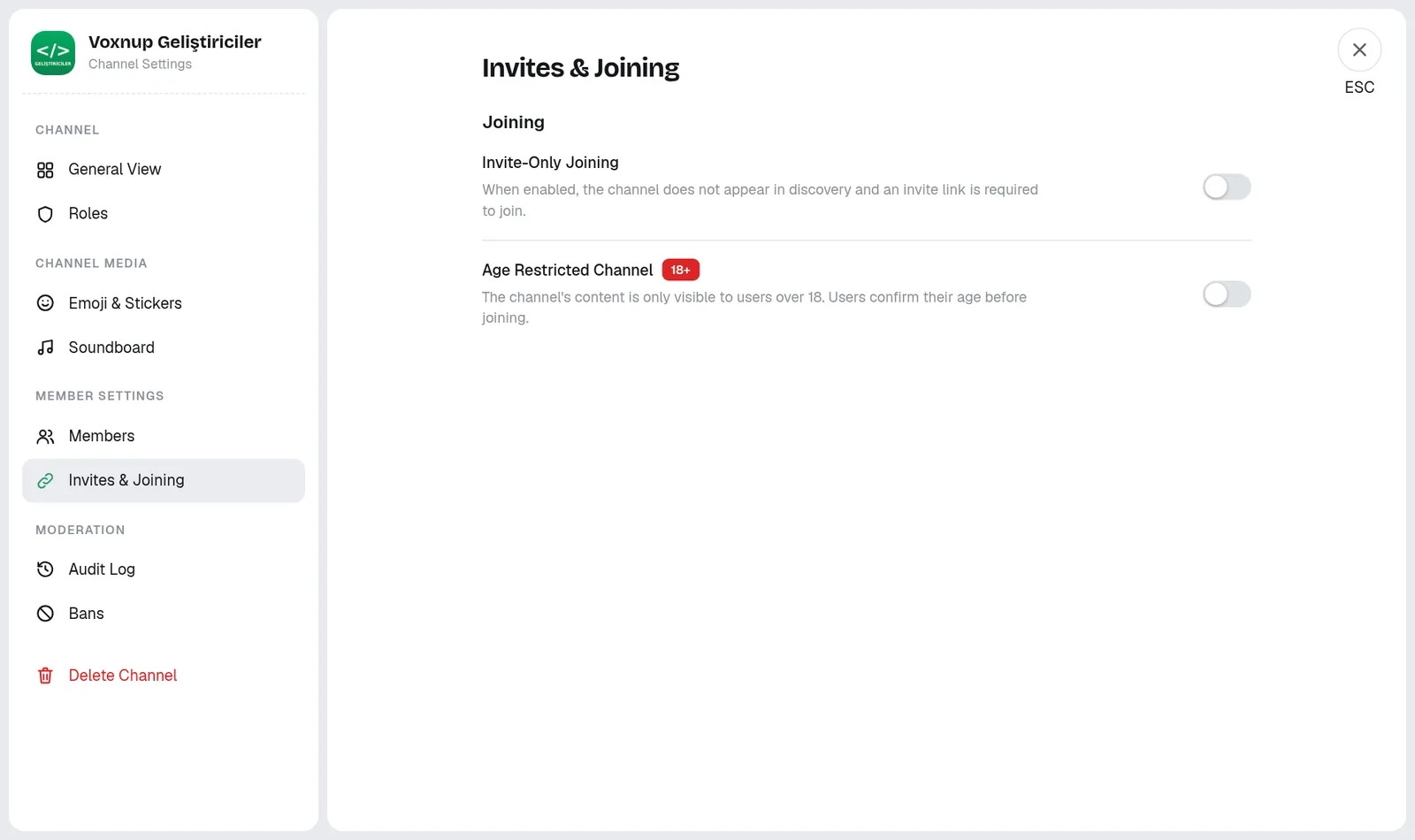
| Invites & Joining | The Active Invites list and revoking; the Invite-Only Joining and Age Restricted Channel switches; AFK Channel and AFK Timeout. |
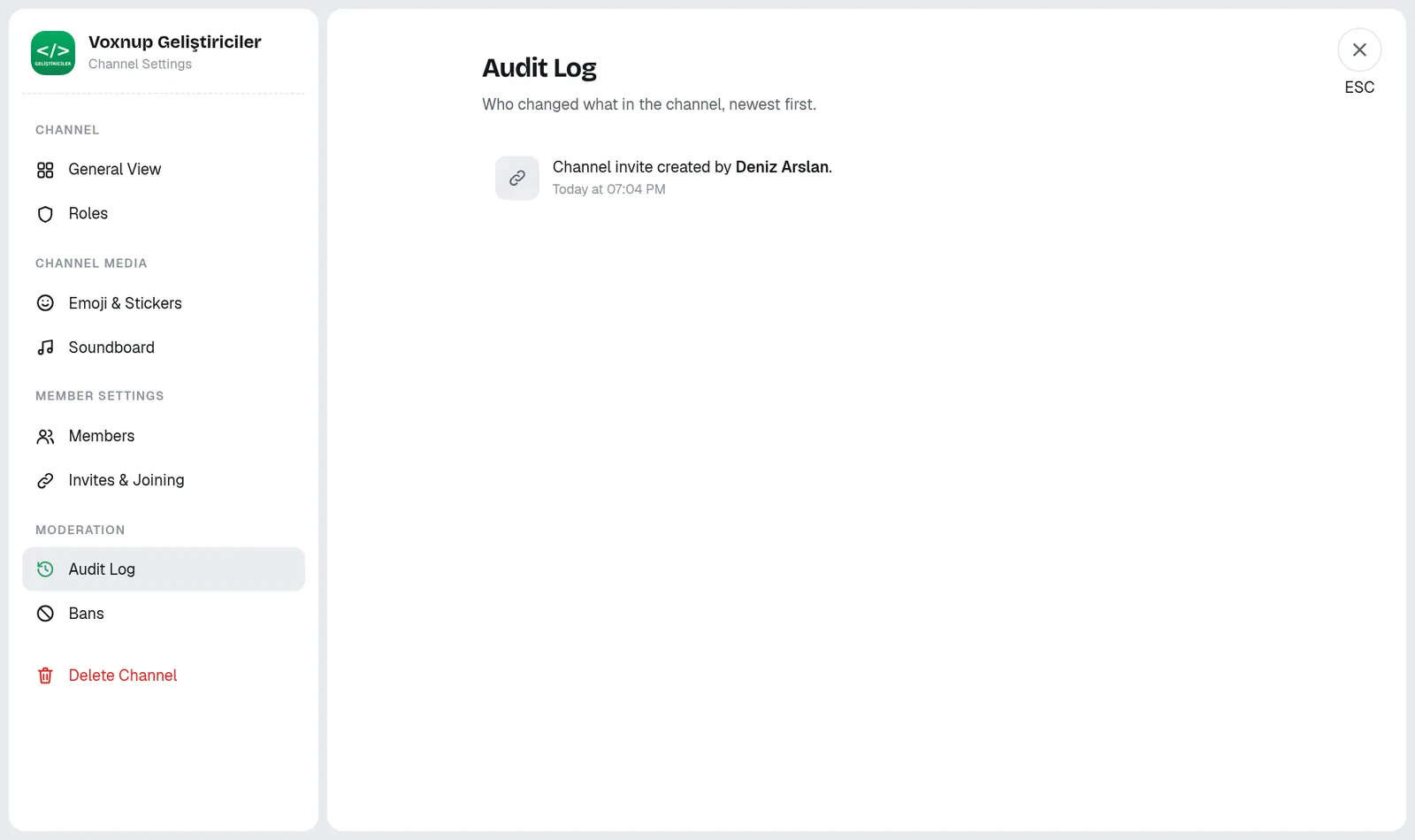
| Audit Log | Who changed what in the channel, newest first. Requires the View Audit Log permission. |
| Bans | Banned users with the ban reason and date; Revoke Ban. |
Invites and joining
The Active Invites section lists the invite links that can still be used to join the channel: who created it, the code, the target room (or Whole channel), uses and limit, time left and when it was created. Expired invites and invites that reached their member limit are not listed. Click a code to copy its link.
- People with the Manage Channel permission see all of the channel's invites; the Only mine switch narrows the list to the ones they created. Everyone else sees only their own invites.
- The × at the end of a row revokes that invite; Revoke all closes every invite in the list. Nobody can join with a revoked link; people who already joined with it stay in the channel. Revokes are written to the audit log.
On the Members tab, members who joined with an invite show which code they used and who invited them (only to people with the Manage Channel permission).
- Invite-Only Joining: when on, the channel doesn't appear in Discover and people need an invite link to join.
- Age Restricted Channel: only users over 18 can see the channel's content; people are asked to confirm their age before joining.
- AFK Channel and AFK Timeout: someone who makes no sound in a voice room for the timeout (1 minute to 1 hour, 10 minutes by default) gets an "Are you there?" warning; if they don't respond within 60 seconds, they are moved to the selected AFK room. Nobody can speak or share their screen or camera in the AFK room, including the channel owner. Only the channel's voice rooms can be chosen; with None the person is removed from voice instead. People with the Manage Channel permission change this setting, and changes are written to the audit log.
To create a new link, use Invite to Channel in the channel menu.
Audit Log
Actions such as role and permission changes, creating and deleting rooms, channel detail updates, kicks, bans, timeouts and nickname changes are recorded together with who did them.
Frequently asked questions
Why don't I see Edit Channel?
To open the channel settings you need the Manage Channel or Manage Roles permission. Ask the channel owner for one of them.
How long can a channel name be?
2 to 50 characters. The description can be up to 300 characters.
Can I make my channel private?
Yes. Turn on Invite-Only Joining on the Invites & Joining tab and save. People can then join only with an invite link. To hide individual rooms, use room permissions.
Why can't I speak in the AFK room?
The AFK room is where people who stay silent in voice for a long time are moved, and nobody can speak or share there, including the channel owner. The microphone button is locked in that room. Switch to another voice room in the channel to talk. People with the Manage Channel permission can change the AFK room on the Invites & Joining tab.
How do I delete my channel?
See Leaving or deleting a channel. Only the owner can delete a channel.