
How do I change room settings and room-specific permissions?
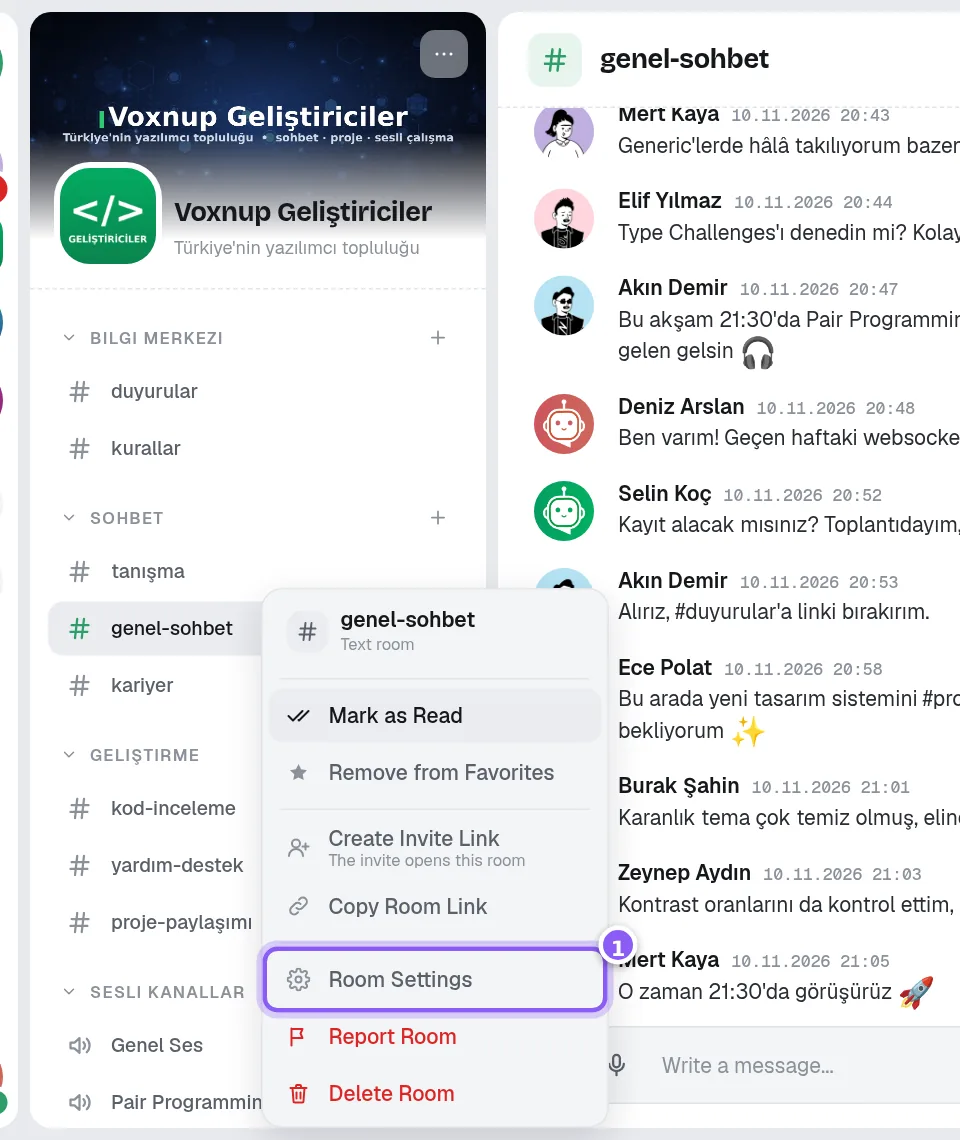
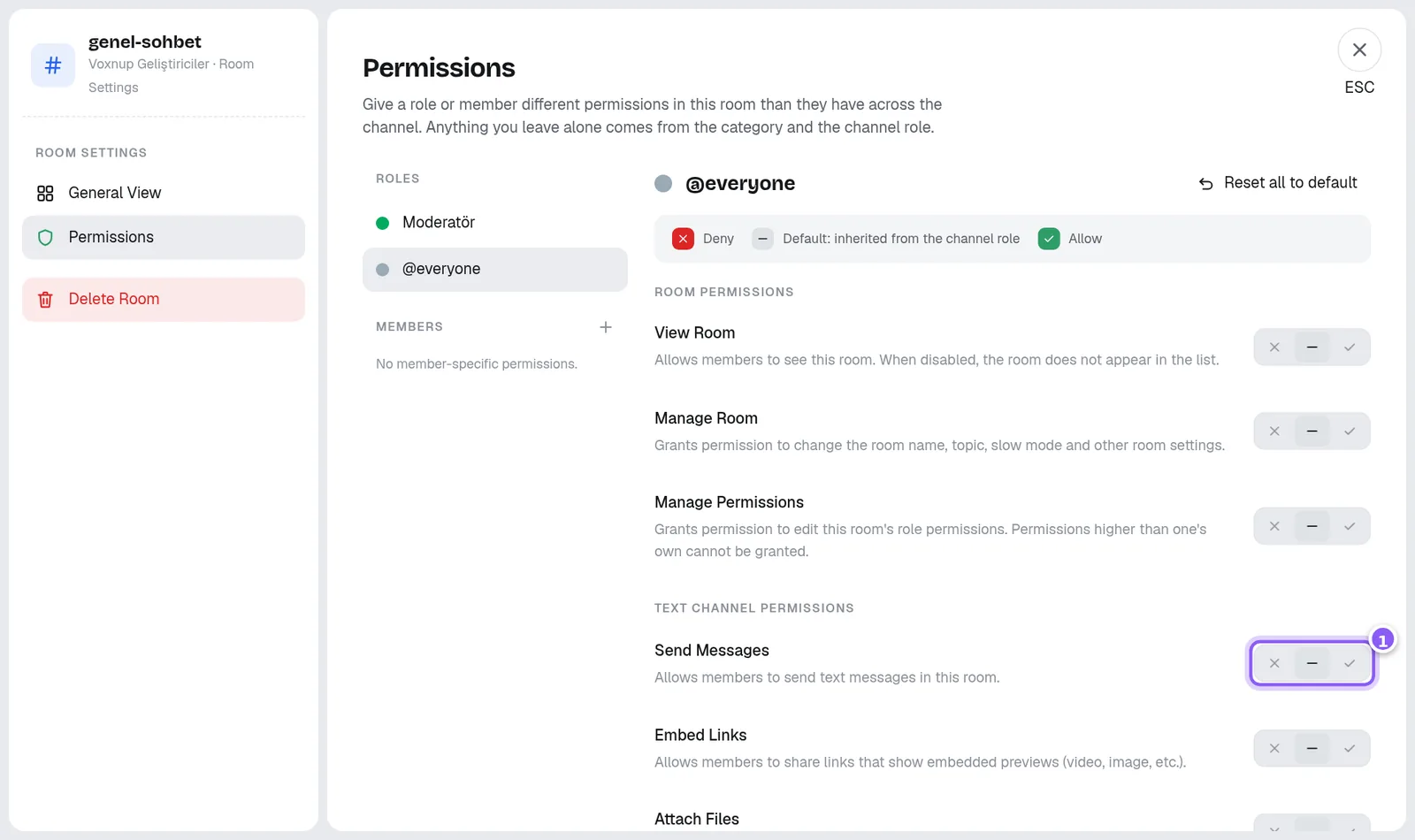
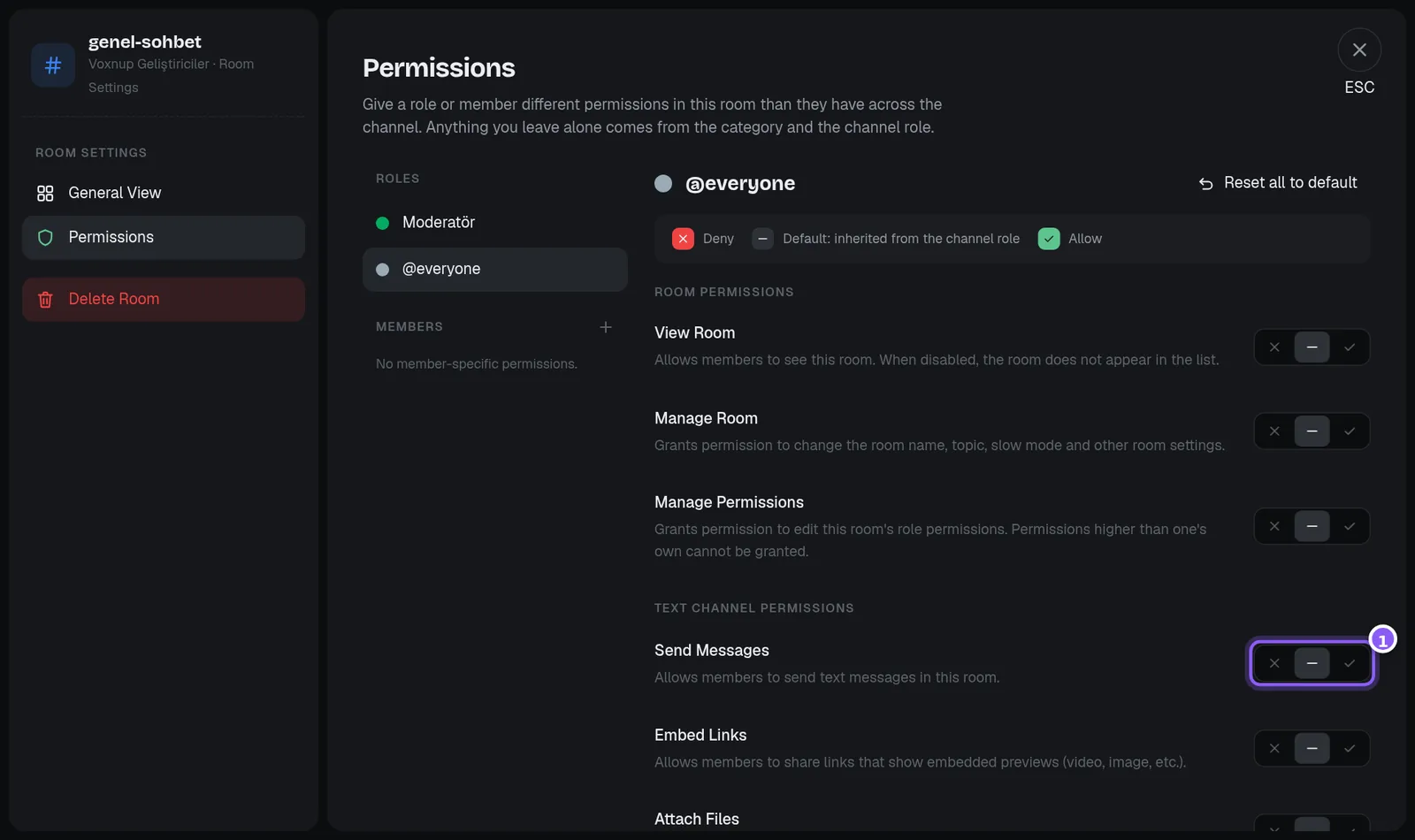
Right-click a room in the room list and choose Room Settings. On the General View tab you change the room name (up to 100 characters), topic (up to 1024 characters), the user limit for voice rooms, Slow Mode and the Age-Restricted Room setting. On the Permissions tab you can set each permission of a role or member in this room to Deny, Default or Allow. Changes are applied with Save at the bottom.
Opening and changing room settings
Right-click the room and choose Room Settings
For category settings, right-click the category header and choose Category Settings. Permission settings on a category apply to every room inside it.
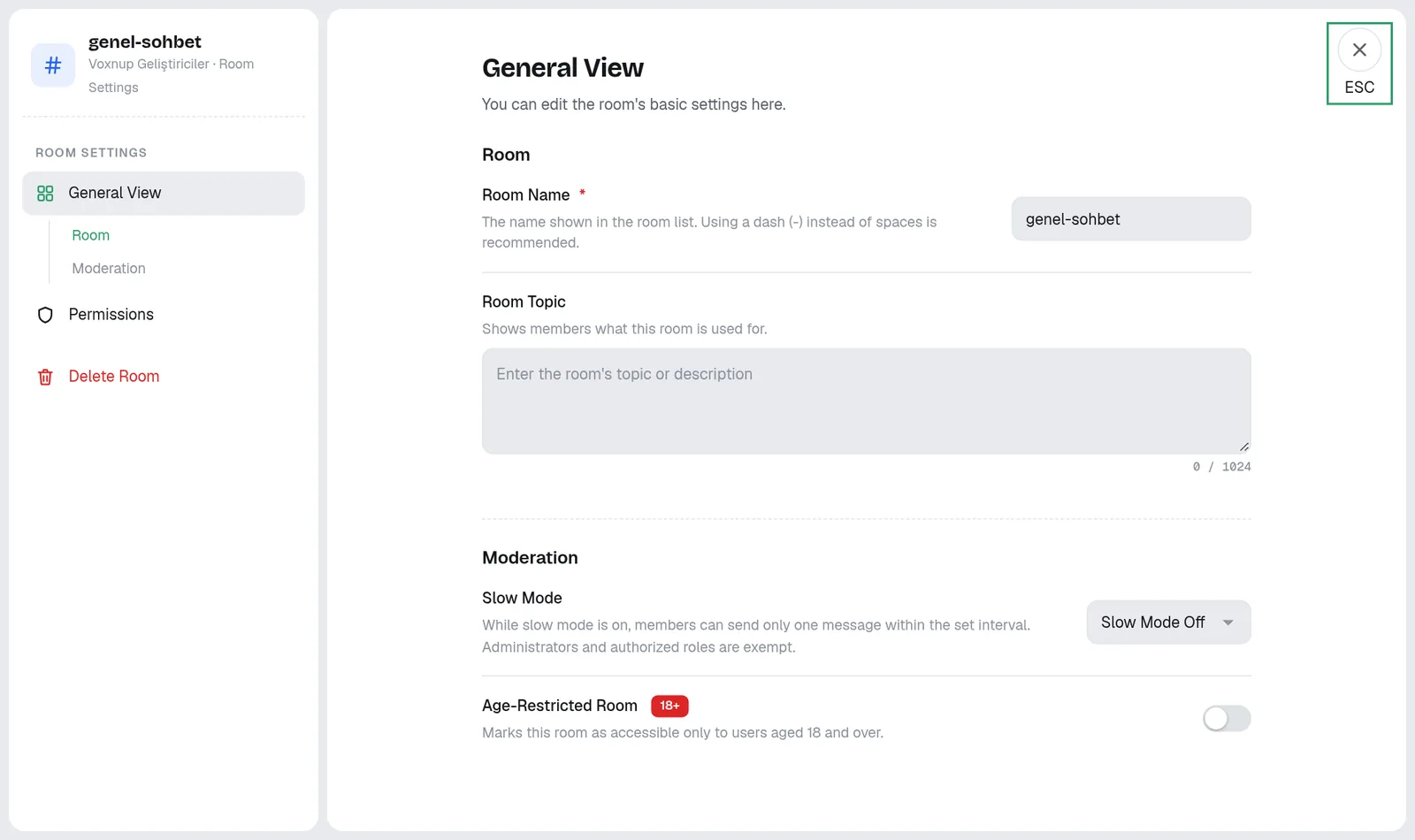
Edit the General View tab
- Room Name: the name shown in the list, up to 100 characters.
- Room Topic: text describing what the room is for, up to 1024 characters.
- User Limit (voice rooms only): how many people can be in the room at once. The channel owner and people allowed to move members can go over the limit.
- Slow Mode: members can send only one message per chosen interval. Options: off, 5, 10, 30 seconds, 1, 5, 10, 30 minutes, 1 hour. People with Bypass Slow Mode are not affected.
- Age-Restricted Room 18+: only users over 18 can enter the room.
On the Permissions tab, pick a role or member
The list on the left shows the channel's roles, with a Members section below. To set something for a specific person, use the Add member (+) button. For each permission of the selected role or member, choose one of three states:
- Deny (✕): always off in this room.
- Default (–): the setting from the channel role and the category applies.
- Allow (✓): on in this room.
Use Reset all to default to clear everything, and Remove member to take a member off the list.
Click Save
When you change something, a bar saying "You have unsaved changes." appears at the bottom. Save applies the changes, Reset undoes them.
Which setting wins?
A member's permission in a room is worked out in this order; each step overrides the one before:
- The permissions of their channel-wide roles (Roles and permissions).
- Category settings: first @everyone, then role denies, then role allows, and finally the member's own setting.
- Room settings: in the same order.
If View Room is off, the member can't see the room in the list and none of the other permissions in that room apply. The channel owner and members with the Administrator permission can always do everything.
Permissions that exist only at room and category level
| Permission | What it does |
|---|---|
| View Room | See the room in the list. When off, the room is hidden. |
| Manage Room | Change this room's name, topic and general settings. |
| Manage Permissions | Edit this room's Permissions tab. |
| Use External Emojis | Use emoji from other channels in this room. |
| Use External Stickers | Use stickers from other channels in this room. |
| Pin Messages | Pin messages in this room. |
| Bypass Slow Mode | Send messages without waiting while slow mode is on. |
Frequently asked questions
How do I make a room visible only to moderators?
In Room Settings → Permissions, set View Room to Deny for @everyone and to Allow for your moderator role, then save.
Why can't I change the settings?
You need Manage Room to change the General View and Manage Permissions to change permissions. You also can't give someone a permission you don't have, and you can only edit roles below your own highest role.
Who is not affected by slow mode?
The channel owner, people with the Administrator permission, and people with Bypass Slow Mode turned on in that room.