
How do I create rooms and categories in a channel?
Choose Create Room from the channel menu (⋯), pick the room type (Text, Voice or Stage) and a name, and optionally set a user limit or make it a Private Room. For a category, use Create Category in the same menu. You can drag and drop rooms to reorder them and move them to another category. You need the Manage Rooms permission in the channel.
Creating a room
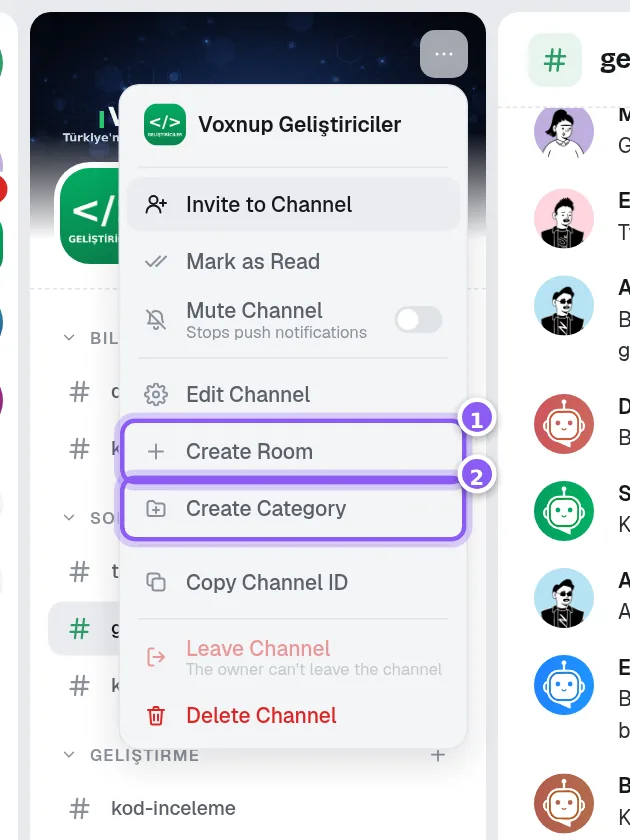
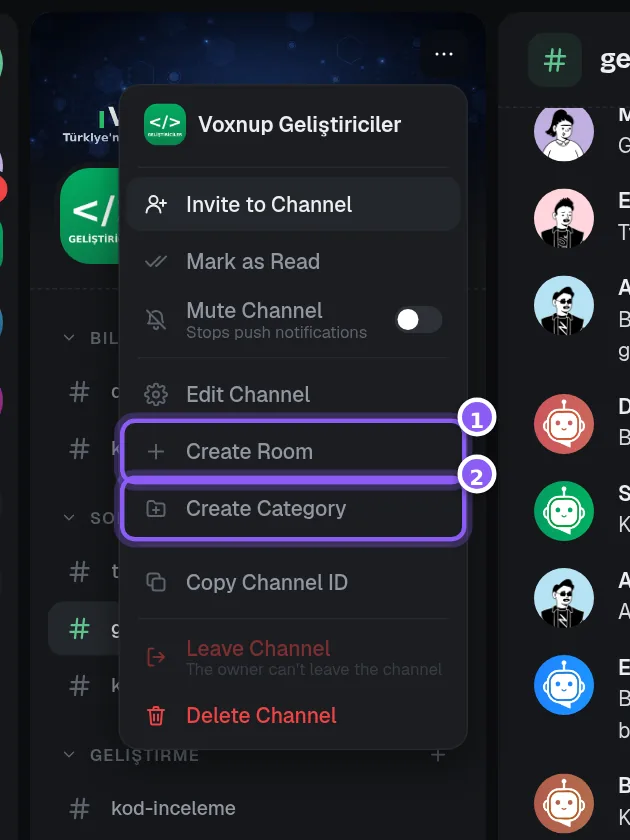
Choose Create Room in the channel menu
Click the ⋯ button next to the channel name. The + button on a category header adds a room straight to that category.
Pick the room type, name and settings
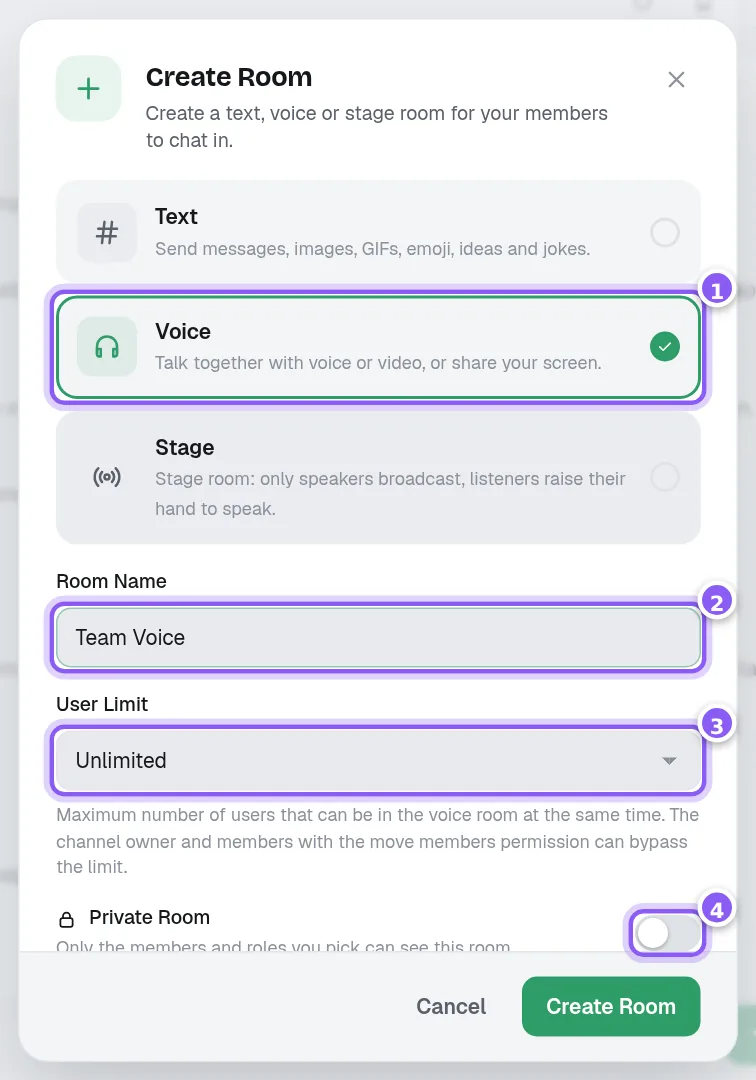
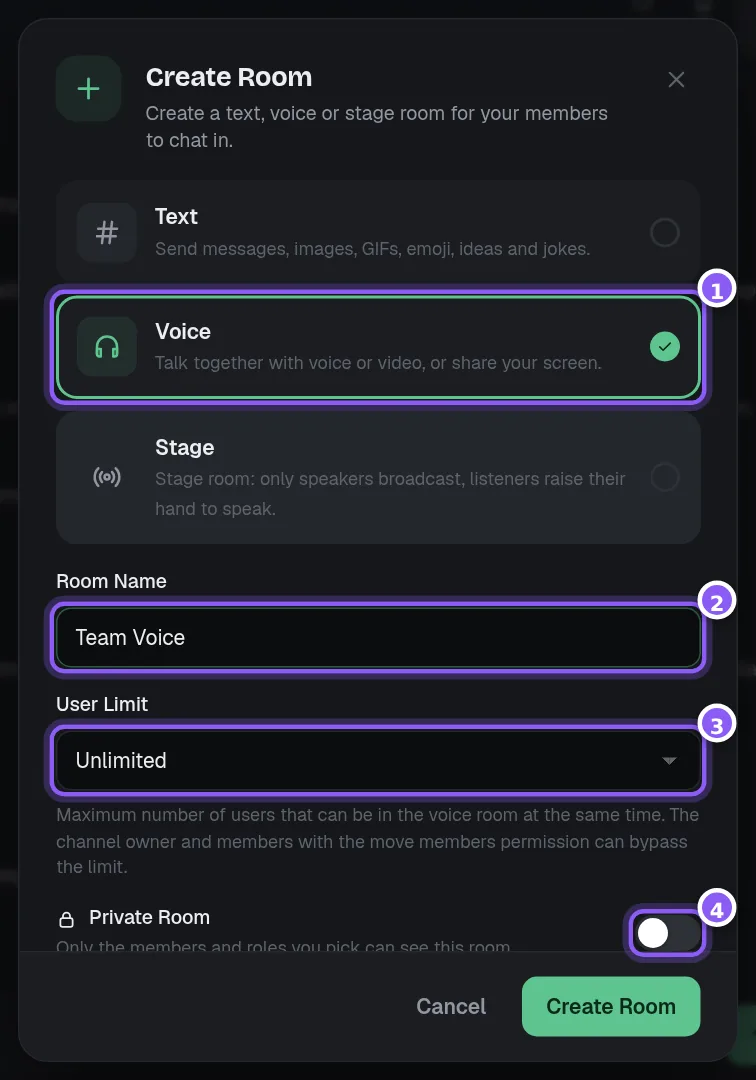
- Text: a chat room for messages, files and emoji.
- Voice: a room for voice and video chat and screen sharing.
- Stage: a voice room where speakers talk and listeners raise a hand to ask to speak.
Room Name can be up to 100 characters. In voice and stage rooms you can set a User Limit: Unlimited, 2, 5, 10, 25, 50 or 99.
If you turn on Private Room, a Who can see it? section opens where you choose the roles and members who can see the room. The channel owner, admins and you always see it; other members don't see it in the list.
Click Create Room
The room appears in the list right away and everyone in the channel sees it (only the people you picked, if it is private).
Creating a category
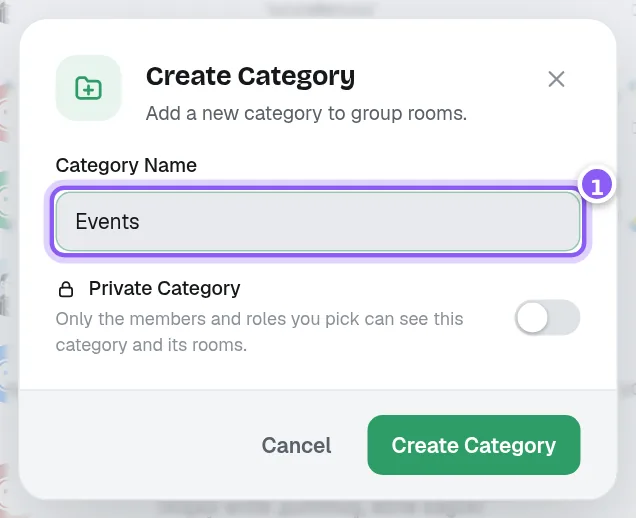
Choose Create Category in the channel menu and type a Category Name. If you turn on Private Category, only the roles and members you pick can see the rooms inside it.
Ordering and moving rooms
In the room list, drag a room to change its position or drop it under another category. Categories themselves cannot be reordered; a new category is added at the end of the list.
Deleting a room or category
Right-click a room and choose Delete Room, or right-click a category header and choose Delete Category. Deleting a category does not delete its rooms; they move to the uncategorised section.
Frequently asked questions
I can't see Create Room.
You need the Manage Rooms permission in the channel to create rooms and categories. Ask the channel owner or an admin for it.
How many people can join a voice room?
Without a user limit there is no cap. The limit options are 2, 5, 10, 25, 50 and 99 people. The channel owner and people with the Move Members permission can go over the limit.
How does a private room work?
A private room turns off the View Room permission for the @everyone role and turns it on for the roles and members you picked and for you. You can change it later on the Room Settings → Permissions tab.
What is the difference between a stage room and a voice room?
In a voice room everyone can talk. In a stage room listeners click Raise Hand to ask to speak, and people with the Move Members permission bring them on stage with Make speaker.