
Voxnup voice problems: troubleshooting guide by symptom
Most Voxnup voice problems come from one of four places: the browser or Windows microphone permission, the wrong device selected in Settings > Voice, a mute (by you, by a moderator or by room permissions) and your network connection. Pick your symptom below; every page starts with the exact message the app shows and gives step-by-step fixes.
Pick your symptom
Do these 5 quick checks first
Check the microphone and headphone icons
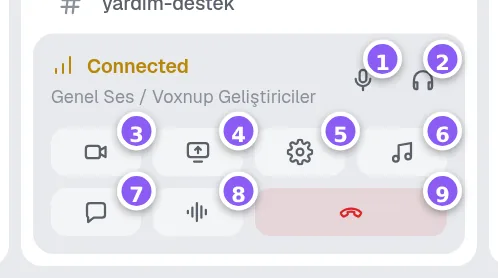
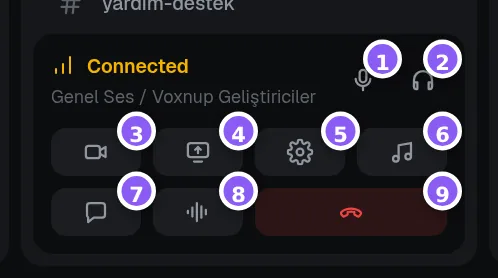
When you're in a voice room, look at the voice panel at the bottom left. If the microphone (1) or headphone (2) icon is crossed out, you have muted or deafened yourself. Click the icon once. Shortcuts: Ctrl+Shift+M for the microphone, Ctrl+Shift+D to deafen.
Make sure the right devices are selected
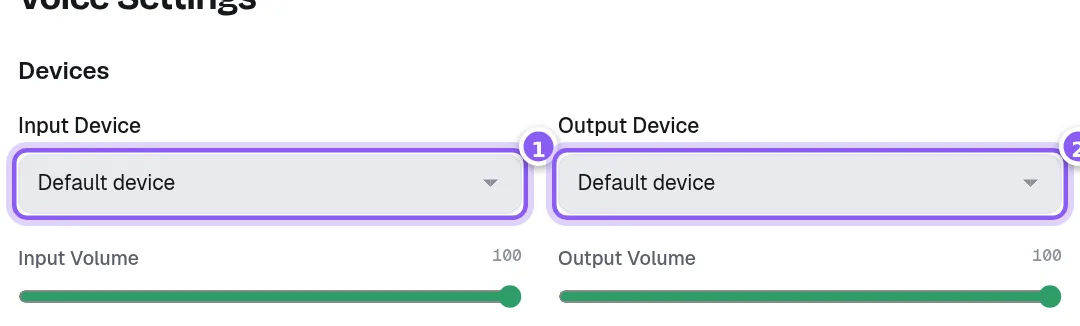
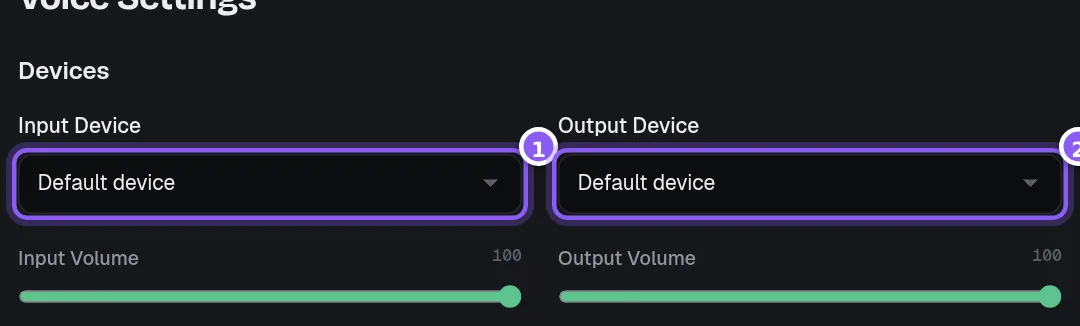
Click your avatar at the bottom left → Settings → Voice. Input Device must be the microphone you speak into, and Output Device the headphones or speakers you listen with. Details: Voice settings.
Run the microphone test
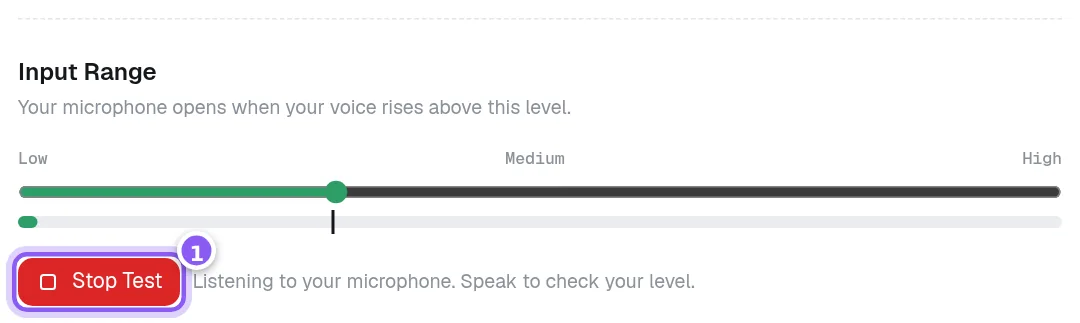
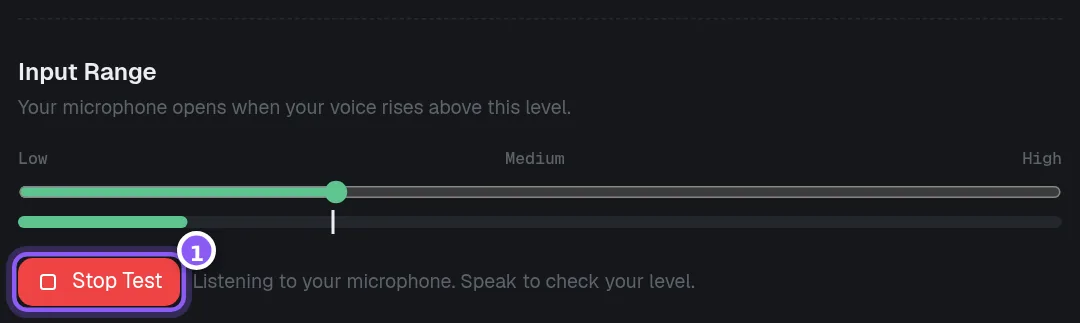
On the same page, press Test Microphone and talk. If the level bar moves, Voxnup can hear your microphone. If it doesn't move at all, the problem is the permission or the device: Microphone not detected.
Check browser and Windows permissions
In your browser, the microphone must be set to Allow for voxnup.com. In Windows, the switches under Privacy & security > Microphone must be on. Step by step: How to allow microphone access.
Reload the page or restart the app
If you plugged in your headset or microphone while Voxnup was open, the browser sometimes doesn't see the new device. Reload the page (F5) or close and reopen the desktop app, then join the room again.
Your voice settings (device choice, volume levels, input range, noise suppression) are stored only in that browser or on that device. If you open Voxnup on another computer or browser, you need to set them again.
Frequently asked questions
Why can't anyone hear me on Voxnup?
The most common causes: your microphone is muted, the wrong input device is selected in Settings > Voice, the browser or Windows is blocking microphone access, you don't have permission to speak in that room, or the Input Range is set too high. All fixes: People can't hear me.
Which browsers support Voxnup voice chat?
Up-to-date Chrome, Edge and Firefox. Choosing the output device (Output Device) only works in Chrome and Edge; Firefox and Safari always play sound through the system default device. For the smoothest experience you can use the Windows desktop app.
What if my problem still isn't solved?
Email support@voxnup.com. Include your device (Windows, Android, iPhone), the browser or app you use and the exact text of the message you see.