
No computer audio when sharing my screen
For your computer's audio to come through while screen sharing, two things are needed: "Share computer audio" must be on in Share Settings, and in the browser's share window you must pick a tab or the entire screen (in Chrome and Edge, the "share audio" box must be ticked). Browsers don't provide audio when you share a single app window. Firefox and Safari don't support system audio in screen sharing at all.
Screen sharing with audio
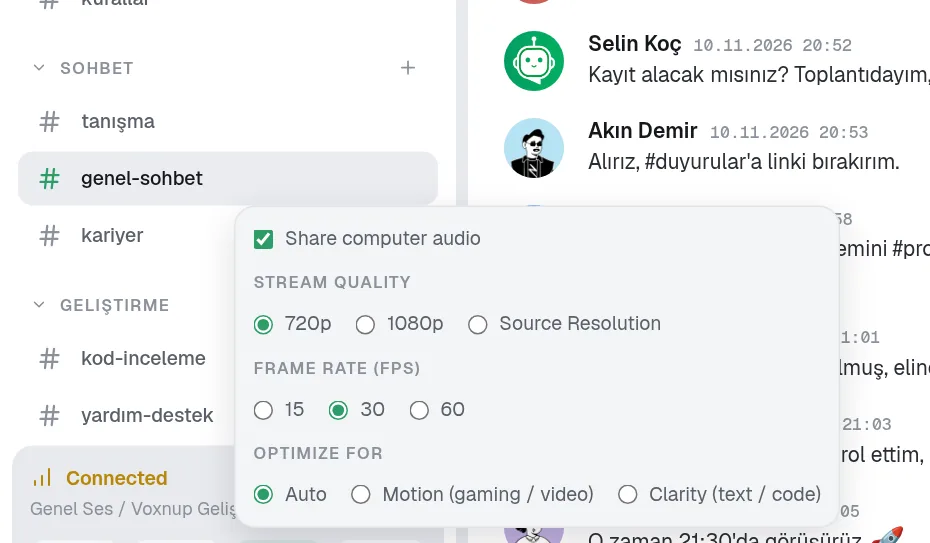
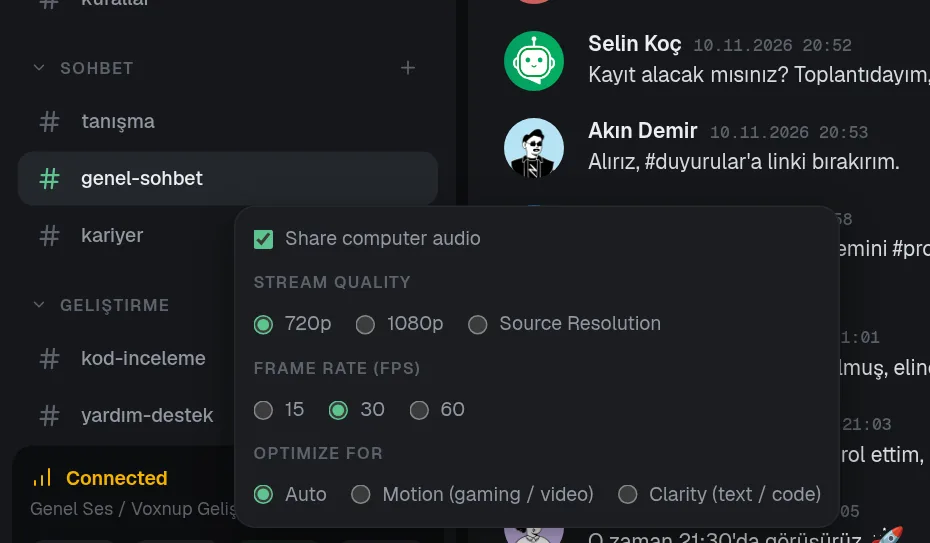
Turn on "Share computer audio"
While in a voice room, click the gear icon (Share Settings) in the voice panel and check that Share computer audio is ticked. It's on by default.
Start sharing and pick the right source
Press the screen button in the voice panel. In the window your browser opens:
- Chrome / Edge: pick Entire screen or a Chrome tab and tick Also share system audio (for a tab: Also share tab audio) at the bottom. If you pick a Window, no audio goes through.
- Voxnup Desktop: sharing the entire screen shares system audio.
Check for the warning
If the source you picked provides no audio, Voxnup shows this once: "This browser or capture type doesn't support audio sharing. In Chrome, try selecting a tab or the entire screen." Stop sharing and start again with the entire screen or a tab.
Shared computer audio is sent together with your microphone. Even if you mute your microphone, your computer's audio keeps going out while you share. To stop it, end the share, or turn off Share computer audio in Share Settings and start sharing again.
Frequently asked questions
Why doesn't audio come through when I share my screen in Firefox?
Firefox and Safari don't give websites your computer's audio during screen sharing. For sharing with audio, use Chrome, Edge or Voxnup Desktop.
The game audio comes through but my own voice echoes. Why?
When you share the entire screen with audio, sounds coming from Voxnup can be included in the computer audio too. Use headphones; sharing over speakers causes echo.
How do I change screen share quality?
In Share Settings, use Stream Quality (720p, 1080p, 1440p, 4K, Source Resolution), Frame Rate (15, 30, 60) and Optimize for (Auto, Motion, Clarity). Details: Screen sharing and camera.