
How to allow microphone access for Voxnup (Chrome, Edge, Firefox, Safari, Windows, phone)
If Voxnup says "Microphone Blocked", your browser or operating system is stopping voxnup.com from using the microphone. In the browser, click the lock icon in the address bar and set Microphone to Allow. In Windows, turn on the switches under Settings > Privacy & security > Microphone. Then press Try Again in the Voxnup window. You don't need to reload the page.
When does this message appear?
The browser asks for microphone permission the first time you join a voice room or press Test Microphone in Settings > Voice. While the request is open, Voxnup says "Your browser is asking for microphone access: allow it from the prompt in the address bar. Until then you're only listening." If you declined the request, or blocked it earlier, the window below opens.
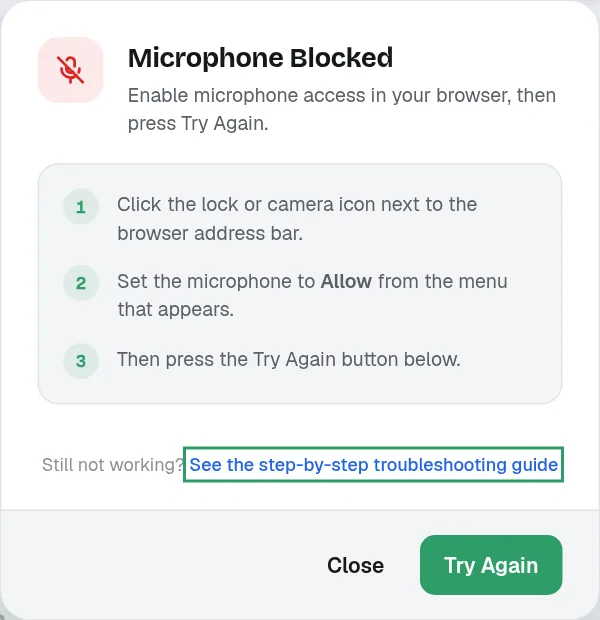
Chrome and Edge (Windows, Mac, Linux)
Click the lock icon in the address bar
With voxnup.com open, click the lock (or settings) icon on the left of the address bar. Turn on the Microphone switch in the menu. If it isn't there, open Site settings.
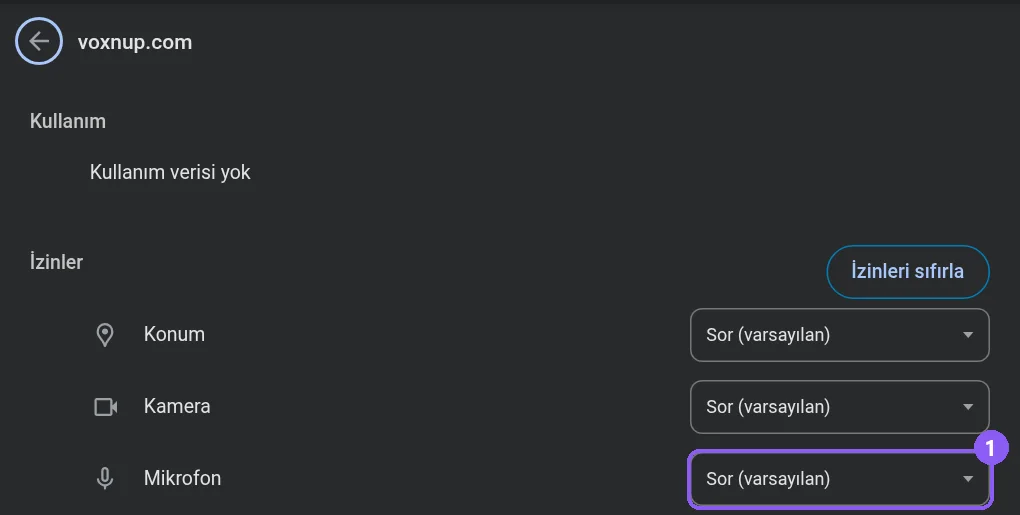
Set Microphone to "Allow" in site settings
On the site settings page, set the Microphone row under Permissions to Allow (1). To go straight to this page, type
chrome://settings/content/siteDetails?site=https://voxnup.comin Chrome oredge://settings/content/siteDetails?site=https://voxnup.comin Edge.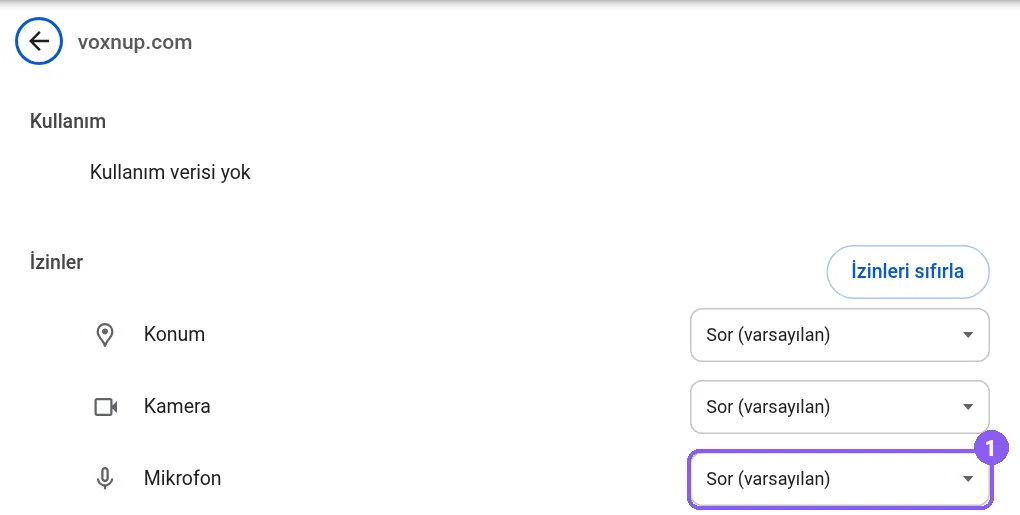
Check the browser's general microphone setting
On
chrome://settings/content/microphone(Edge:edge://settings/content/microphone), Sites can ask to use your microphone must be selected (1). If voxnup.com is in the Not allowed to use your microphone list (2), remove it. Also check that the right microphone is selected at the top of this page.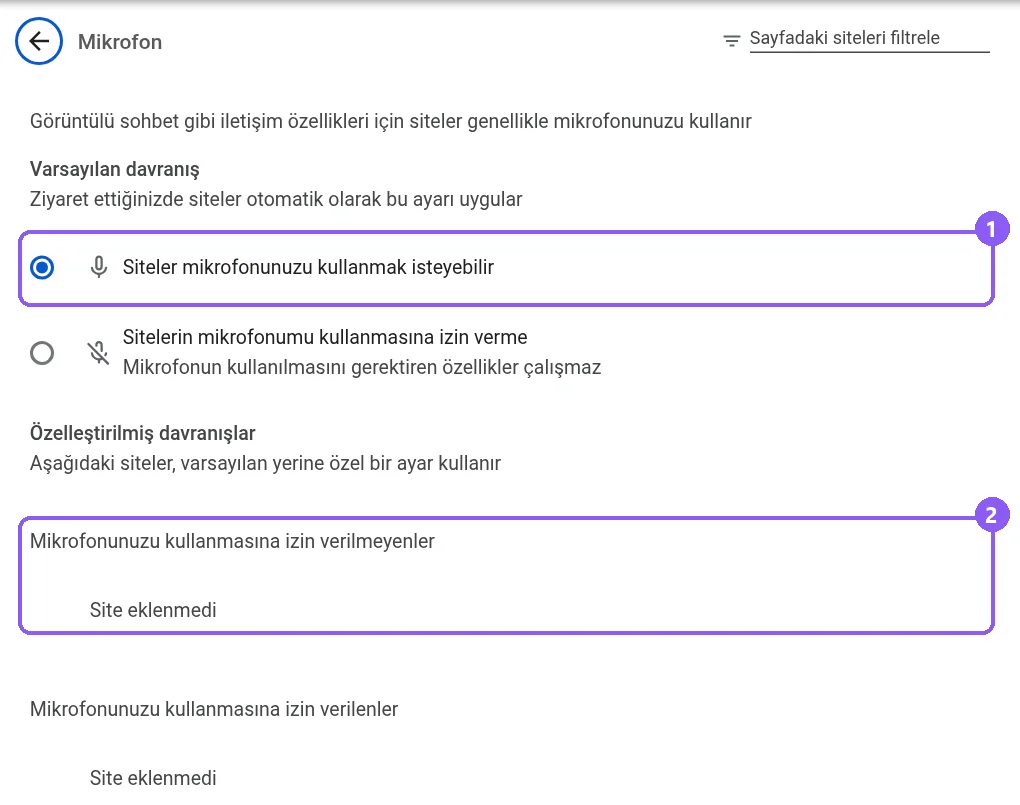
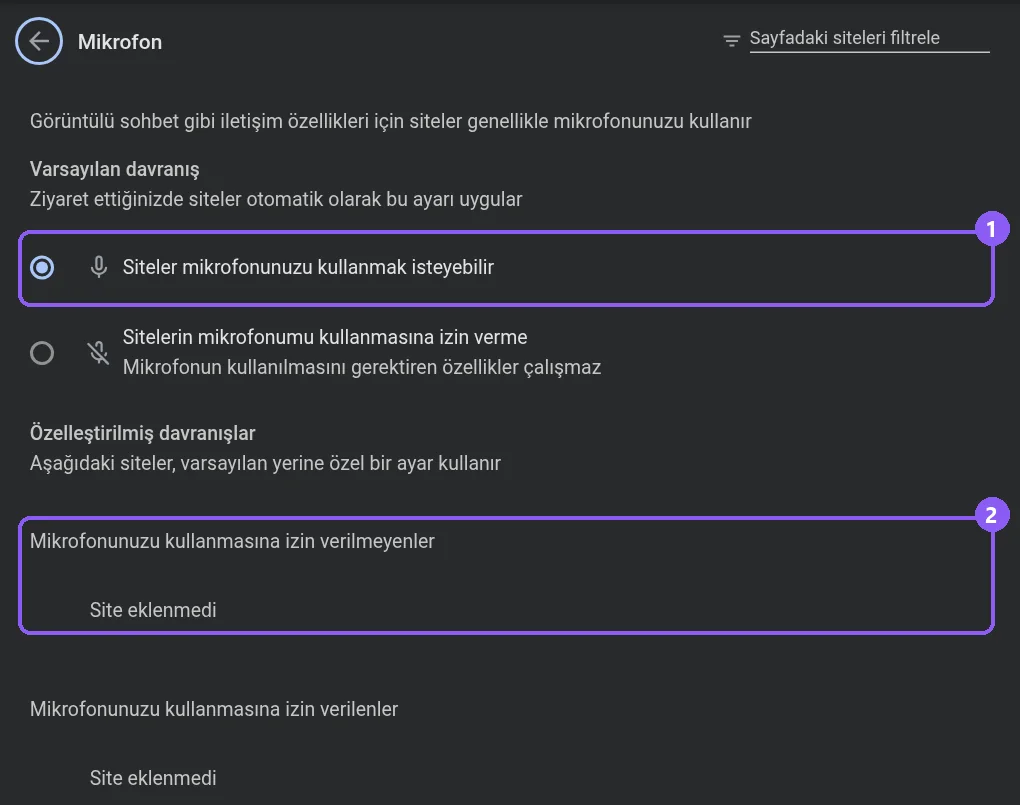
Press Try Again in Voxnup
Press Try Again in the microphone window. Once access is granted you'll see "Microphone connected! You can now speak."
Windows microphone privacy settings
Open Privacy & security > Microphone
Start → Settings → Privacy & security → Microphone. If you allowed the microphone in the browser and Voxnup still can't get it, the problem is most likely here.
Make sure all four switches are on
- Microphone access: On.
- Let apps access your microphone: On.
- Voxnup Desktop in the list: On (if you use the desktop app).
- Let desktop apps access your microphone: On. Chrome, Edge and Firefox depend on this switch; if it's off, the browser permission does nothing.
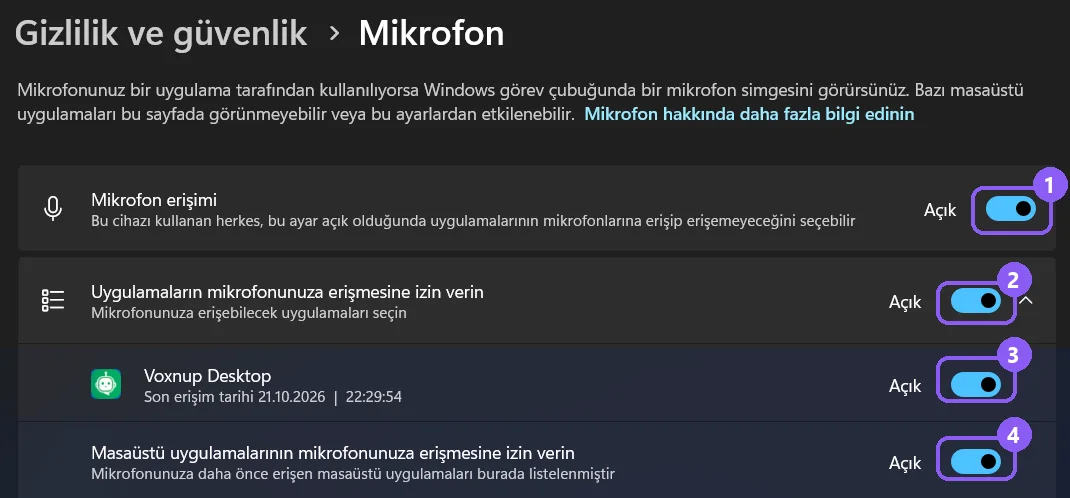
Reopen Voxnup
After changing the Windows setting, close and reopen the browser or Voxnup Desktop, then join the room again.
Firefox
Click the microphone or lock icon in the address bar and remove the blocked microphone permission with the ×, then press Try Again in Voxnup; Firefox asks again, choose Allow. For a permanent setting: in Settings > Privacy & Security > Permissions > Microphone > Settings…, voxnup.com must be set to Allow.
Note: in Firefox, Voxnup's Output Device choice doesn't work; sound comes through the Windows default output device.
Safari (Mac)
Safari menu → Settings → Websites → Microphone. Choose Allow for voxnup.com. On a Mac, Safari must also be switched on under System Settings > Privacy & Security > Microphone.
Voxnup Desktop (Windows app)
The desktop app gets microphone access from Windows. Follow the Windows microphone privacy settings steps above, make sure Voxnup Desktop is on in the list, then close and reopen the app.
Android and iPhone app
- Android: on your phone, Settings > Apps > Voxnup > Permissions > Microphone → Allow only while using the app.
- iPhone / iPad: Settings > Voxnup → turn on Microphone.
- If you use Voxnup in a browser on your phone, the permission is in the browser app's site settings (e.g. Chrome menu → Settings > Site settings > Microphone).
Voxnup can only ask for the microphone when it's opened at https://voxnup.com. If you opened it in a browser inside another app (e.g. a link opened in a social media app), the microphone usually won't work at all; Voxnup says "This browser can't access the microphone". Open the link in Chrome, Edge, Firefox or Safari.
Frequently asked questions
I allowed it, but Voxnup still says "Microphone Blocked". Why?
In Windows, Let desktop apps access your microphone may be off; the browser permission doesn't work unless it's on. Turn it on, restart the browser, then press Try Again.
My browser doesn't ask me for microphone permission. What should I do?
You may have chosen "Block" before; the browser won't ask again. Set the microphone to Allow, or remove the block, from the lock icon in the address bar, then press Try Again in Voxnup.
Can I join a voice room without allowing the microphone?
Yes, you can listen but not talk. Clicking the microphone icon opens the fix window.