
Voxnup voice settings: microphone and speaker selection, Input Range, noise suppression
You reach voice settings from your avatar at the bottom left via Settings > Voice (in a voice room, Voice Settings in the microphone menu goes to the same place). There you pick your microphone and speakers, set volume levels, see your level with Test Microphone to set the Input Range (microphone sensitivity), and turn echo and noise filters on or off. Settings are stored in that browser / on that device and apply immediately while you're in a room.
Opening voice settings
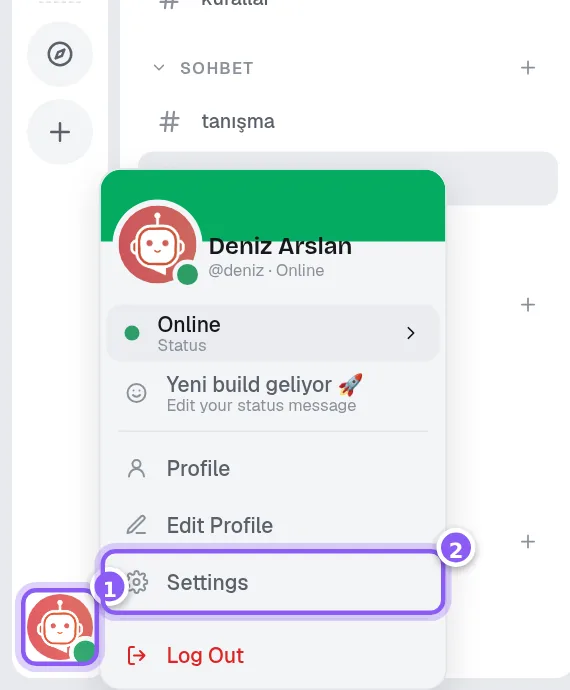
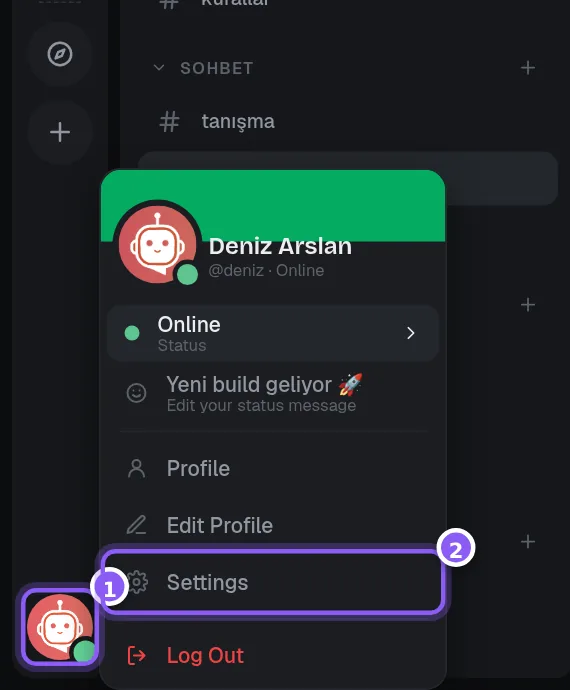
Click your avatar and choose Settings
Your own avatar at the bottom of the left rail (1) → Settings (2).
Go to the Voice tab
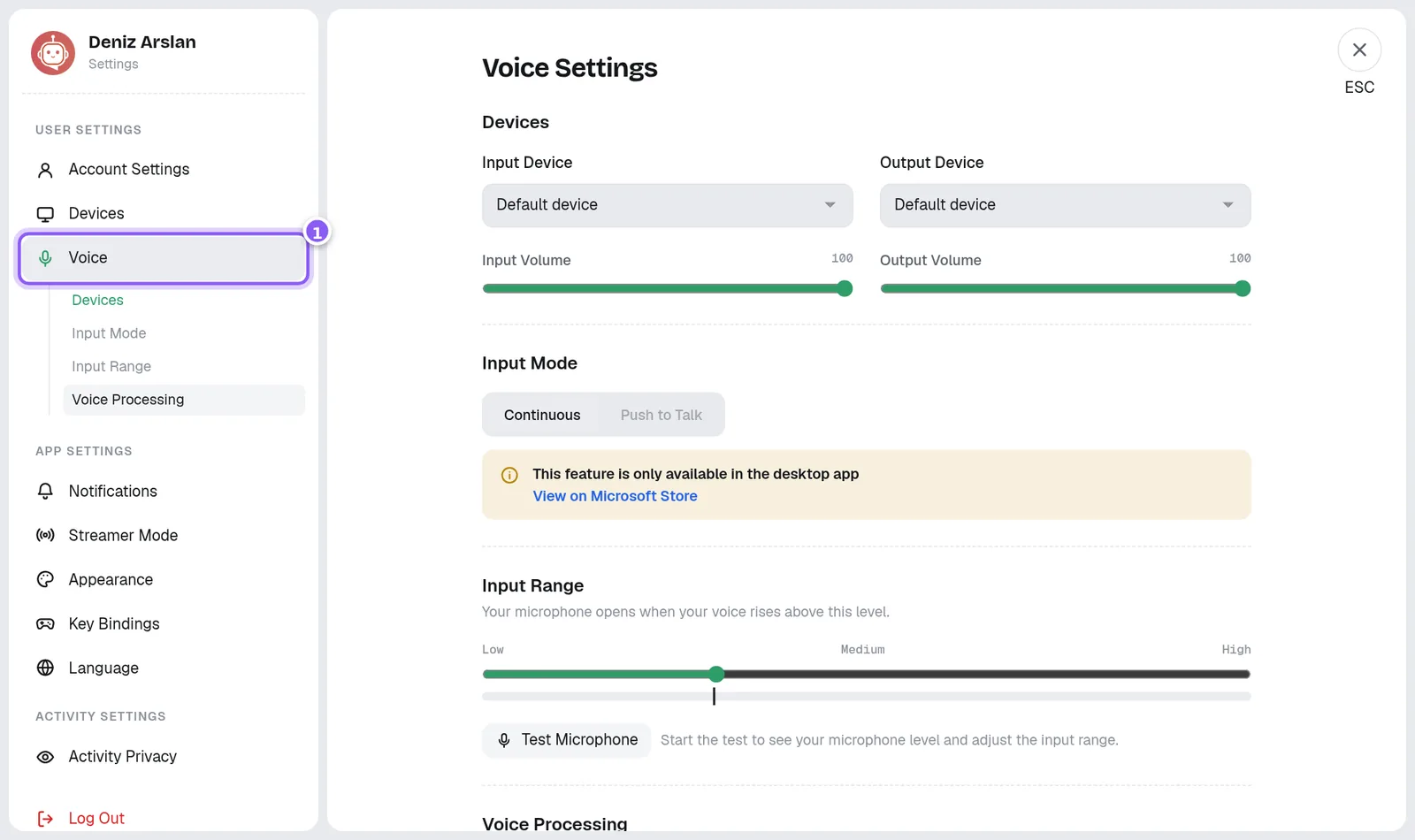
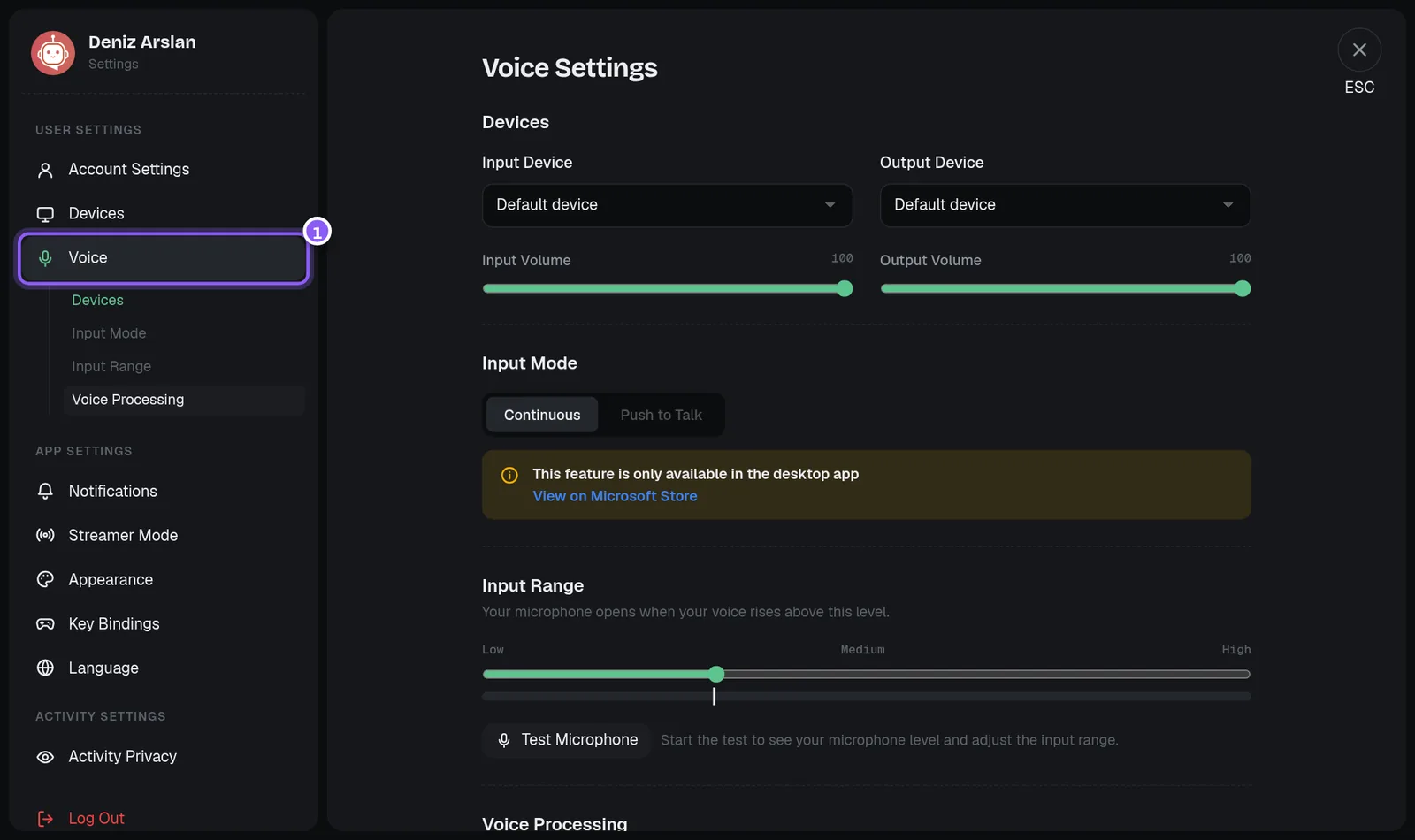
Voice in the list on the left.
Devices
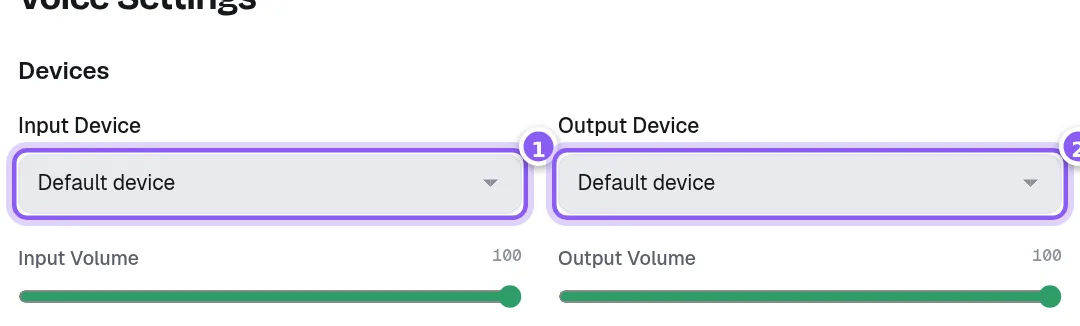
Input Device is the microphone you speak into (1), Output Device the headphones or speakers you listen with (2). With Default device, Voxnup uses the operating system's default. The Input Volume and Output Volume sliders below them go from 0 to 100. If the list is empty and says "Microphone permission required", you first need to allow the microphone. The output device choice can't be applied in Firefox and Safari.
Input Mode
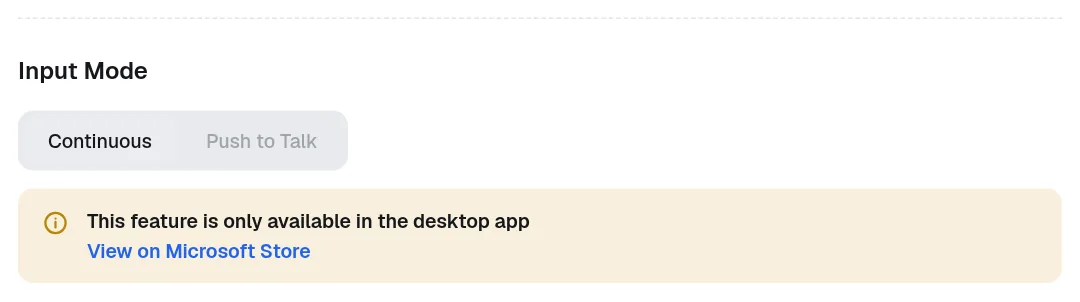
Continuous (default): Voxnup detects when you talk. Push to Talk: your voice only goes through while you hold the assigned key; it's only available in the Windows desktop app. See Push to Talk.
Input Range and the microphone test
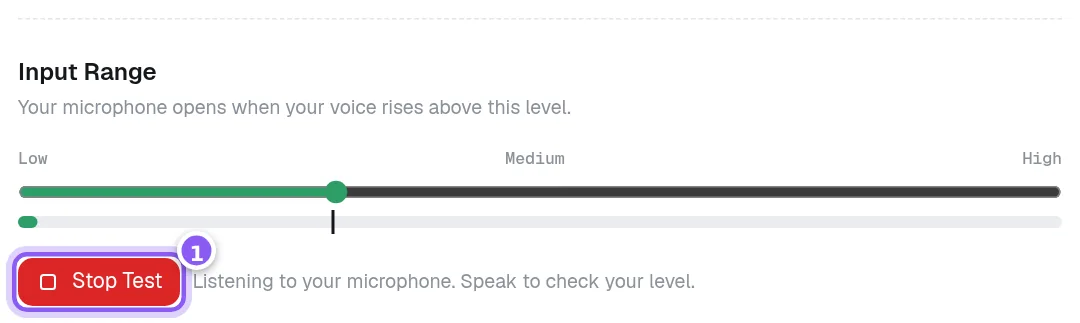
Input Range sets the level your voice has to reach before it's sent ("Your microphone opens when your voice rises above this level."). Press Test Microphone and talk normally: the level bar lights up green while it's above the threshold. Put the slider where the bar passes it comfortably while you talk but stays below it when you're silent. Too high, and your voice doesn't go through or the start of your words gets cut; too low, and background noise goes through too. The microphone stays open for 1.2 seconds after you stop talking. End the test with Stop Test.
Voice Processing
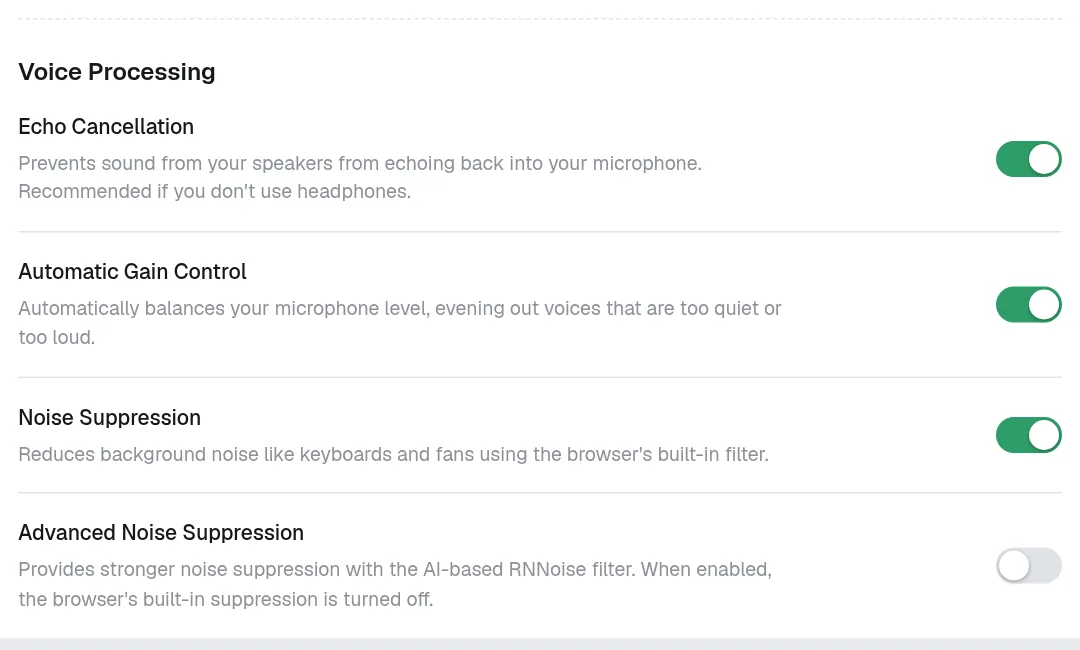
Echo Cancellation (on), Automatic Gain Control (on), Noise Suppression (on) and the AI-based Advanced Noise Suppression (off). The two noise suppression options can't both be on. When to use which: Audio quality problems.
You don't have to go to settings to switch devices in a voice room: the arrow next to the microphone button in the voice room view (Microphone options) lists your input devices.
Frequently asked questions
Why aren't my voice settings saved?
Voice settings are stored in the browser or on the device you use, not in your account. If you clear browser data or sign in on another device, you need to set them again.
How do I adjust microphone sensitivity?
With the Settings > Voice > Input Range slider. Use Test Microphone to see your level while you adjust it.