
Microphone not detected: fixing "Microphone Not Found" and "Microphone unavailable"
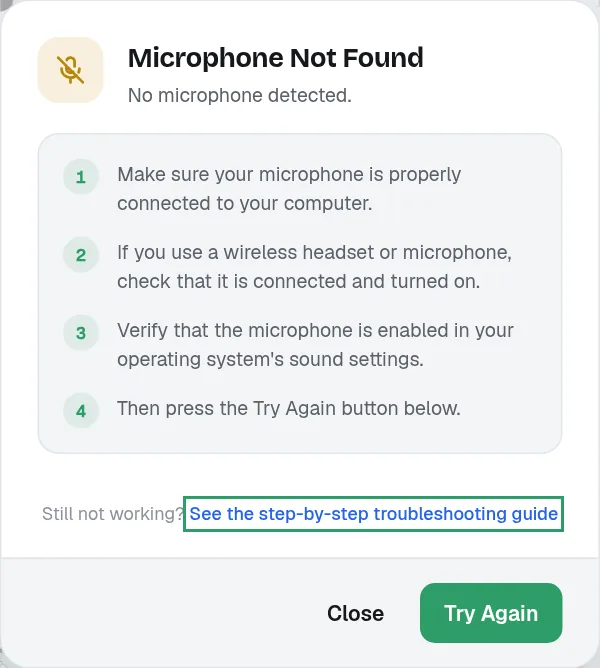
When Voxnup can't reach your microphone, it opens a window that says why. "Microphone Not Found" means no connected microphone is visible to the computer. "Microphone unavailable" means the microphone is open in another app or its driver isn't responding. "Microphone Blocked" is a permission problem (fix it here). Every window has a Try Again button; once you've fixed the problem, just press it, no reload needed.
Which message do you see?
When it can't get the microphone, Voxnup still joins the room. You can only listen: the microphone icon in the voice panel turns red and crossed out, and the warning "We can't capture audio from your microphone." appears above it. The How Can I Fix This? button opens the right fix window.
| Title on screen | Meaning | Fix |
|---|---|---|
| Microphone Not Found | The computer or browser sees no microphone at all. | Steps below |
| Microphone unavailable | The microphone is open in another app or its driver isn't responding. | Steps below |
| Microphone Blocked | The browser or Windows permission is off. | Allow microphone access |
| This browser can't access the microphone | The browser is very old, or it's a browser inside another app. | Open Voxnup at voxnup.com in an up-to-date Chrome, Edge or Firefox, or use the desktop / mobile app. |
Fixing "Microphone Not Found"
Make sure the microphone is connected and switched on
For a wired microphone or headset, unplug it and plug it back in; try another USB port if you can. For a wireless (Bluetooth) headset, turn it off and on and check that it reconnects to the computer.
Check that Windows sees the microphone
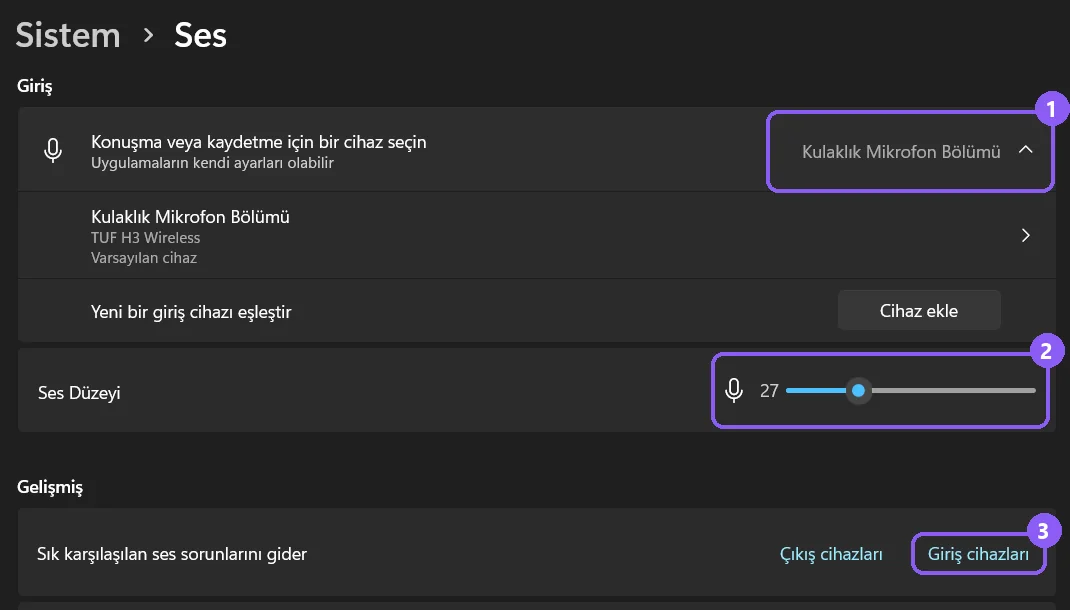
In Windows, open Settings > System > Sound. Your microphone must be listed under Input in Choose a device for speaking or recording (1). When you talk, the microphone icon next to the Volume slider should move; raise the volume if it's very low (2). If the microphone isn't listed at all, run the Troubleshoot common sound problems > Input devices troubleshooter (3).
Select the right input device in Voxnup
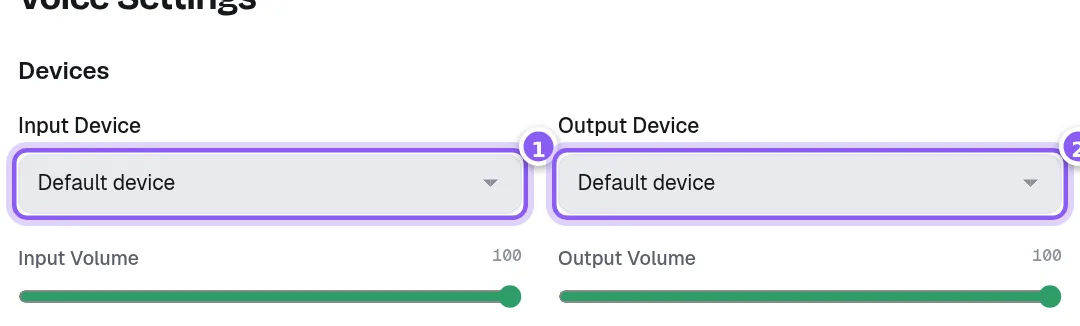
In Voxnup, click your avatar → Settings → Voice and pick your microphone in the Input Device list. If you're not sure, pick Default device; Voxnup then uses whatever microphone is the default in Windows. If the device you picked is no longer connected, Voxnup automatically falls back to the default microphone.
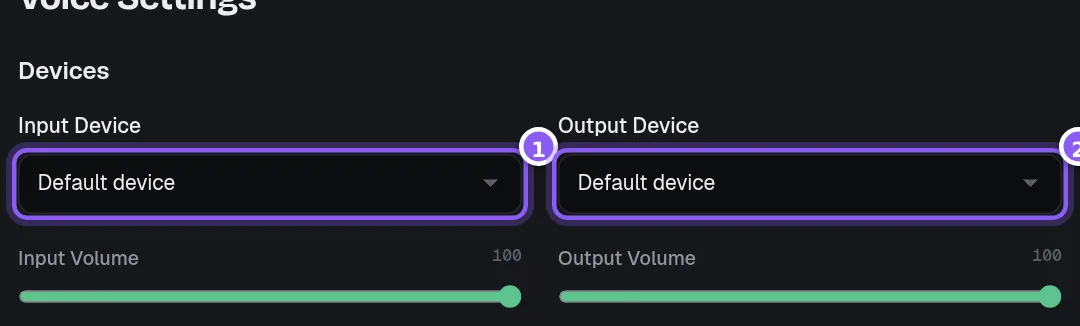
Press Try Again
Press Try Again in the microphone window. If the microphone is found, you'll see "Microphone connected! You can now speak." If you're in a voice room, the microphone switches on without leaving the room. If it's still not found, the message is "The microphone still could not be detected. Check the steps and try again."; in that case close the browser completely and open it again.
Fixing "Microphone unavailable"
Close other apps that use the microphone
Another voice chat or meeting app (e.g. Discord, Teams, Zoom), a recording program or another browser tab with the microphone open may be holding the microphone. Close them. In Windows, a microphone icon in the taskbar shows that some app is using the microphone.
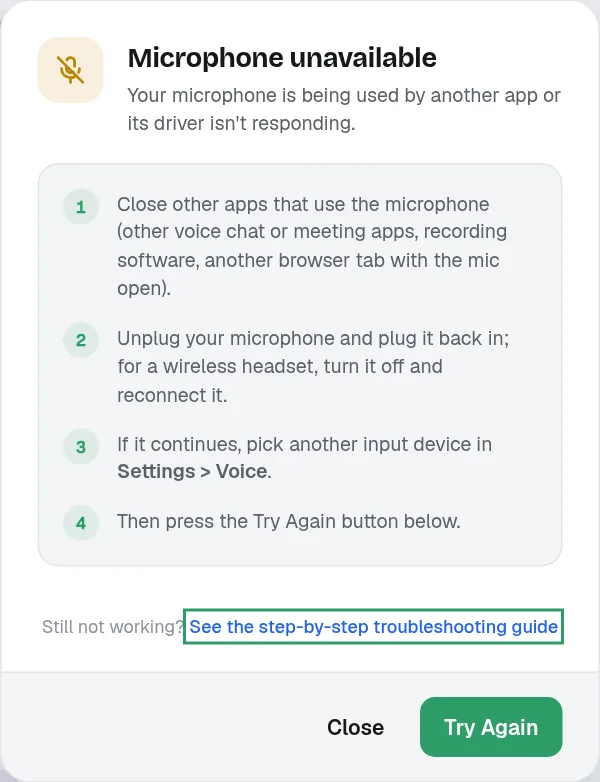
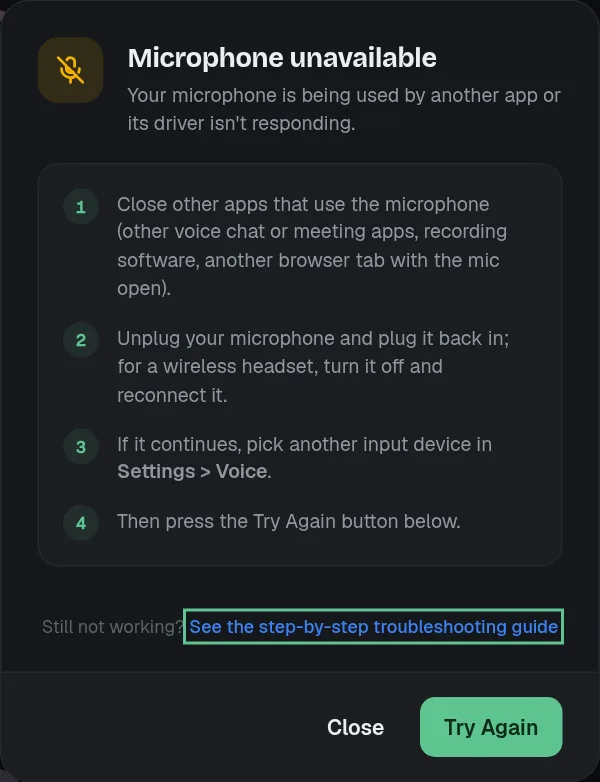
Unplug the microphone and plug it back in
If the driver is stuck, this is usually enough. For a wireless headset, turn it off and reconnect it.
Try another input device
Pick another microphone in Settings > Voice > Input Device, then press Try Again.
Bluetooth headset tip: Windows shows some wireless headsets as two separate devices (e.g. "Headphones" and "Headset Microphone"). In Voxnup, pick the microphone one as input and the headphones one as output.
Frequently asked questions
My microphone works in other programs but not in Voxnup. Why?
Most likely the browser or Windows has microphone access turned off for Voxnup, or a different input device is selected in Voxnup. Check the microphone permission first, then Settings > Voice > Input Device.
Voxnup doesn't see my microphone after I plugged it in. What should I do?
Press Try Again in the microphone window. If the device list doesn't update, reload the page (F5) or restart the desktop app.
Can I join a voice room without a microphone?
Yes. If the microphone can't be accessed you join as a listener: you hear the others but they don't hear you. Click the microphone icon to open the fix window.