
How do I join a voice room on Voxnup? Voice panel buttons
In a channel's room list, one click on a room with a speaker icon is enough; Voxnup joins it right away. Once connected, the voice panel opens at the bottom left: there you mute and unmute your microphone and headphones, share your camera or screen, open the soundboard, and leave the room with the red phone button. You can be in only one voice room at a time.
Joining a voice room
Click a voice room in the channel
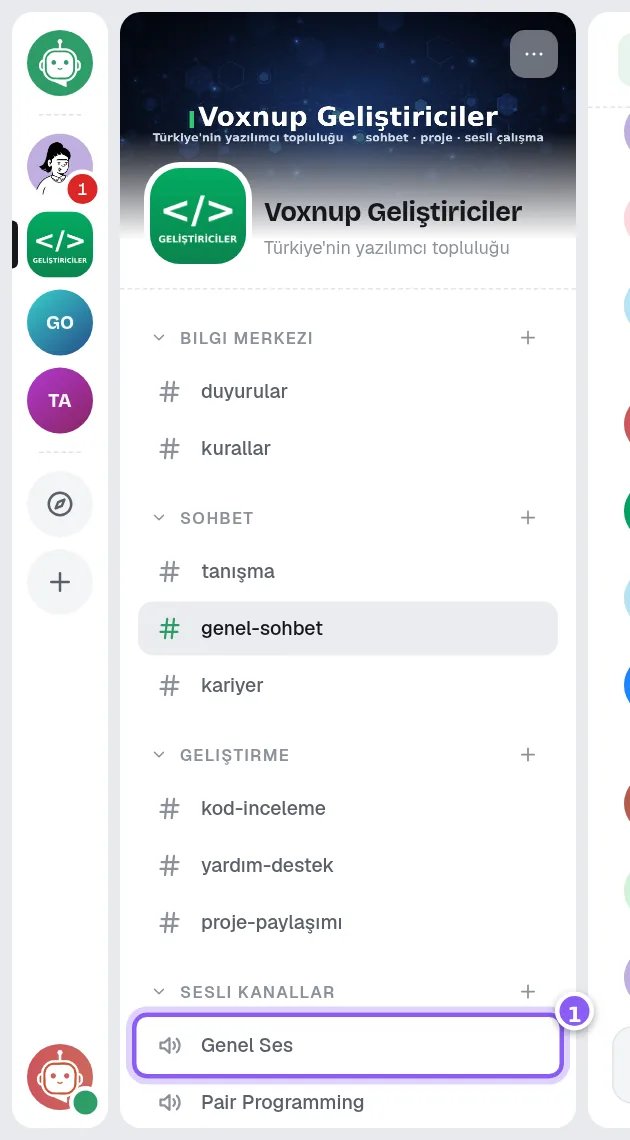
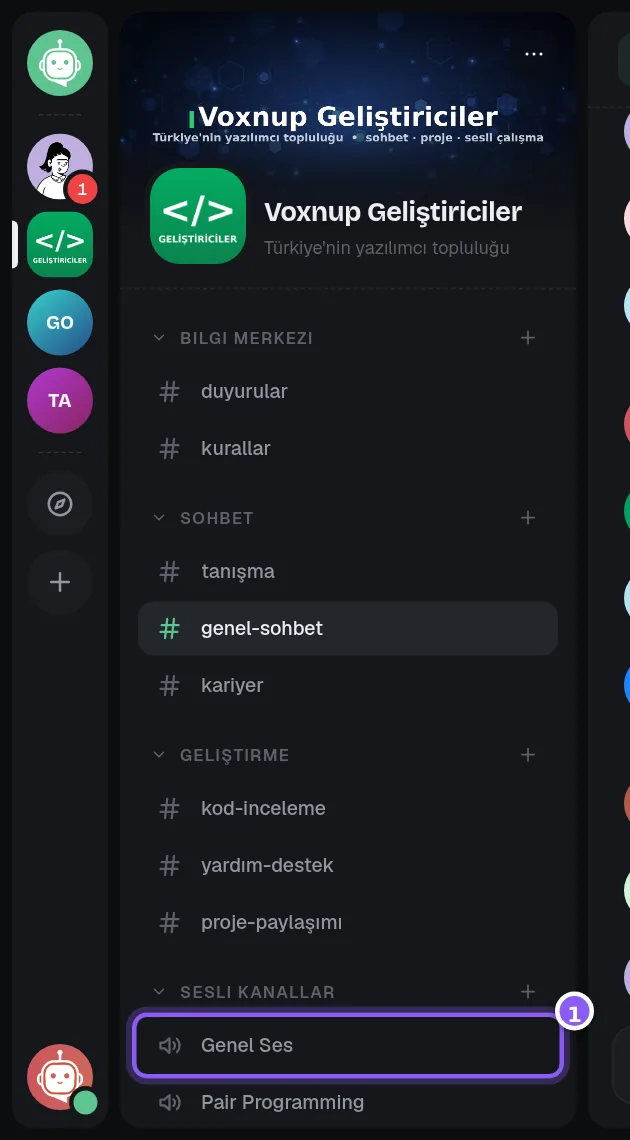
Rooms shown with a speaker icon in the channel's room list are voice rooms. Click one. The first time, the browser asks for microphone permission: choose Allow. The names under a room show who's in it.
Use the voice panel
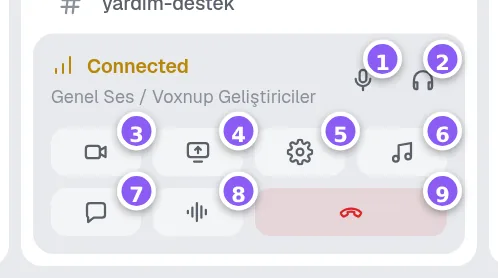
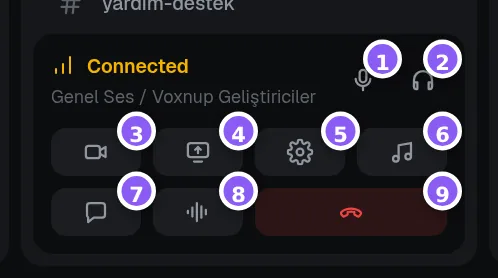
The panel shows the room name and the connection status ("Connected"). Clicking the room name opens the voice room view (the stage where participants and shares are shown).
Voice panel buttons
| No | Button | What it does |
|---|---|---|
| 1 | Microphone | Mutes / unmutes your microphone. Shortcut Ctrl+Shift+M. |
| 2 | Headphones (Deafen) | Silences everyone in the room for you; your microphone turns off too. Shortcut Ctrl+Shift+D. |
| 3 | Share camera | Turns on your camera. See Screen sharing and camera. |
| 4 | Share screen | Shares your screen, a window or a tab. |
| 5 | Share Settings | Computer audio, stream quality, frame rate. |
| 6 | Soundboard | Plays short sounds everyone in the room hears. See Soundboard. |
| 7 | Open Chat | Opens the voice room's text chat. |
| 8 | Toggle Voice Gate | When on, sound below the Input Range isn't sent; when off, your microphone stays open. |
| 9 | End Call | Leaves the voice room. |
If no sound comes from you in a room for the channel's AFK timeout (10 minutes by default), an "Are you there?" warning appears; if you don't press I'm here within 60 seconds, you're moved to the channel's AFK room if it has one (nobody can speak there), otherwise you're removed from the room. Talking, unmuting, or sharing your screen or camera counts as activity. If your connection drops briefly, Voxnup reconnects you to the same room automatically.
Frequently asked questions
I click a voice room but can't get in. Why?
Look at the message on screen: the room may be full, you may not have the Connect permission in that room, or you may be timed out. All messages and fixes: Can't connect to voice.
Can I be in two voice rooms at once?
No. When you click another voice room, you leave the previous one and move to the new one.
Can I chat in other channels while I'm in a voice room?
Yes. As long as the voice panel is open you're in the voice room; you can browse any channel and direct message.