
How do I search old messages?
To search messages, type at least 2 characters in the Search this chat box at the top of the chat (Search channel in channel rooms) and press Enter. The Search results panel opens on the right. You can narrow results with the From, Image, Link, File and Mentions me filters and sort by Newest or Oldest. In channels you can search all rooms or only the room you are in.
Searching
Type in the search box
Click the search box at the top right of the chat (in a narrow window there is a magnifier button instead; press it), type what you are looking for and press Enter.
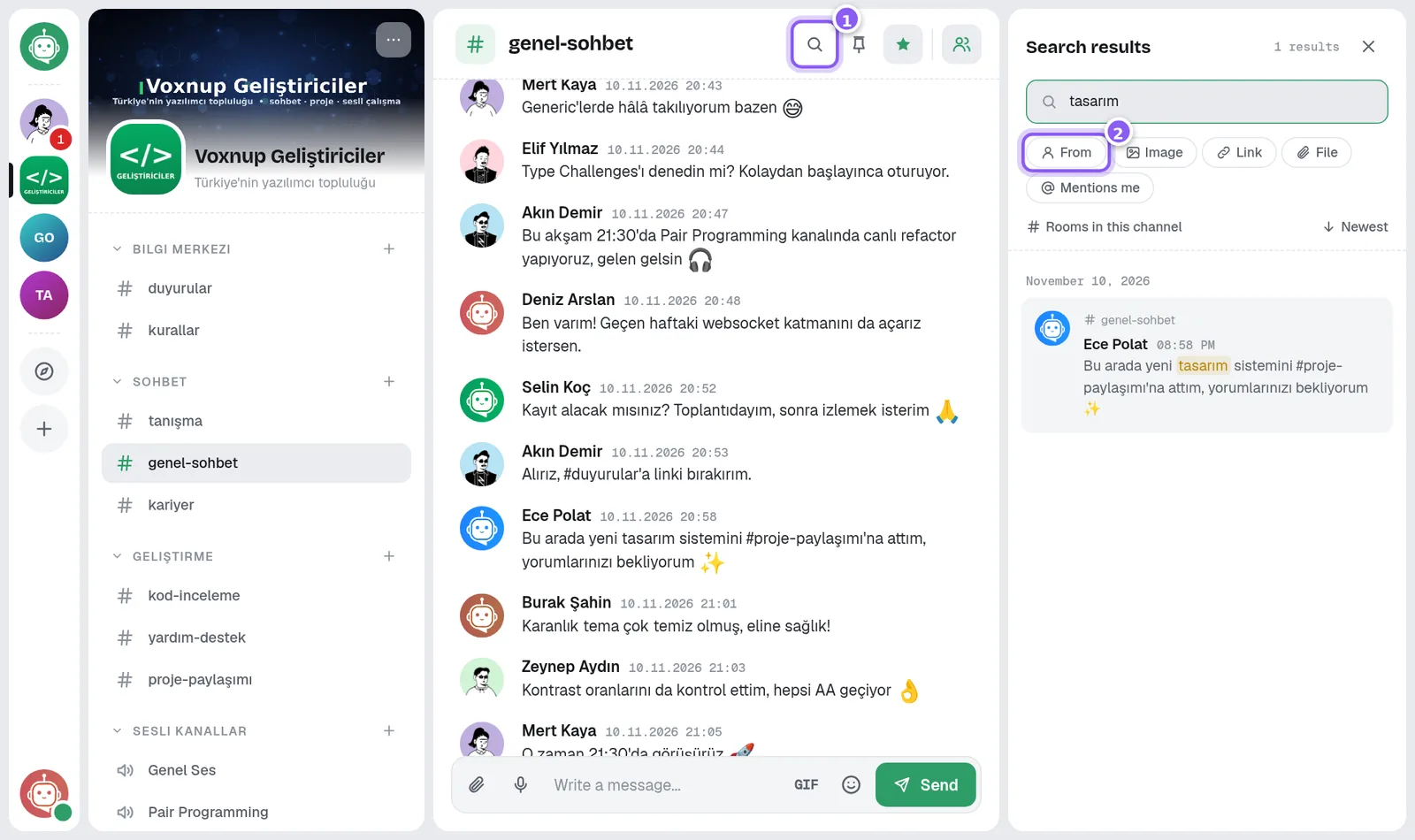
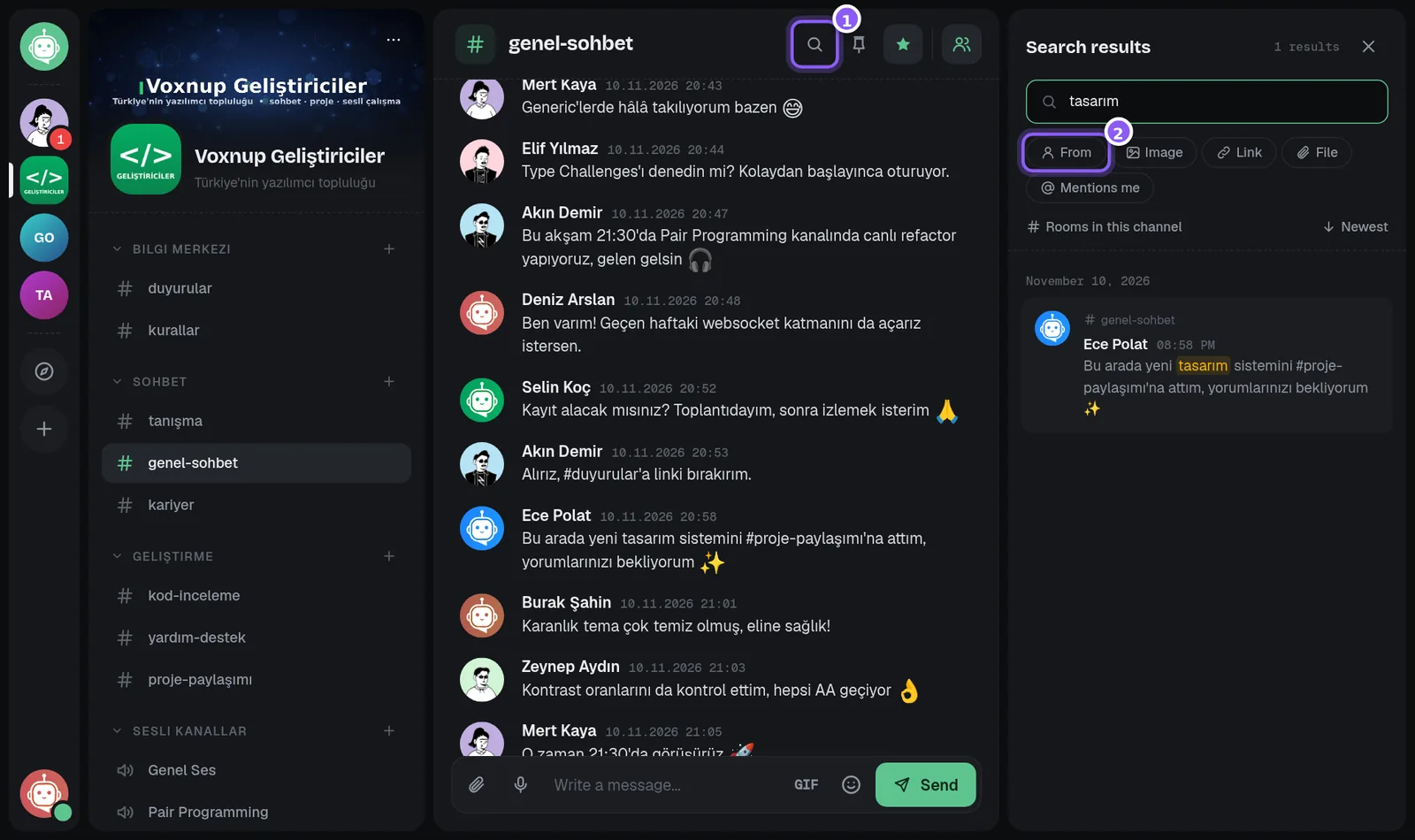
Filter and jump to a message
Filters work on their own too: pick Image without typing anything and you get every image in the chat. Jump on a result takes you to that message in the chat; press Back to latest messages to return.
Filters
| Filter | Shows |
|---|---|
| From | Only messages from the person you pick |
| Image | Messages with images |
| Link | Messages with links |
| File | Messages with file attachments |
| Mentions me | Messages that mention you |
| Scope (channels only) | Rooms in this channel or Only #room |
| Sort | Newest / Oldest |
A channel search only returns messages from rooms you can see and where you have the Read Message History permission.
Frequently asked questions
Why do I see "Type at least 2 characters or pick a filter."?
You can't search with a single character. Type at least 2 characters or pick a filter.
Can I search all my chats at once?
No. The search runs in the direct message, group or channel you are in. Use Ctrl+K to jump to another chat quickly.