
First steps on Voxnup: a tour of the interface
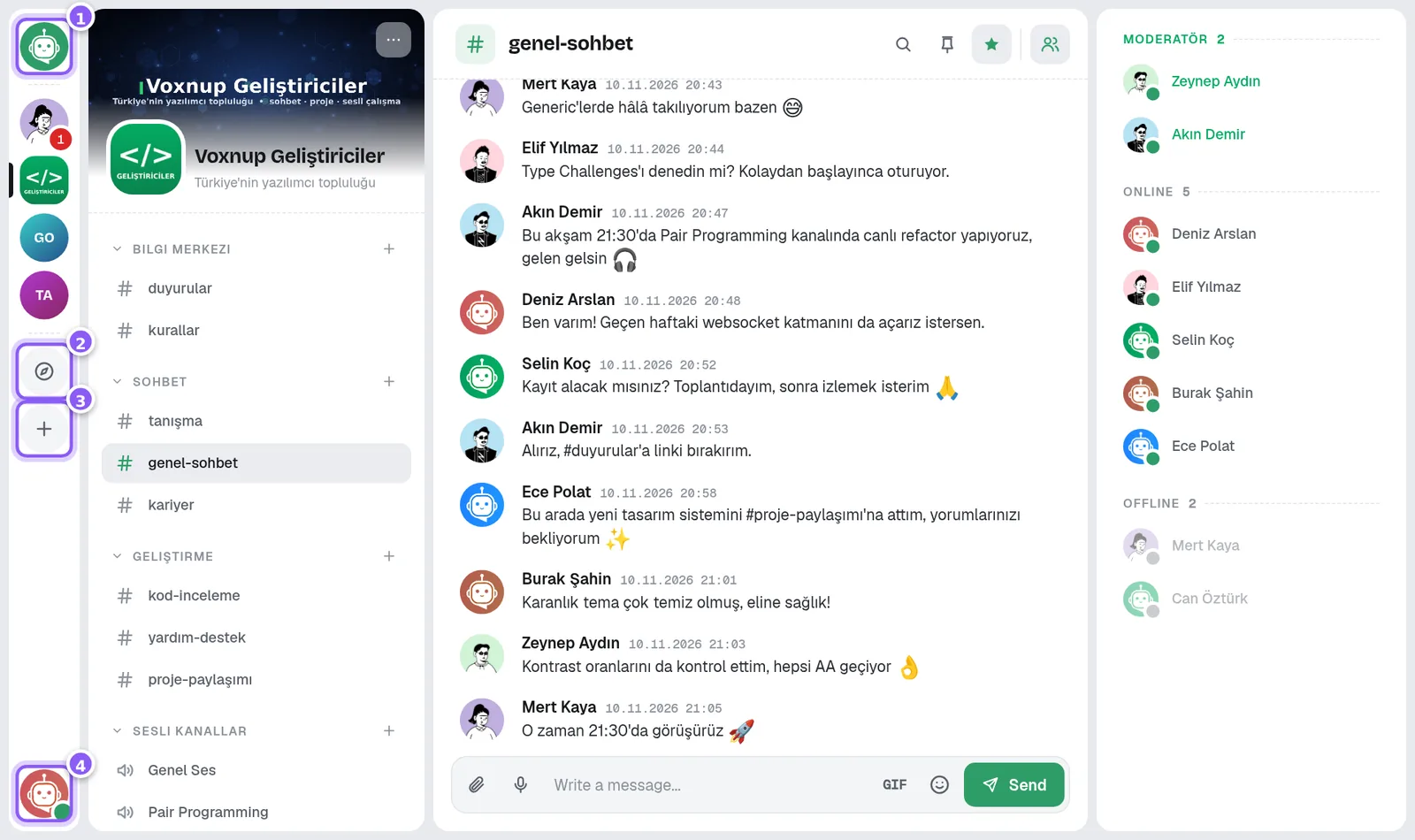
The narrow strip on the far left is the rail: the logo at the top opens Overview; below it are the channels you joined, the compass (Discover Communities) and + (Add Channel). Your own avatar at the bottom opens the settings and status menu. The middle panel shows the rooms of the selected channel or your private chats; the right side shows the chat and the member list.
Parts of the interface
- Overview (the logo on the rail): your friends, private chats and favourites.
- Discover Communities (compass): find and join public channels.
- Add Channel (+): create your own channel or join one with an invite code.
- Your avatar (bottom): change your status, edit your profile, open Settings, log out.
Overview
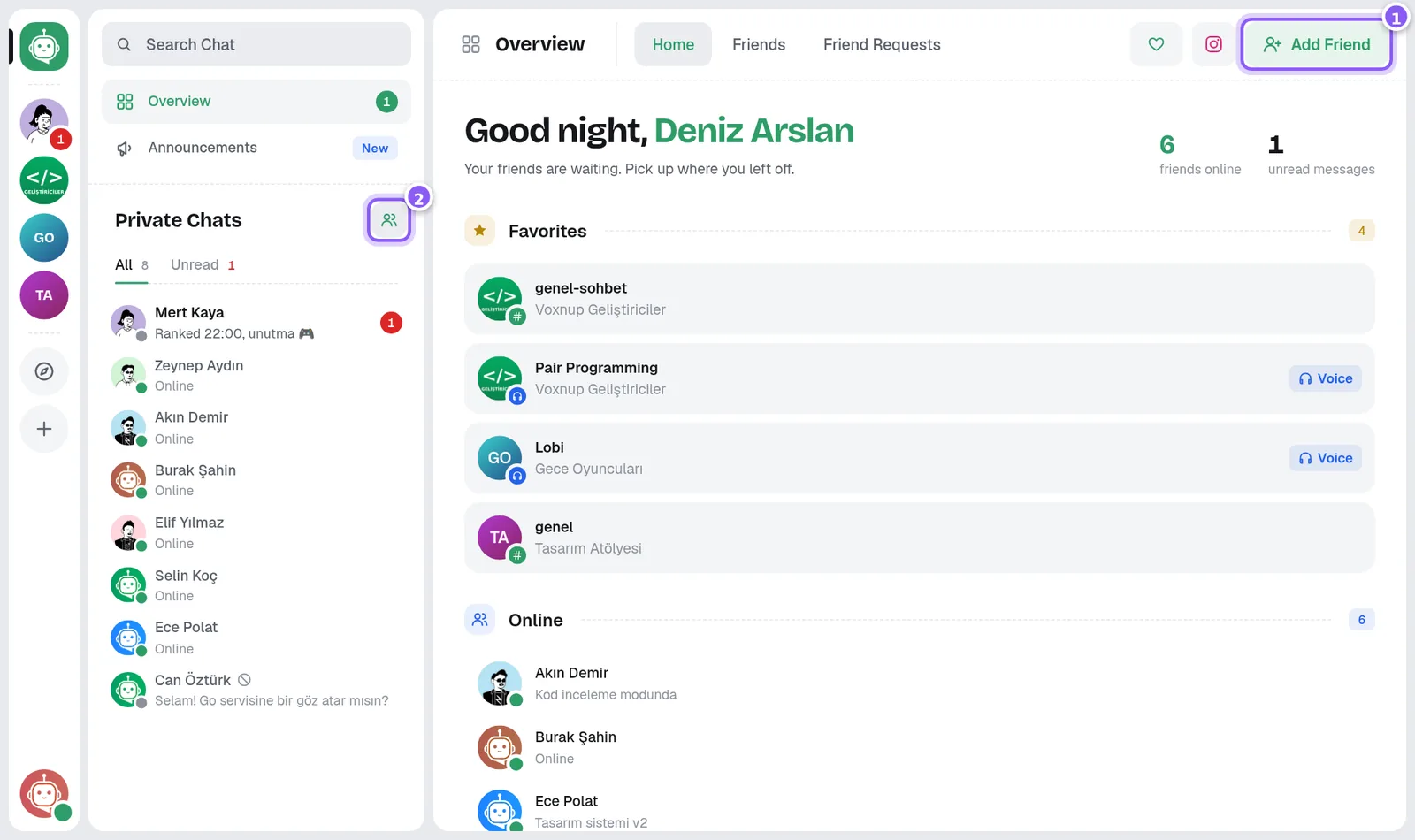
Overview has three tabs: Home (online friends, unread messages and favourites), Friends and Friend Requests. Use Add Friend at the top right to add a friend by username (1). The button next to the Private Chats heading on the left starts a new group chat (2).
What to do in your first 5 minutes
Choose your audio devices
On first launch the Let's set up your audio window asks you to pick your microphone and speakers. If you skipped it, do it in Settings > Voice. See Voice settings.
Edit your profile
Add an avatar, a banner and a status message. See Edit your profile.
Add your friends
Type your friend's username into Add Friend. See Add friends.
Join a channel or create your own
Discover public channels with the compass, join with an invite link, or create your own channel with +. See Create a channel.
Join a voice room
Click a voice room in a channel to join it right away. Microphone, headphones, camera and screen sharing are controlled from the voice panel at the bottom of the left panel. See Join a voice room.
Press Ctrl + K (⌘ + K on Mac) to open the Quick switcher and jump to any chat, person, channel or room by typing its name.
Frequently asked questions
How do I switch to a light theme?
In Settings > Appearance, pick Dark Theme, Light Theme or Dracula Theme and save. See Appearance, language and streamer mode.
Can I change the interface language?
Yes: Settings > Language. Choose Türkçe, English, Deutsch, Русский or Azərbaycanca; the page reloads when you save.