
Theme, language, streamer mode and shortcut settings
Click your avatar at the bottom left and open Settings. In Appearance, pick Dark Theme, Light Theme or Dracula Theme; in Language, pick Türkçe, English, Deutsch, Русский or Azərbaycanca; press Save in both. With Streamer Mode on, desktop notifications, notification sounds and unread badges are hidden.
Theme
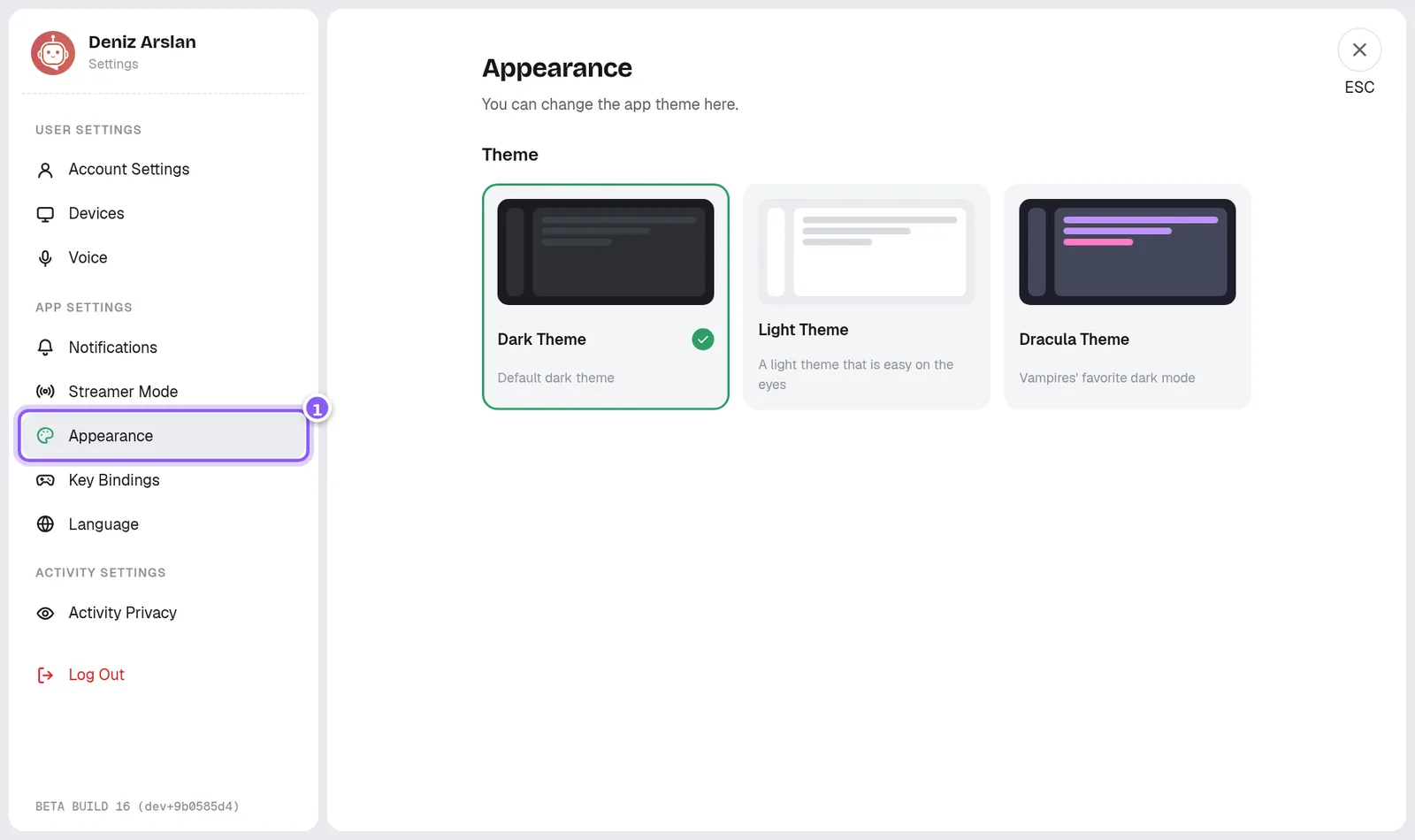
Settings > Appearance has three themes: Dark Theme (default), Light Theme and Dracula Theme. Your choice is previewed immediately; press Save in the bar at the bottom to keep it. If you leave without saving, the previous theme comes back. The theme is saved to your account and applies on all your devices.
Language
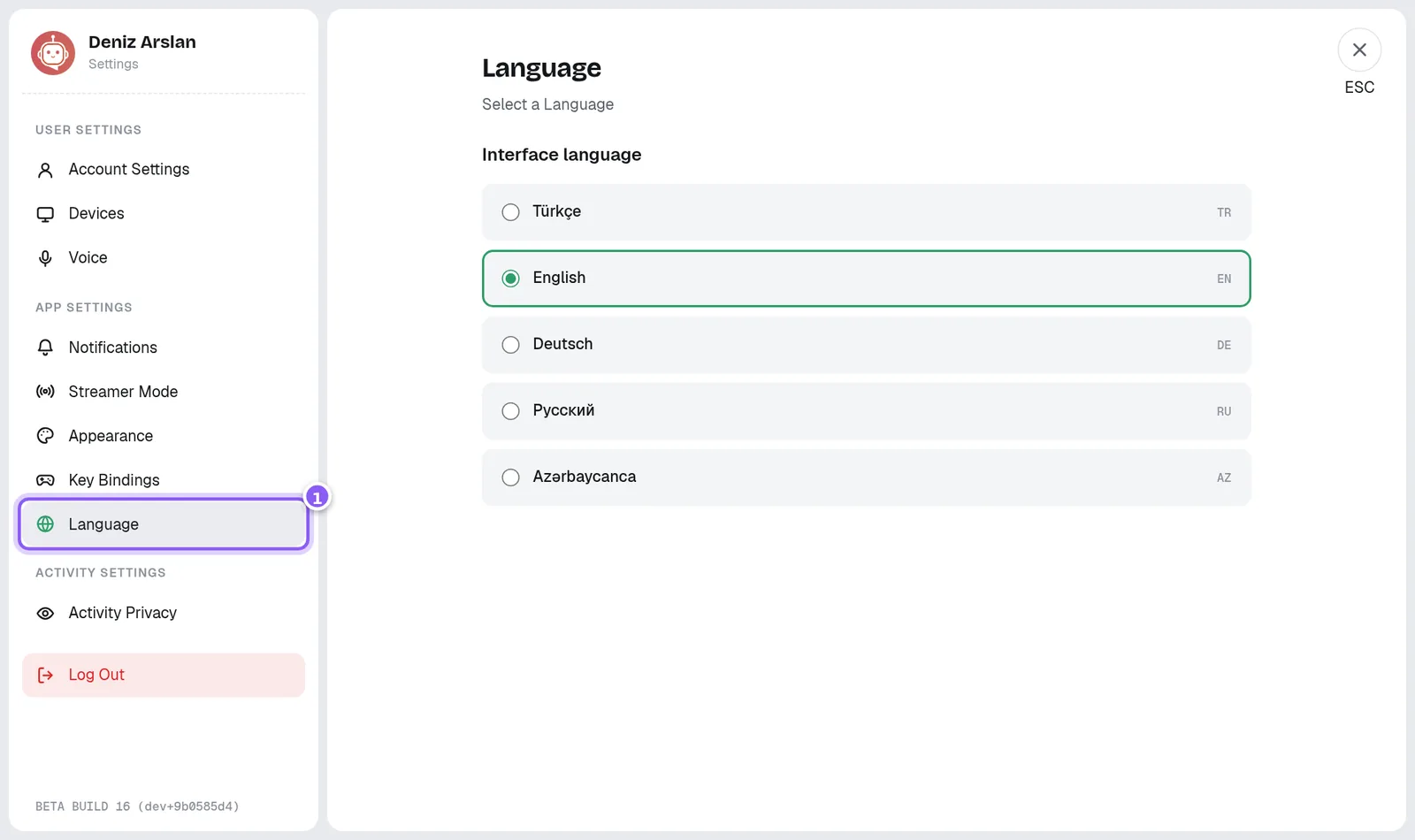
Choose the interface language in Settings > Language and press Save; the page reloads in the new language. Supported languages: Türkçe, English, Deutsch, Русский, Azərbaycanca.
Streamer Mode
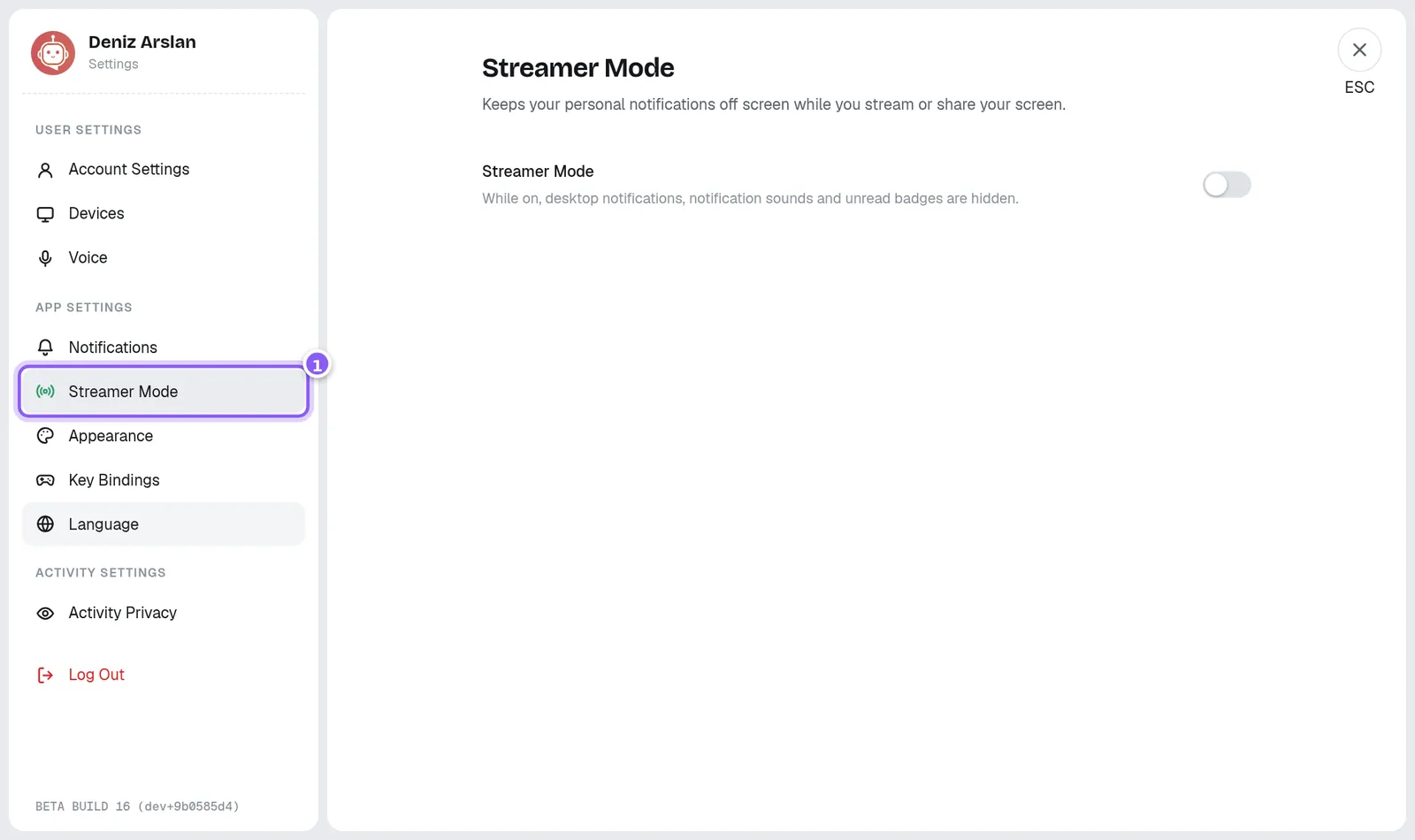
If you don't want your personal notifications to appear while streaming or sharing your screen, turn on Settings > Streamer Mode and save. While it is on, desktop notifications, notification sounds and unread message badges are hidden, and text-to-speech (TTS) messages are not read out. Your messages still arrive; they just aren't shown on screen.
Key bindings (shortcuts)
In Settings > Key Bindings (or Ctrl + Shift + K) you see the shortcuts and change them with the pencil in each row: press the new key combination in the Set Keyboard Shortcut window and press Save. Defaults:
- Open key bindings: Ctrl + Shift + K
- Toggle microphone: Ctrl + Shift + M (while in a voice room)
- Toggle deafen: Ctrl + Shift + D (while in a voice room)
- Push to Talk: not assigned
In the browser, shortcuts only work while the Voxnup tab is open and focused. Shortcuts that also work while the app is in the background, and Push to Talk, need the Windows desktop app. A combination that is already in use, or modifier keys alone such as Ctrl/Shift/Alt, can't be assigned.
Activity Privacy
When Share detected activity in Settings > Activity Privacy is off, the game you play and the music you listen to are not shown to your friends. Game detection only works in the Windows desktop app.
Frequently asked questions
Does the light/dark switch on voxnup.com also change the app?
No. The theme switch on the landing and help pages only affects those pages. The app's theme is chosen in Settings > Appearance.
My shortcut doesn't work
In the browser, make sure the Voxnup tab is selected; the microphone and deafen shortcuts only work while you are in a voice room. Check whether another program uses the same combination.