
How do I edit my profile? (display name, avatar, banner, about me)
Click your avatar at the bottom left and choose Settings. In Account Settings > Profile Settings, change Display Name (2–32 characters), Status Message (up to 50 characters), Avatar (JPG or PNG, up to 10 MB, square), Banner Color, Banner Image (JPG, PNG or WEBP, up to 10 MB) and About Me (up to 190 characters). Press Save in the bar that appears at the bottom.
Edit your profile
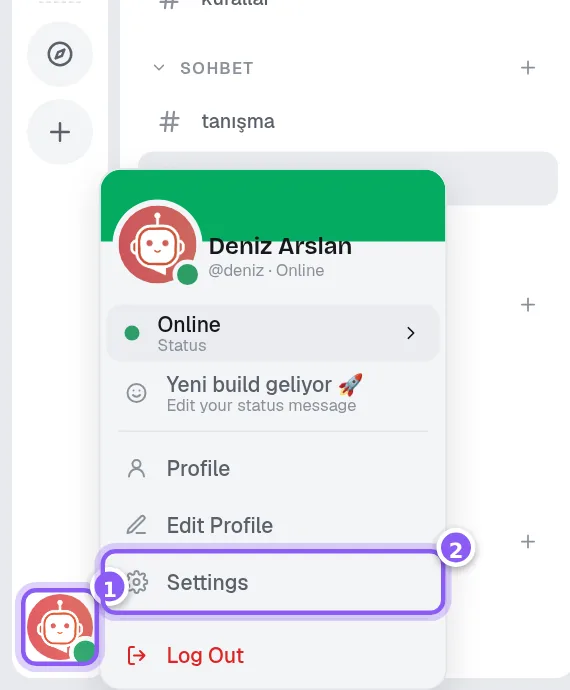
Open Settings
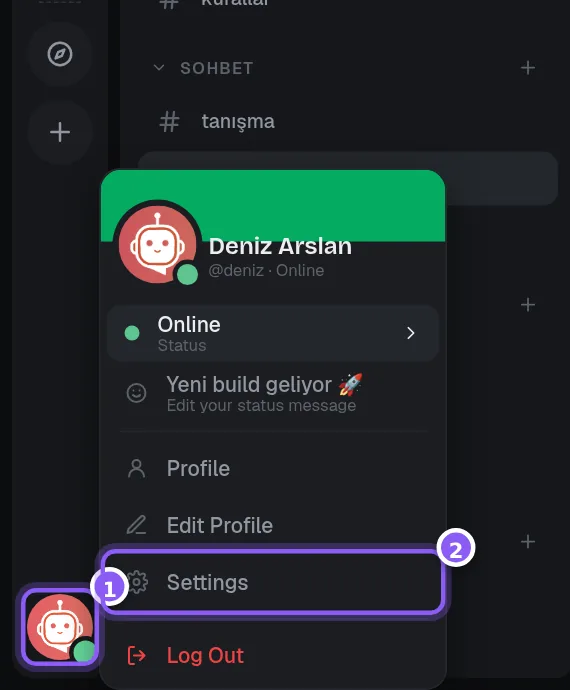
Click your own avatar at the bottom of the left rail (1) and choose Settings in the menu (2). Edit Profile in the same menu opens the same screen.
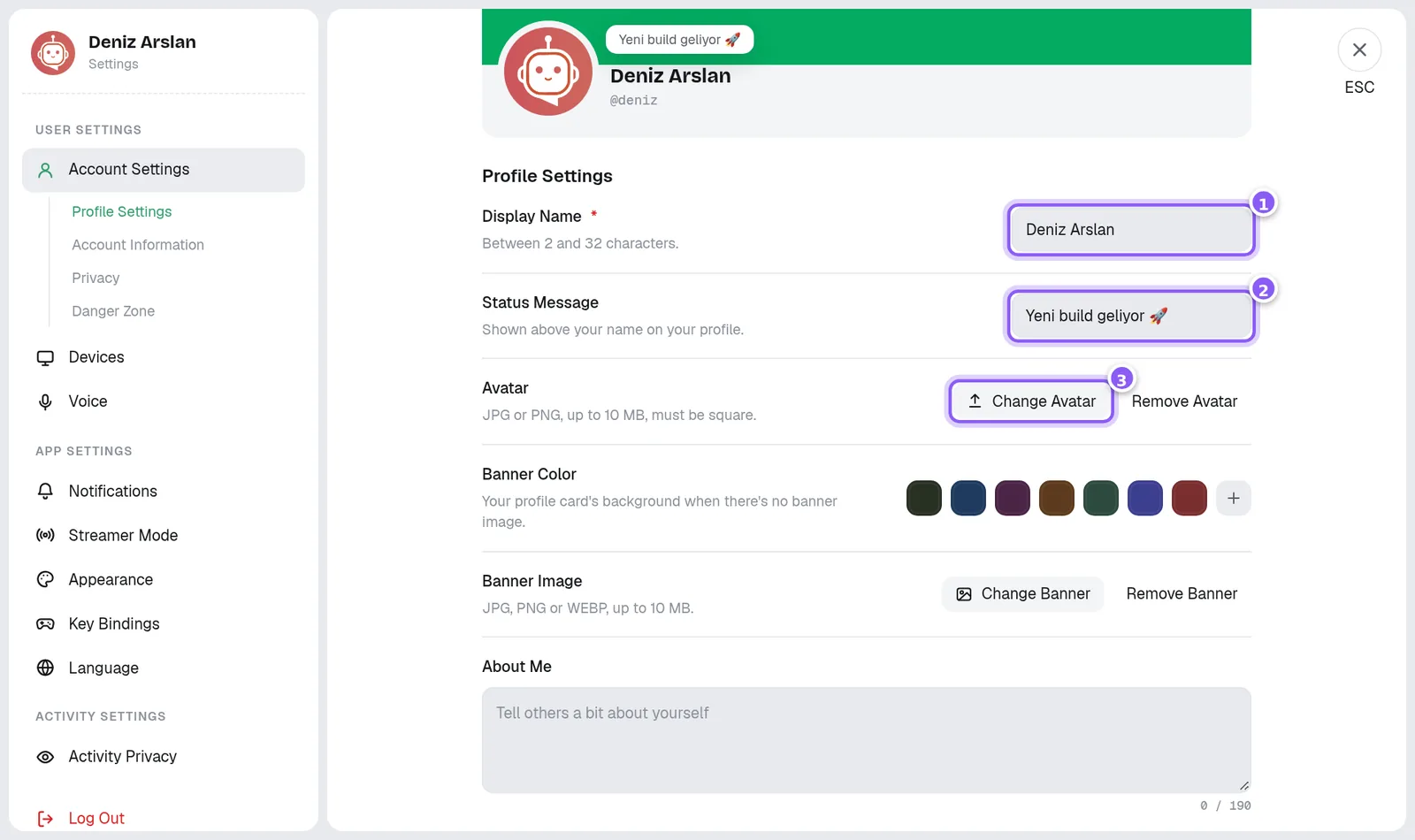
Change the fields in Profile Settings
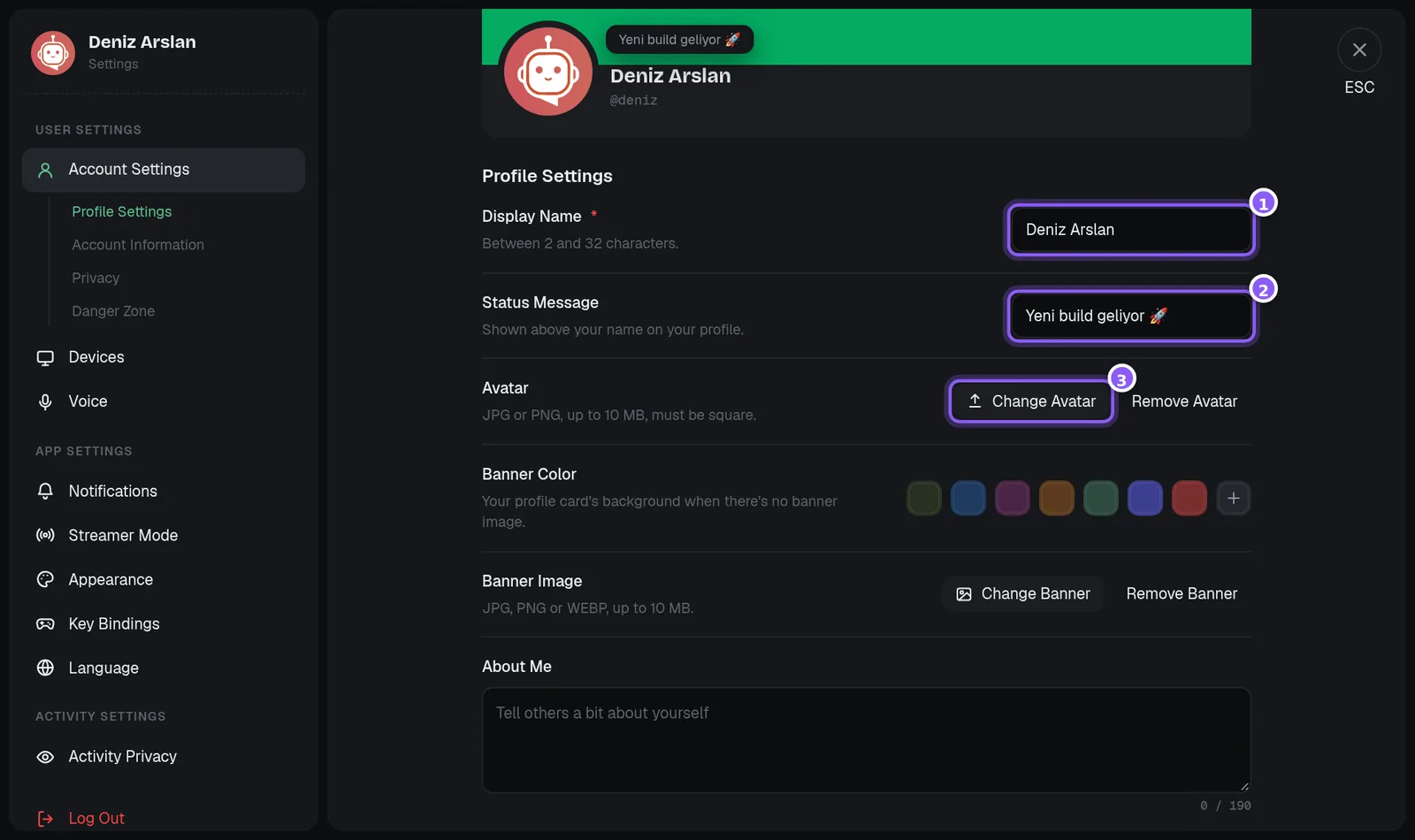
The Account Settings tab opens. The preview card at the top shows your changes right away.
Press Save
As soon as you change something, the You have unsaved changes. bar appears at the bottom. Save applies your changes, Reset undoes them. If you try to close without saving you get a warning; closing a second time discards the changes.
Fields and limits
| Field | Rule |
|---|---|
| Display Name | 2–32 characters, required. The name everyone sees. Your username (starting with @) is separate and can't be changed. |
| Status Message | Up to 50 characters. Shown above your name on your profile. To remove it, clear the field and save. |
| Avatar | JPG or PNG, up to 10 MB, must be square (width = height). If it isn't square you get a warning that the image must be square. |
| Banner Color | One of 7 preset colours or Custom color. Used as the profile card background when there is no banner image. |
| Banner Image | JPG, PNG or WEBP, up to 10 MB. |
| About Me | Up to 190 characters. Clear it and save to remove it. |
To use a different name in one channel you don't need to change your display name: set a channel nickname instead. See Channel nickname.
Frequently asked questions
Can I change my username?
No. Your username (@username) is chosen at sign-up and can't be changed in Settings. What you can change is your display name.
How do I remove my avatar?
Press Remove Avatar, confirm, and press Save. Your avatar goes back to the default image.
When do others see my changes?
As soon as you save. Open chat lists update on their next refresh.