
How do I use the soundboard?
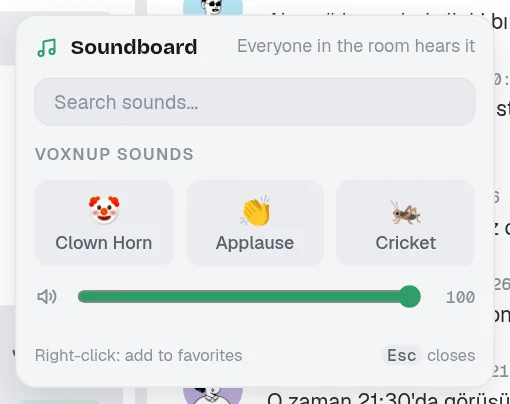
In a voice room, press the music note icon in the voice panel: the Soundboard opens ("Everyone in the room hears it"). When you click a sound, everyone in the room hears it. Voxnup's built-in sounds, the sounds uploaded to the channel you're in and your favorites are listed here; right-click a sound to add it to favorites. After each play you have to wait 10 seconds. Sounds are added to a channel from the channel settings.
Opening the soundboard
Button (6) in the voice panel, or the same button in the voice room view. Search for sounds with the search box, and adjust the soundboard volume on your side with the slider at the bottom.
Rules
- After playing a sound you must wait 10 seconds; if you try earlier, it says "The soundboard is cooling down: you can play again in … s."
- To use the soundboard you need the Use Sound Panel permission in the room; without it the button doesn't appear.
- Adding sounds to a channel needs the Create Expressions permission. Up to 10 sounds per channel; MP3, WAV or OGG, up to 3 MB. A trim tool opens for sounds longer than 5 seconds. Details: Channel emoji, stickers and soundboard.
Frequently asked questions
Can I upload my own sound?
Sounds are uploaded to a channel, not to a person. If you have permission, add them from the Soundboard tab in channel settings; the Manage link on the soundboard takes you there.
Why is there no soundboard button?
You don't have the Use Sound Panel permission in this room. Ask the channel admin.