
How do I share my screen or turn on my camera on Voxnup?
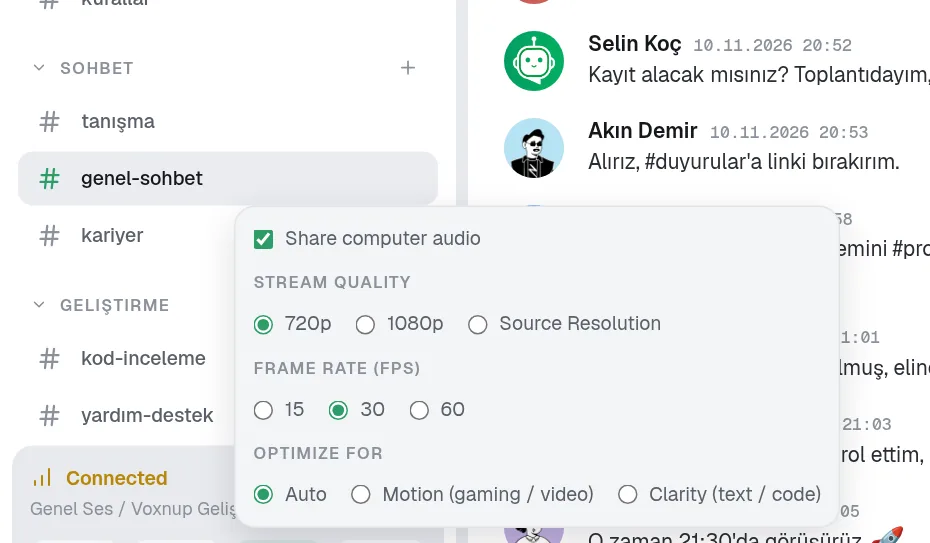
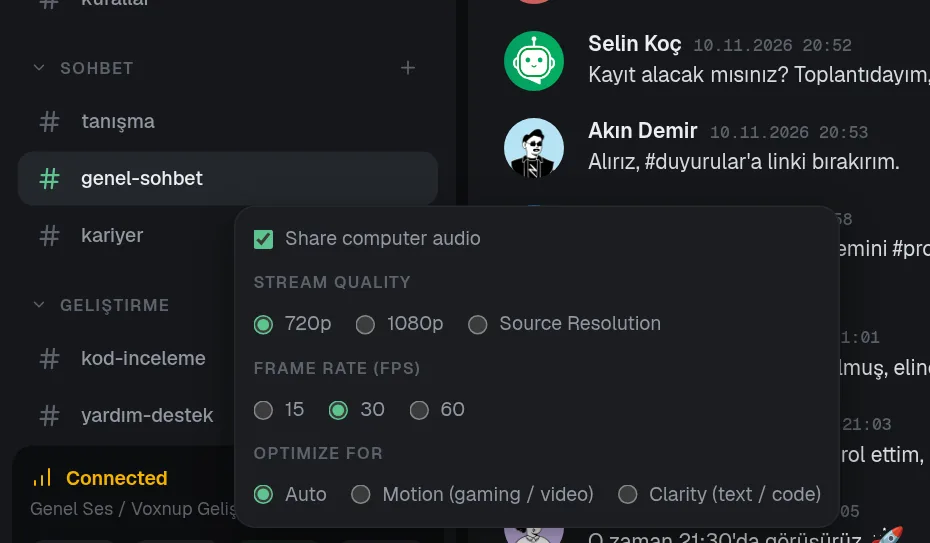
In a voice room, share your screen with the screen button and your camera with the camera button in the voice panel. The gear icon's Share Settings has options for sharing computer audio, Stream Quality (720p default, 1080p, 1440p, 4K, Source Resolution), Frame Rate (15, 30 default, 60 FPS) and Optimize for (Auto, Motion, Clarity); changes apply while you're sharing. Screen sharing is free. To see the buttons you need the Video permission in the room.
Sharing your screen
Press the screen button in the voice panel
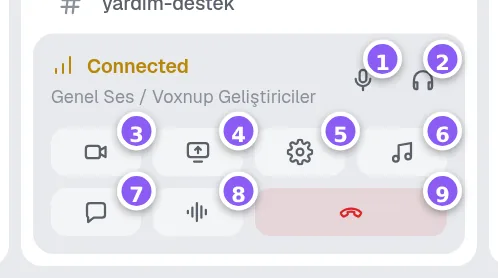
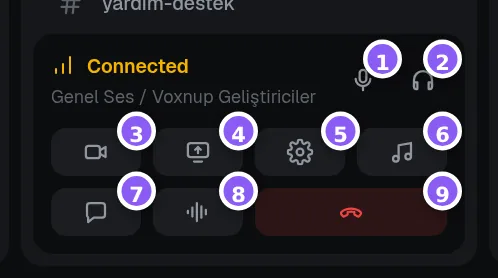
Button (4) in the voice panel. The browser asks what to share: the entire screen, a window or a tab. For your computer's audio to come through as well, pick the entire screen or a tab and tick the audio box; details: No audio in screen share.
Adjust Share Settings
The gear (5). The higher the Stream Quality and Frame Rate (FPS), the more internet speed you need. The chosen quality is an upper limit: if your screen is 1080p, picking 4K still sends 1080p and nothing is upscaled. If your connection can't keep up, quality drops automatically and the share keeps going. Pick Motion (gaming / video) for games and videos, Clarity (text / code) for code and text. Settings are remembered on this device.
Stop sharing
Press the screen button again, or use the browser's "Stop sharing" bar.
Turning on your camera
Press camera button (3) in the voice panel; the first time, the browser asks for camera permission. If the camera can't be started, Voxnup tells you why: Camera not working. For a video call in a direct message, use the camera button in the chat header: Voice and video calls.
Watching shares
Click the room name in the voice panel to open the voice room view. There you can switch between grid and focus view and go Full Screen. A "LIVE" tag appears next to the name of whoever is sharing their screen.
Frequently asked questions
Why don't I see the screen share button?
You don't have the Video permission in the room. Ask the channel admin: Roles and permissions.
Is screen sharing paid?
No. All options, including 4K, 60 FPS and source resolution, are free.