
Status and status message: Online, Away, Busy, Invisible
Click your avatar at the bottom of the left rail, hover the Status row and pick Online, Away, Busy, Invisible or In Game. Busy mutes notification sounds and desktop notifications; with Invisible you appear offline to others but can keep using everything. Change your status message with Set a status message in the same menu.
Change your status
Click your avatar
Click your own avatar at the bottom of the left rail.
Open the status submenu and choose
Hover the status row at the top (for example Online) and pick your new status from the list.
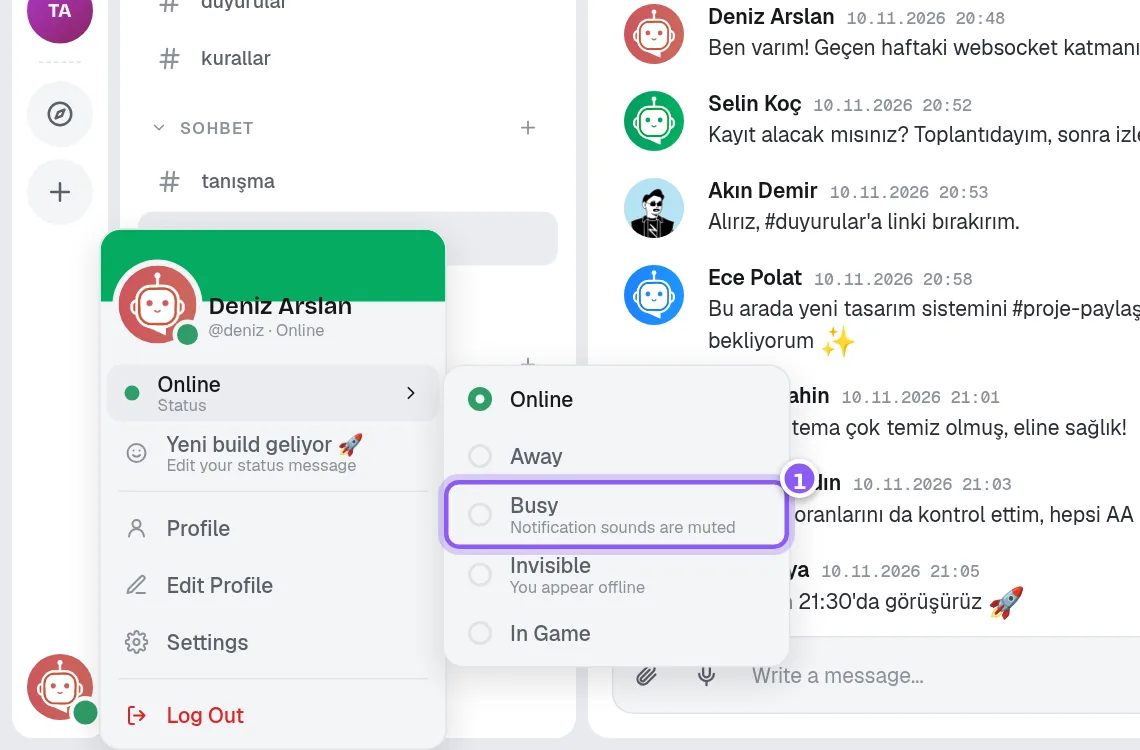
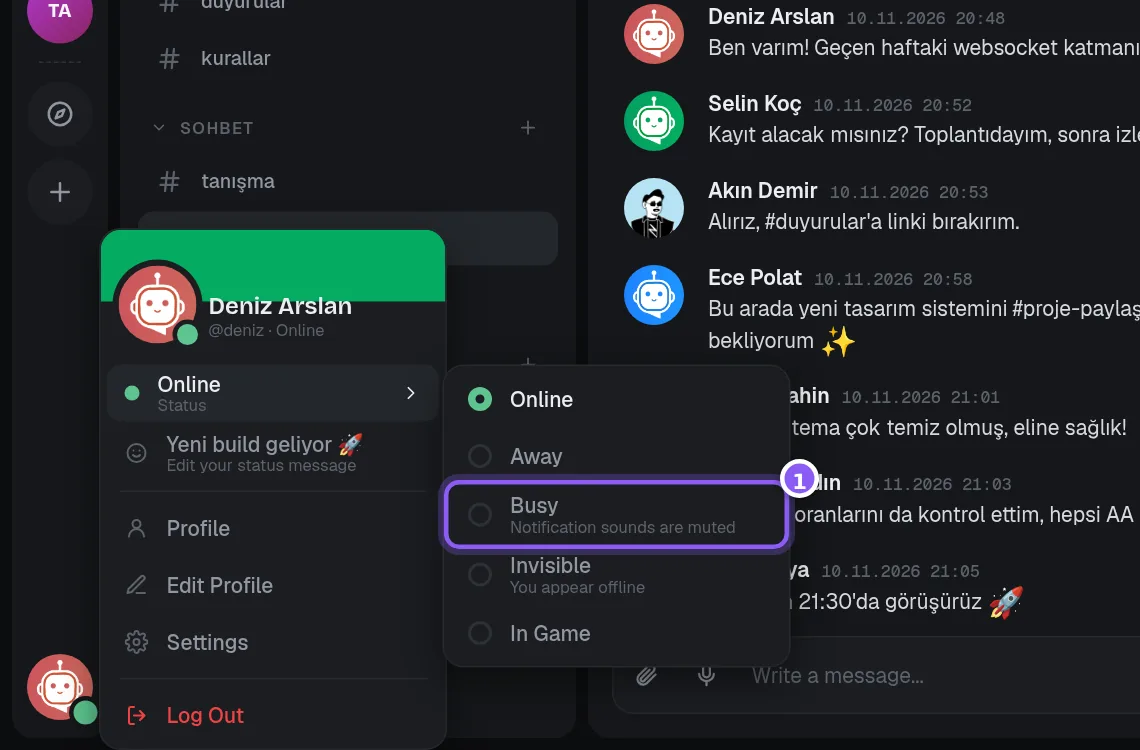
What do the statuses do?
| Status | Effect |
|---|---|
| Online | Everyone sees you online. |
| Away | Shows others you are away. It is not set automatically; you choose it. |
| Busy | Notification sounds and desktop notifications are muted, and text-to-speech (TTS) messages are not read out. |
| Invisible | You appear offline to others. Messaging, voice rooms and incoming calls work normally. |
| In Game | Shows that you are playing a game. |
Status message
Set a status message in the avatar menu (Edit your status message if you already have one) opens the Status Message field in Settings. Type up to 50 characters and press Save. To remove the message, clear the field completely and save.
In the Windows app, if game detection is on and you are online, the game you are playing shows on your profile and your status dot turns into a gamepad icon. You can turn this sharing off in Settings > Activity Privacy.
Frequently asked questions
Can I send messages while invisible?
Yes. Invisible only hides your status dot; you can send messages, join voice rooms and receive calls.
What happens to my status when I close the app?
Your chosen status is saved to your account. When you disconnect, others see you offline; when you reconnect you are back to the status you chose.