
How do I change my notification settings?
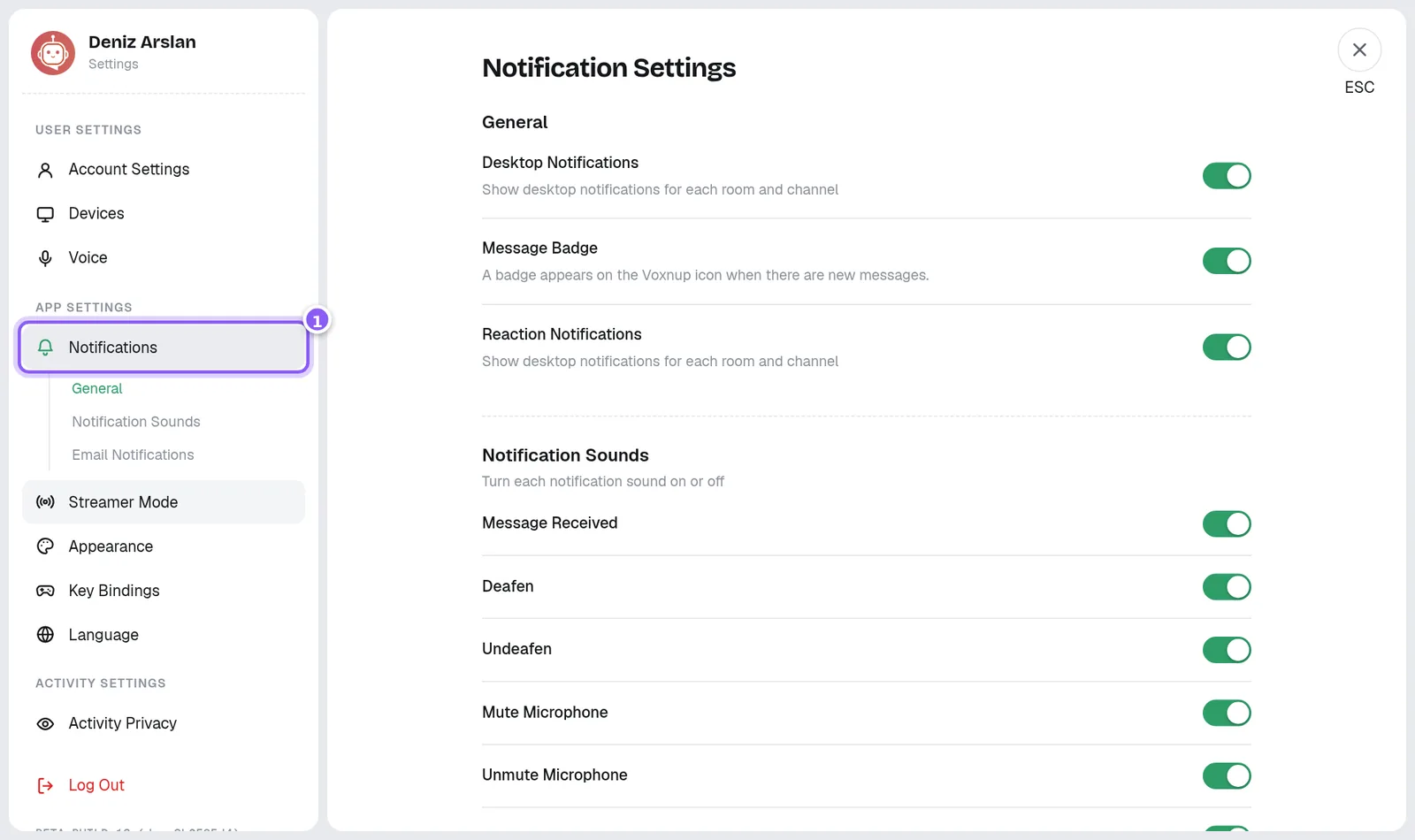
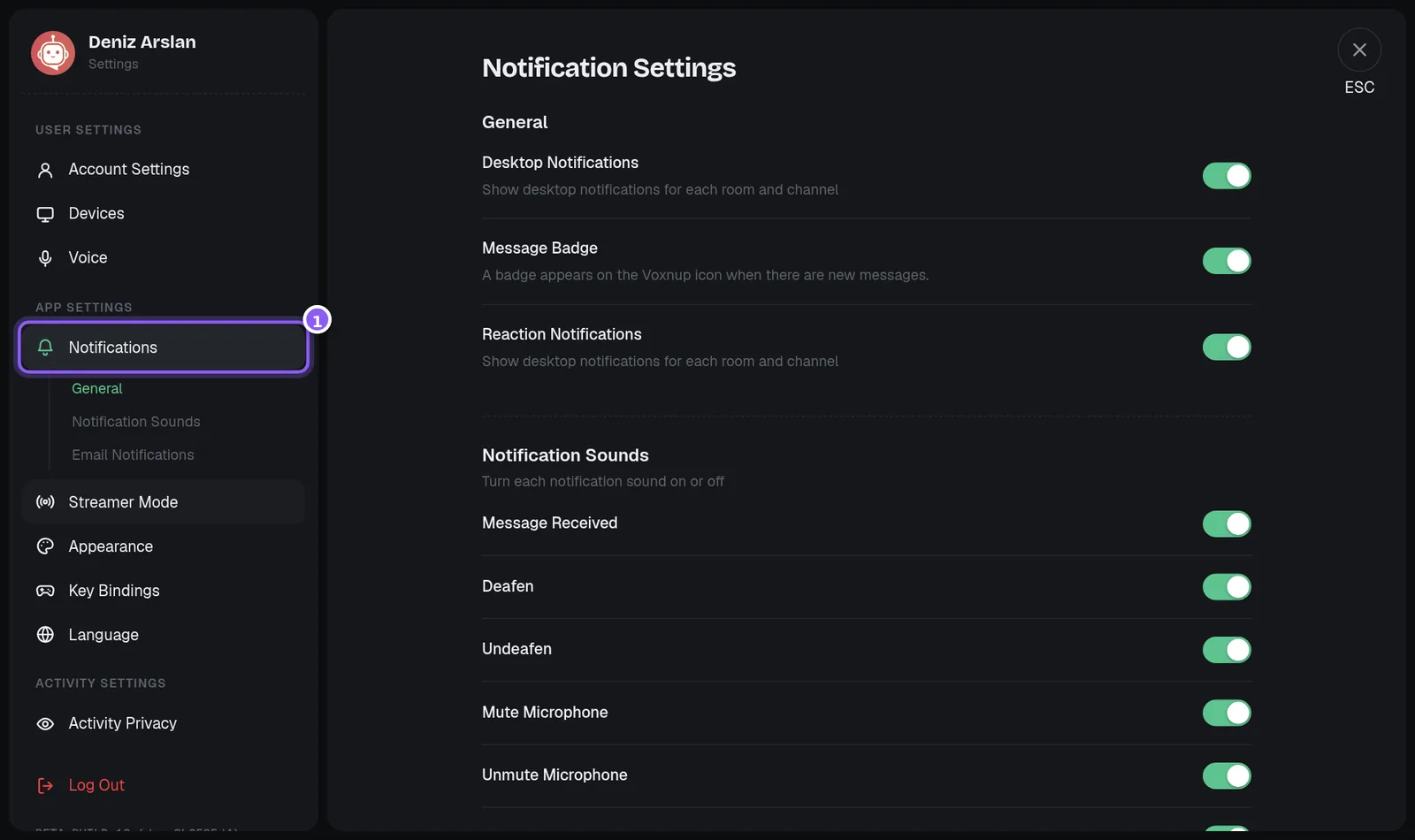
Notification settings are under your avatar at the bottom left → Settings → Notifications. There you find the Desktop Notifications, Message Badge and Reaction Notifications switches; a separate switch for each sound under Notification Sounds (message, calls, joining a room, screen sharing…); and Announcement and Update Emails under Email Notifications. Save your changes with Save on the bar at the bottom. Setting your status to Busy or turning on Streamer Mode silences notifications temporarily.
Opening notification settings
Open Settings
Click your own avatar at the bottom of the left rail and choose Settings.
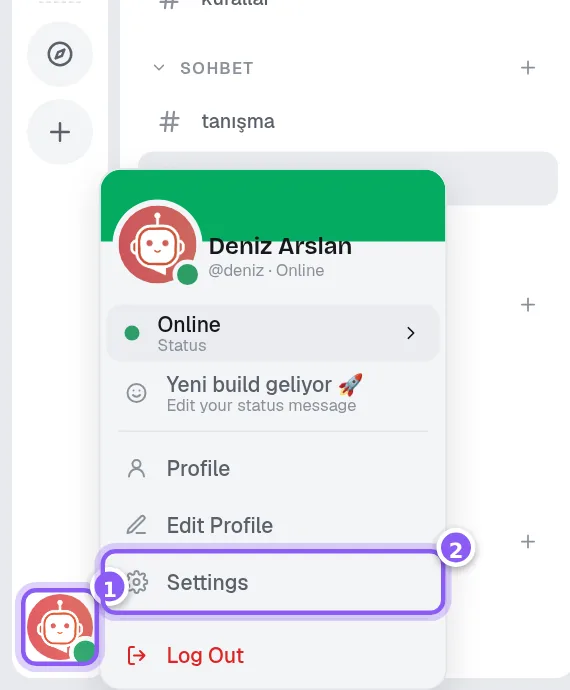
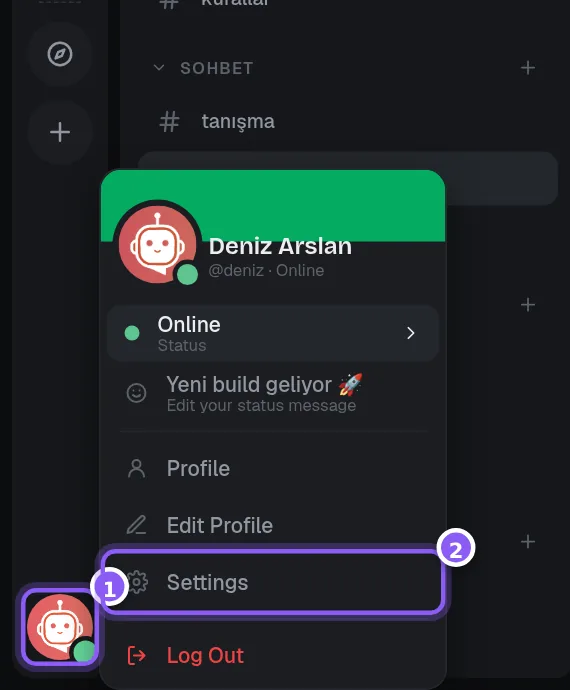
Go to the Notifications tab and make changes
Click Notifications under APP SETTINGS on the left. When you change a switch, the "You have unsaved changes." bar appears at the bottom; press Save.
What do the settings do?
| Setting | What it does |
|---|---|
| Desktop Notifications | Shows an operating system notification for new messages and when you are mentioned. In the browser you are asked for notification permission the first time. |
| Message Badge | Shows a badge on the Voxnup icon while you have unread messages. |
| Reaction Notifications | Shows a "… reacted to your message" notification when someone reacts to your message. |
| Channel notifications | What notifies you in channels without their own setting: Each channel's default (picked by the channel's admins, Only @mentions in most), All messages or Only @mentions. Saved as soon as you pick it. Room, category and channel menu settings take priority. |
| Sound pack | The style of notification sounds: Voxnup (default) or the older sounds in Voxnup (legacy). Picking one plays a sample. Incoming and outgoing call sounds are the same in both packs. |
| Notification Sounds | Turns the Message Received, incoming/outgoing call, microphone and deafen, room join/leave/move, screen sharing, push-to-talk and disconnect sounds on or off one by one. |
| Announcement and Update Emails | Sends Voxnup announcements by email. |
Silencing notifications temporarily
- Busy status: your avatar → Status → Busy. Desktop notifications and notification sounds go quiet.
- Streamer Mode: Settings → Streamer Mode. While on, desktop notifications, notification sounds and unread badges are hidden. Use it so notifications don't pop up on screen while you stream.
- A single room, category, channel, chat or person: right-click it and mute it for a while; see Channel, category, room and people notifications.
Frequently asked questions
I'm not getting desktop notifications.
Check in order: is Desktop Notifications on; is your status something other than Busy; is Streamer Mode off; has your browser granted voxnup.com notification permission (lock icon in the address bar → Notifications → Allow); is Windows Focus / Do not disturb off? For channel messages, also check the room, category or channel notification setting: with Only @mentions selected, or while muted, ordinary messages don't notify. If you muted a person, you don't get notifications from them.
Do my notification settings apply on my other devices?
The notification switches are saved to your account and apply wherever you sign in. Browser notification permission, however, has to be granted separately in each browser.