
Active sessions and signing out of devices
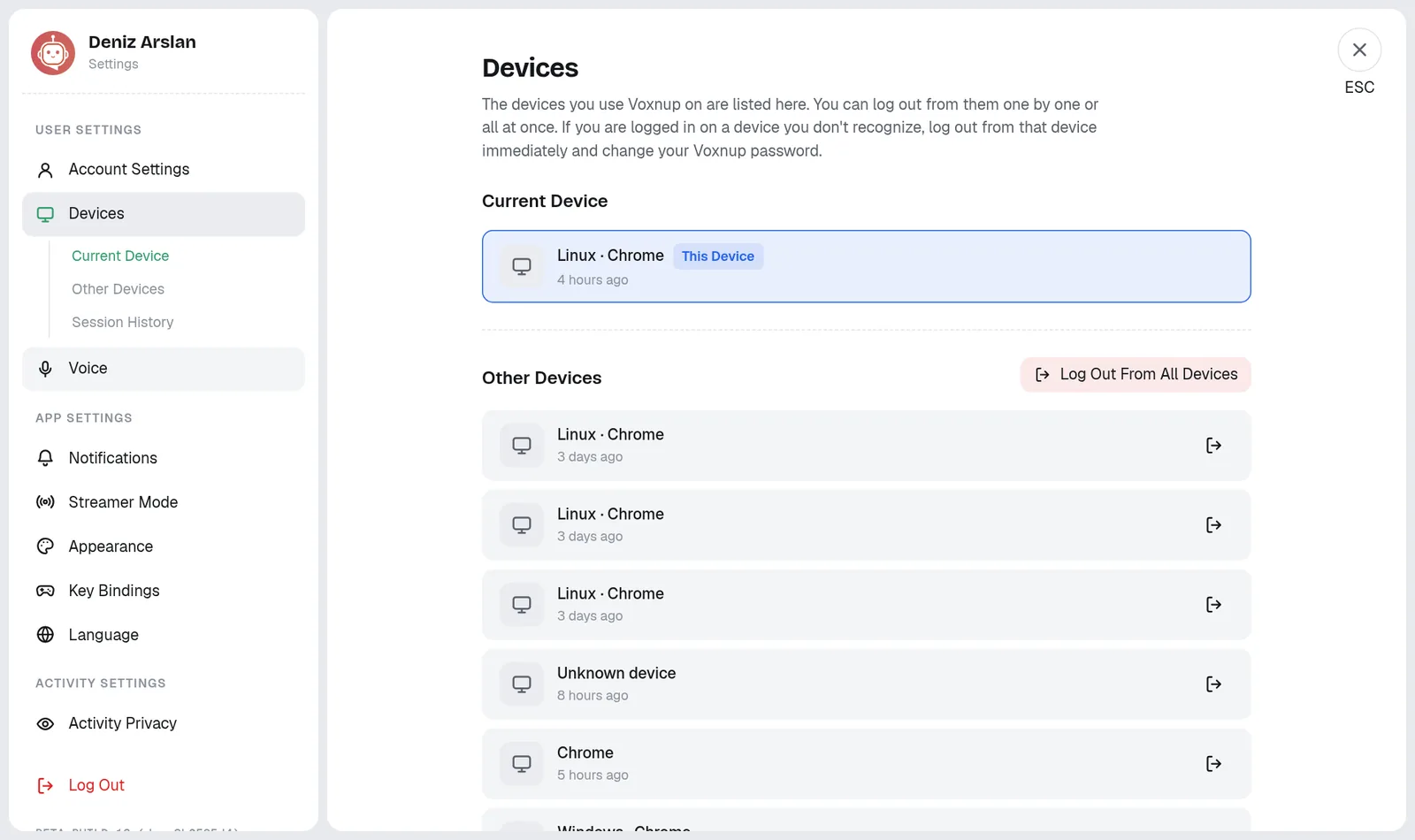
Settings > Devices lists your Current Device, Other Devices and the last 3 months of Session History. Use the sign-out button in a device's row to sign out of just that device, or Log Out From All Devices to sign out of every device except the one you are using now.
The Devices page
Click your avatar at the bottom left, choose Settings and switch to the Devices tab. Each row shows the operating system, browser or app, the approximate location if available, and when it was last used. The device you are using is labelled This Device.
Sign out of one device
Find the device
Find the device you want to sign out of in the Other Devices list.
Press the sign-out button in its row
Press the sign-out icon on the right and confirm Log Out From Device. The session on that device closes right away.
Sign out of all devices
Log Out From All Devices in the Other Devices heading closes every session except the device you are using now.
If you see a device you don't recognise
- Sign out of that device right away (or use Log Out From All Devices).
- Change your password; this also signs you out everywhere.
- Turn on two-factor authentication.
Frequently asked questions
Why is the location wrong or empty?
The location is estimated from the IP address used to sign in. On mobile data, VPNs and company networks a different city may show, or no location at all.
How far back does Session History go?
The last 3 months, up to 30 entries.