
Channel, category, room and people notifications
You set notifications right where they happen: right-click a channel room, a category header, the channel icon in the left rail, or a chat in your private chats list. In Notification Settings pick what notifies you (All messages, Only @mentions, Nothing); with Mute you silence it for 15 minutes, 1 hour, 8 hours, 24 hours or until you turn it back on. A muted place shows no unread count, but you still hear about it when someone mentions you. To stop notifications from a person, right-click them and turn on Mute Messages. Muting doesn't block anyone; messages keep arriving.
Muting a room, category or channel
Right-click and hover over Mute
Right-click a channel room and choose Mute Room, right-click a category header and choose Mute Category, or open the channel icon in the left rail (or the ⋯ button on the channel banner) and choose Mute Channel.
Pick how long
15 minutes, 1 hour, 8 hours, 24 hours or Until I turn it back on. Muted rooms and categories look faded in the list with a crossed-out bell; their unread count and the dot on the channel icon are hidden. When the time is up they return to normal without a page reload.
Unmuting
In the same menu press Unmute Room, Unmute Category or Unmute Channel; next to it you see when the mute ends.
Choosing what notifies you
Open Notification Settings
Hover over Notification Settings in a room's or category's menu, or Notifications in a channel's menu, and pick:
- All messages: sound, desktop and phone notification on every message.
- Only @mentions: when someone mentions you, one of your roles, or everyone with @everyone.
- Nothing: no notifications, even when you're mentioned.
- Use category default / Use channel default / Channel default: uses the setting one level up; the one in effect is shown next to it.
Which setting applies: the room's own, then the category's, then the channel's; if none is set, Settings → Notifications → Channel notifications, and if that is "Each channel's default", the default the channel's admins picked (Only @mentions in most channels).
Suppressing @everyone and role mentions
The channel's Notifications menu has Suppress @everyone and @here and Suppress role mentions. Turn them on and those mentions don't notify you or add an @mention badge; you still hear about it when you're mentioned by name.
Muting a private chat or group
Right-click the chat
In your private chats list, right-click a person or a group and pick a duration under Mute Conversation. A muted chat's unread count isn't added to the total badge and your phone isn't notified. In a group you can also choose Only @mentions under Notification Settings.
Muting a person
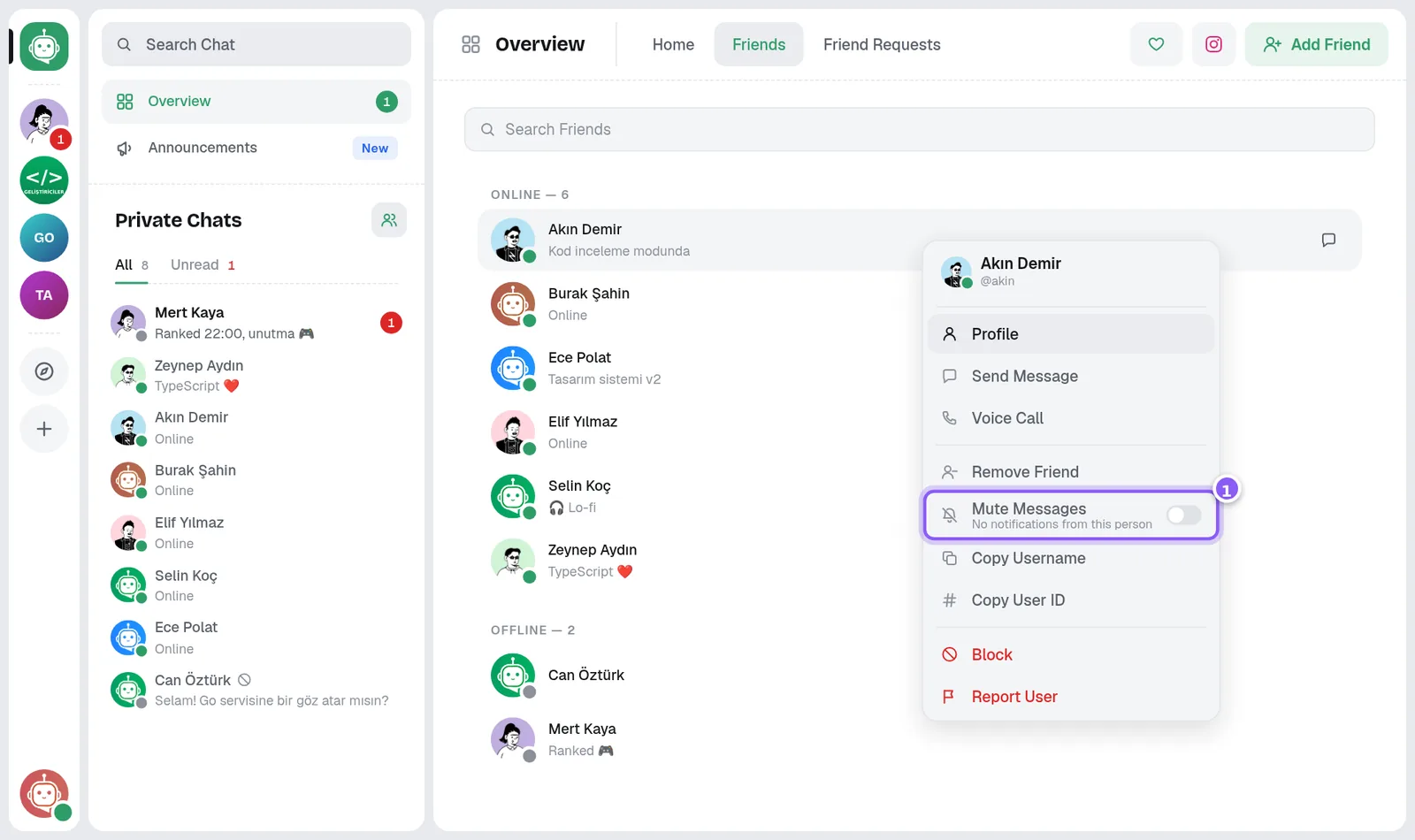
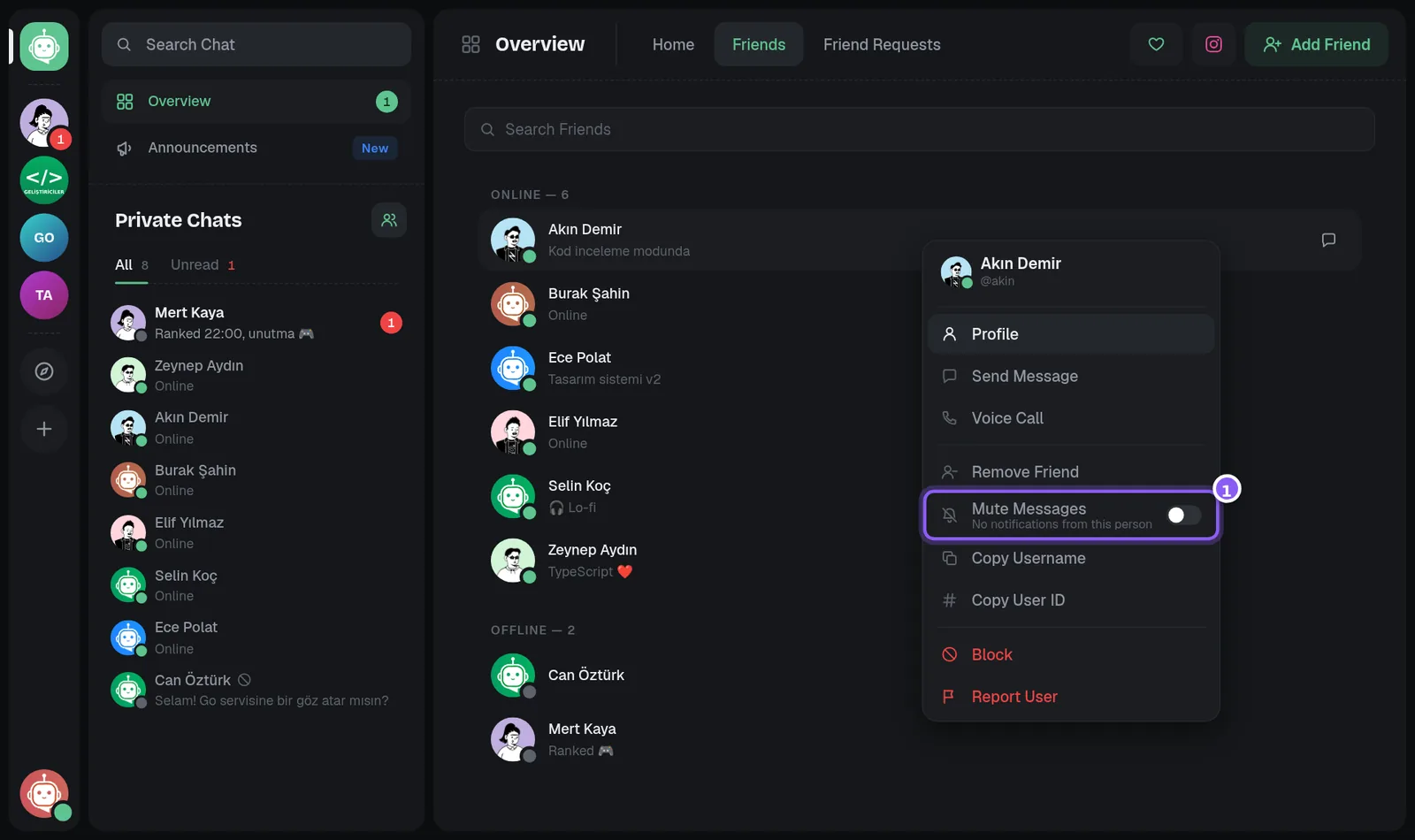
Right-click the person and turn on Mute Messages
Right-click the person in your friends list, your private chats list or a channel's member list, and turn on the Mute Messages switch ("No notifications from this person").
Room, category, channel and chat settings are saved to your account and apply on your phone and other computers at the same time. Muting a person is saved only in this browser/device.
Frequently asked questions
Can I mute a single room or group?
Yes. Right-click the room or group and pick a duration under Mute Room / Mute Conversation. To silence a whole category, right-click its header.
Someone mentioned me in a muted room. Why was I notified?
Muting stops the unread count and ordinary message notifications; mentions that are about you still notify. To silence those too, choose Notification Settings → Nothing in the same place.
What's the difference between muting and blocking?
A muted person can keep messaging you; you just don't get notified. A blocked person can't message or call you. See Blocking a user.